


Better Memory Cache
Keep the WordPress object cache in Redis, with compression, clean flushing and a site that keeps working when Redis is down. Free, with Pro from $1 a month.
On this page31 sections
- Overview
- Requirements
- Install
- First steps
- Connection settings
- Settings in wp-config.php
- Performance
- Cache groups
- Dashboard and toolbar
- Logs
- Tools
- WP-CLI
- Multisite
- Free and Pro
- Buy Pro
- Enter the license key
- Sites on a key
- Move Pro to another site
- When a yearly plan ends
- Upgrade
- Cluster, Sentinel and replicas
- Analytics and the key browser
- Prefetching and priming
- Email alerts and the log file
- REST API, New Relic and OpenTelemetry
- When Pro is off
- External services and your data
- Turn off and uninstall
- Troubleshooting
- Changelog
- Need help?
This guide covers installing and using Better Memory Cache by Quintaphon (version 1.0.0), a free plugin that keeps the WordPress object cache in Redis, and Better Memory Cache Pro, the paid add-on sold in yearly and lifetime plans for 1, 3, 10 or unlimited sites. Use it to connect Redis, turn the cache on, tune it, read its numbers, and buy and manage a Pro license.
Tip
The cache does nothing until it is turned on. After installing, test the connection under Connection, then click Turn on the cache on the Dashboard. See First steps.
Overview
WordPress keeps options, posts, terms, users and many plugin results in its object cache. Without a persistent cache that cache is rebuilt from the database on every request. Better Memory Cache keeps it in Redis, so most of those reads come from memory:
- Faster pages: far fewer database queries, with values packed and compressed so Redis holds more.
- Safe by design: no lost option updates, clean flushes inside Redis, and a site that keeps working when Redis is down.
- Clear numbers: a dashboard and a toolbar menu show the hit ratio, Redis time and memory.
- Fits your host: PhpRedis, Relay or a built-in client, TLS, unix sockets, multisite and WooCommerce.
The free plugin works on as many sites as you like. Better Memory Cache Pro is an add-on plugin that unlocks more with a license key. See Free and Pro.
Requirements
| Item | Needed |
|---|---|
| WordPress | 6.1 or newer (tested up to 7.2). Multisite networks work. |
| PHP | 7.4 or newer. The PhpRedis or Relay extension is faster; without one, the built-in client works. |
| Redis | A Redis server your site can reach. Redis 6.2 or newer is best; older versions work but flush less efficiently. |
| User | An administrator |
| Pro | The free plugin, Better Memory Cache Pro and a license key |
Install
- Download better-memory-cache.zip.
- In WordPress, go to Plugins > Add New Plugin > Upload Plugin, choose the ZIP, then click Install Now and Activate.
- Open Object Cache in the admin menu.
Using another Redis plugin? Deactivate it first so it removes its object-cache.php. Better Memory Cache reads the WP_REDIS_* constants many hosts set in wp-config.php, so the connection is often already filled in.
First steps
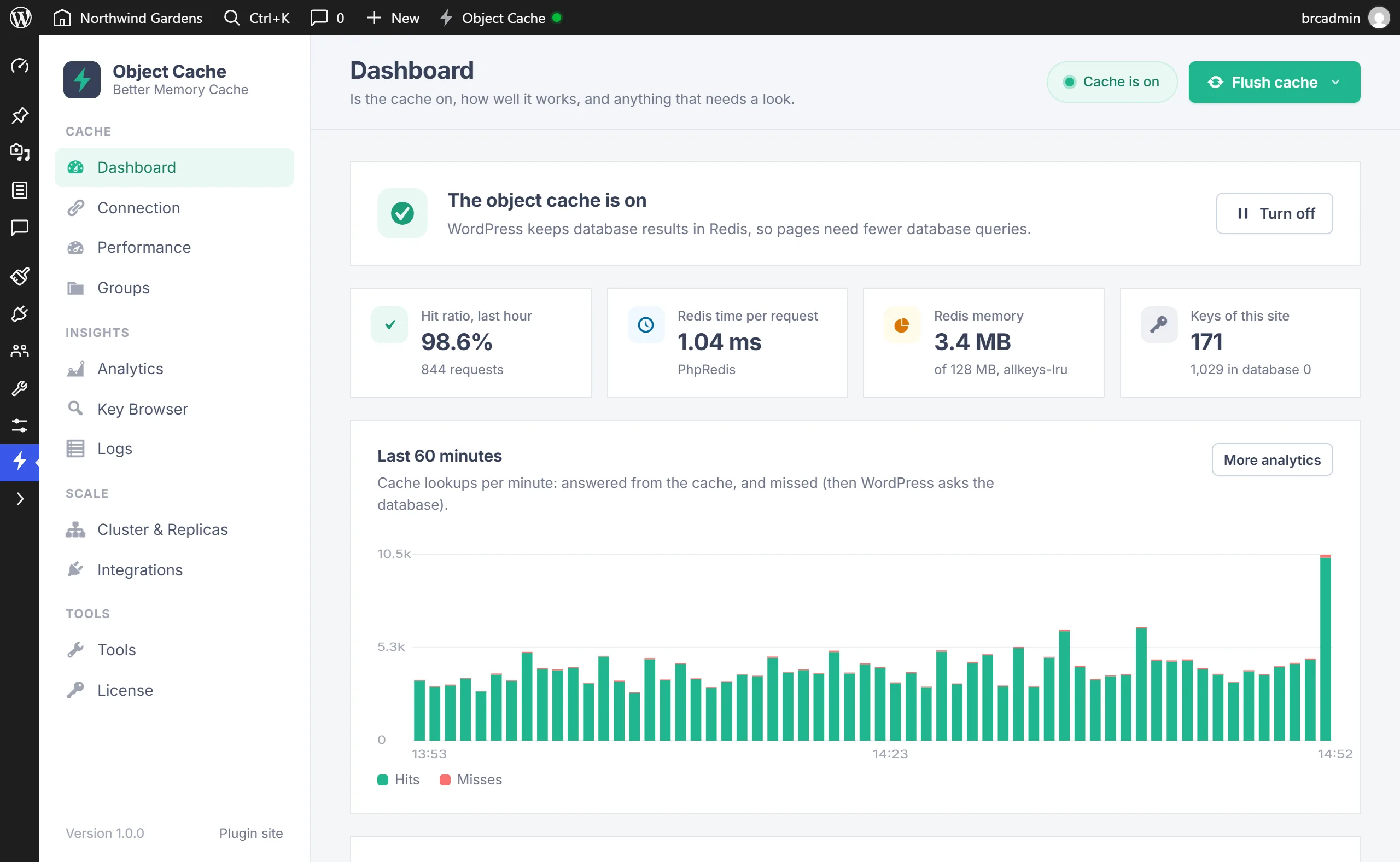
- Open Object Cache > Connection. Pick TCP, TLS or Unix socket, and enter the host and port or the socket path your host gives you. Add a password under Sign in if Redis needs one.
- Click Test connection. It connects with the settings on screen, writes and reads a test key, and tells you the Redis version and the round trip time.
- Save, then open the Dashboard and click Turn on the cache. This writes
wp-content/object-cache.php, the drop-in WordPress loads on every request. - Read the Health card on the Dashboard. It points to anything worth changing, such as a missing memory limit or a faster serializer that is installed.
Connection settings
- Redis server: TCP with a host and port, TLS for managed Redis in the cloud (with certificate checks, and your own CA file or client certificate if needed), or a unix socket, the fastest choice on the same server.
- Database number: Redis has numbered databases, 0 to 15 by default. Give each site that shares a Redis its own number, or its own prefix.
- Sign in: a password, and a user name for Redis 6 access control lists. Leave both empty when Redis needs none.
- Client: PhpRedis, Relay or the built-in client. Automatic picks the fastest one installed.
- Timeouts and retries: how long to wait for Redis and how often to try again before the request goes on without it.
Settings in wp-config.php
Every setting can also be set in wp-config.php, above the line /* That's all, stop editing! */. A setting set there is shown locked on screen. Single settings have their own constants:
define( 'QBMC_REDIS_HOST', '127.0.0.1' );
define( 'QBMC_REDIS_PORT', 6379 );
define( 'QBMC_REDIS_PASSWORD', 'secret' );
define( 'QBMC_REDIS_DATABASE', 0 );
define( 'QBMC_REDIS_PREFIX', 'shop' );
The same names with WP_REDIS_ instead of QBMC_REDIS_ work too, as do CLIENT, SCHEME, PATH, USERNAME, TIMEOUT, READ_TIMEOUT and MAXTTL, and WP_CACHE_KEY_SALT for the prefix. For anything else, set an array:
define( 'QBMC_CONFIG', array( 'serializer' => 'igbinary', 'compression' => 'zstd' ) );Performance
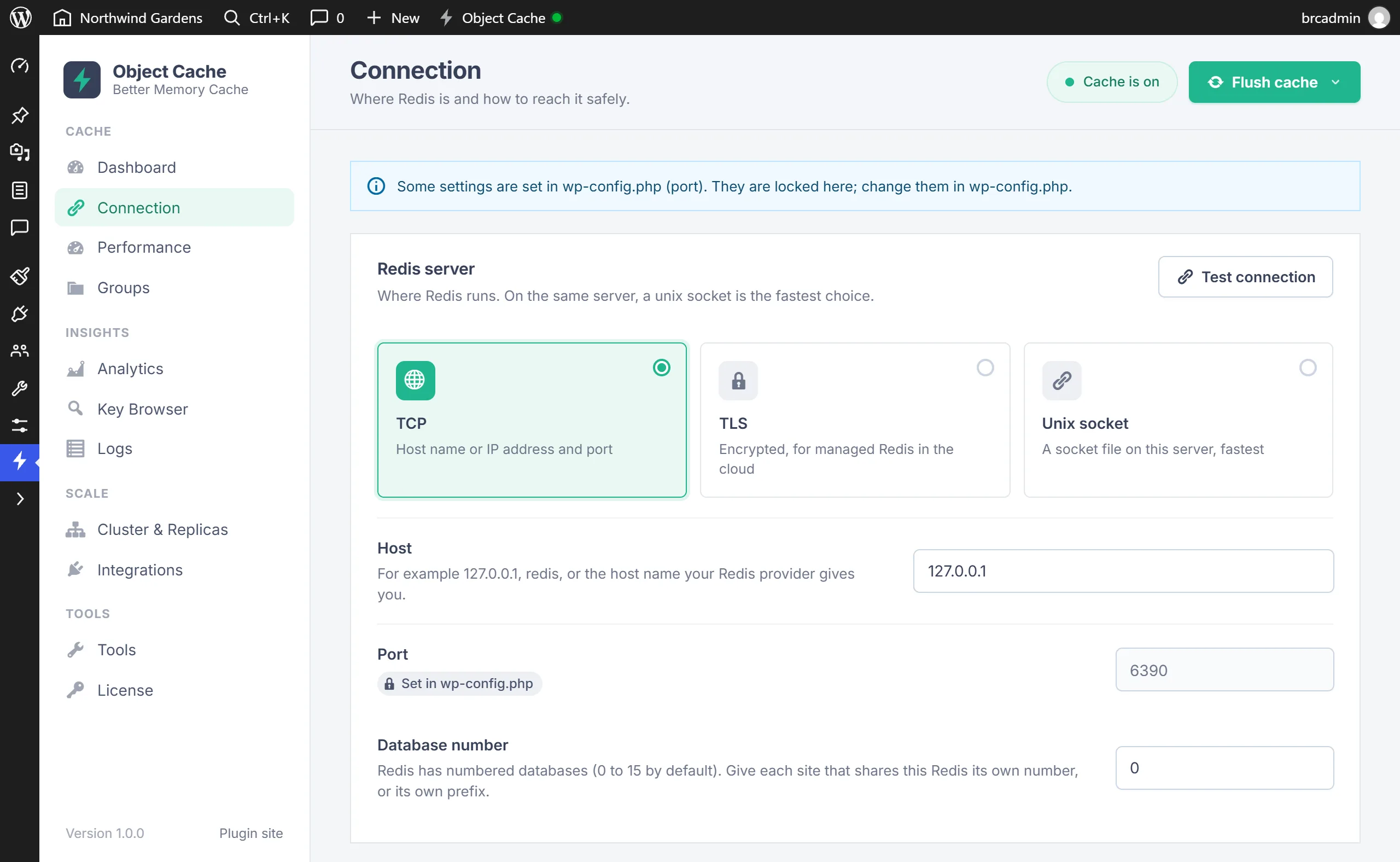
- Serialization: how PHP values are turned into bytes. igbinary and MessagePack are smaller and faster than PHP serialization when the extension is installed. Values written before a change are still read correctly.
- Compression: Zstandard, LZ4, LZF or Gzip for values above a size you choose. Less memory in Redis and less network time; small sites can leave it off.
- Flushing: a flush removes only this site's keys, in one step inside Redis, and without making Redis pause. Shared Redis servers keep the keys of other sites.
- Reliability: how long to pause before trying Redis again after it failed, and whether to flush when it comes back after lost writes.
Cache groups
- WooCommerce: on by default. Keeps customer session ids out of Redis and lets WooCommerce clear its product and order caches by group in one step.
- Shared by every site of a network: groups that are the same for every site on multisite. WordPress and most plugins set these themselves.
- Kept for one request only: groups that are never stored in Redis, for data that must always be fresh.
- Time limits per group (Pro): let chosen groups expire sooner, for example
transientafter an hour.
Dashboard and toolbar
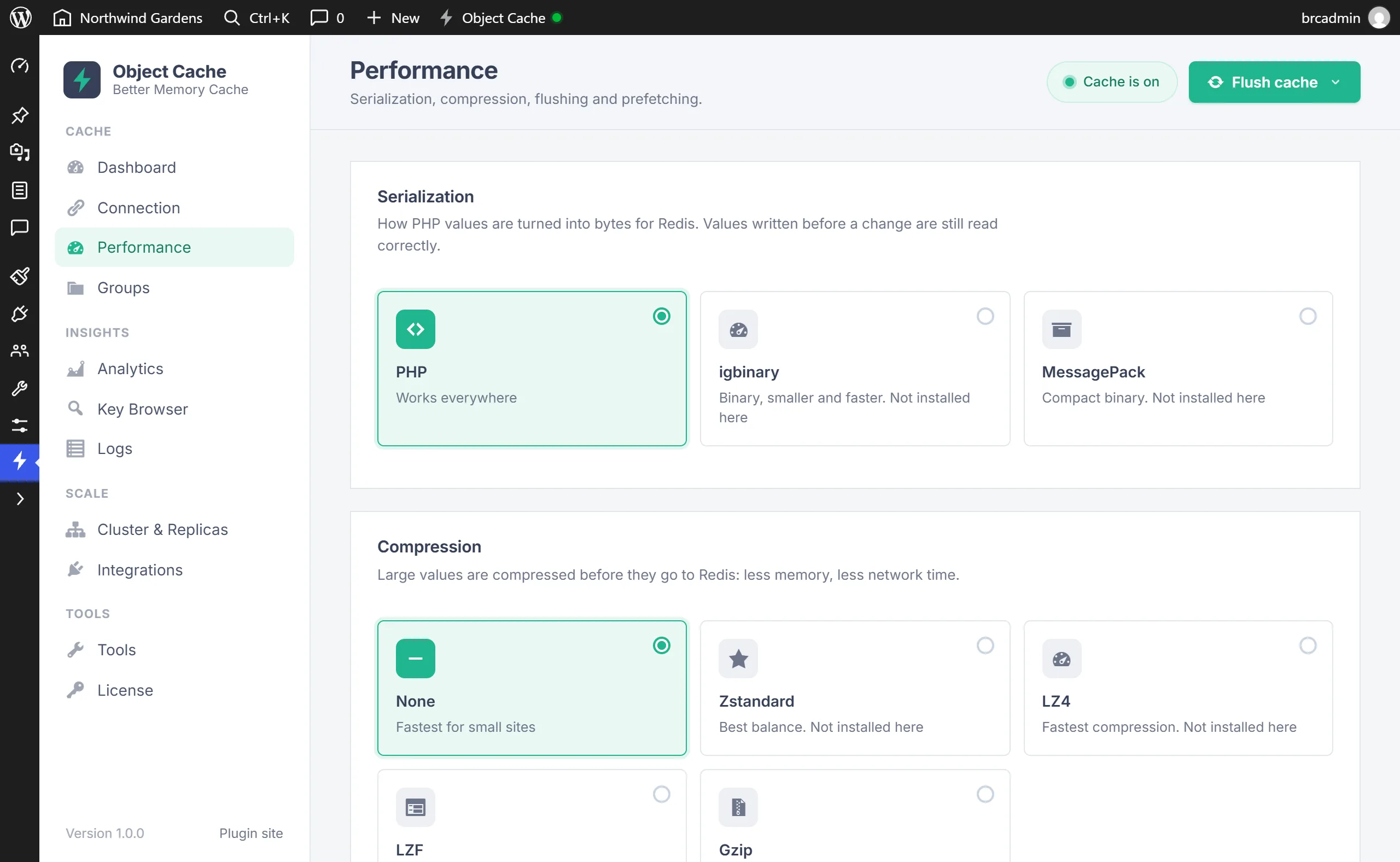
The Dashboard shows whether the cache is on, the hit ratio and Redis time per request of the last hour, Redis memory against its limit, the keys of this site, a chart of the last 60 minutes and a health check. The cards about Redis and this page load show the server facts and the numbers of the request that drew the screen.
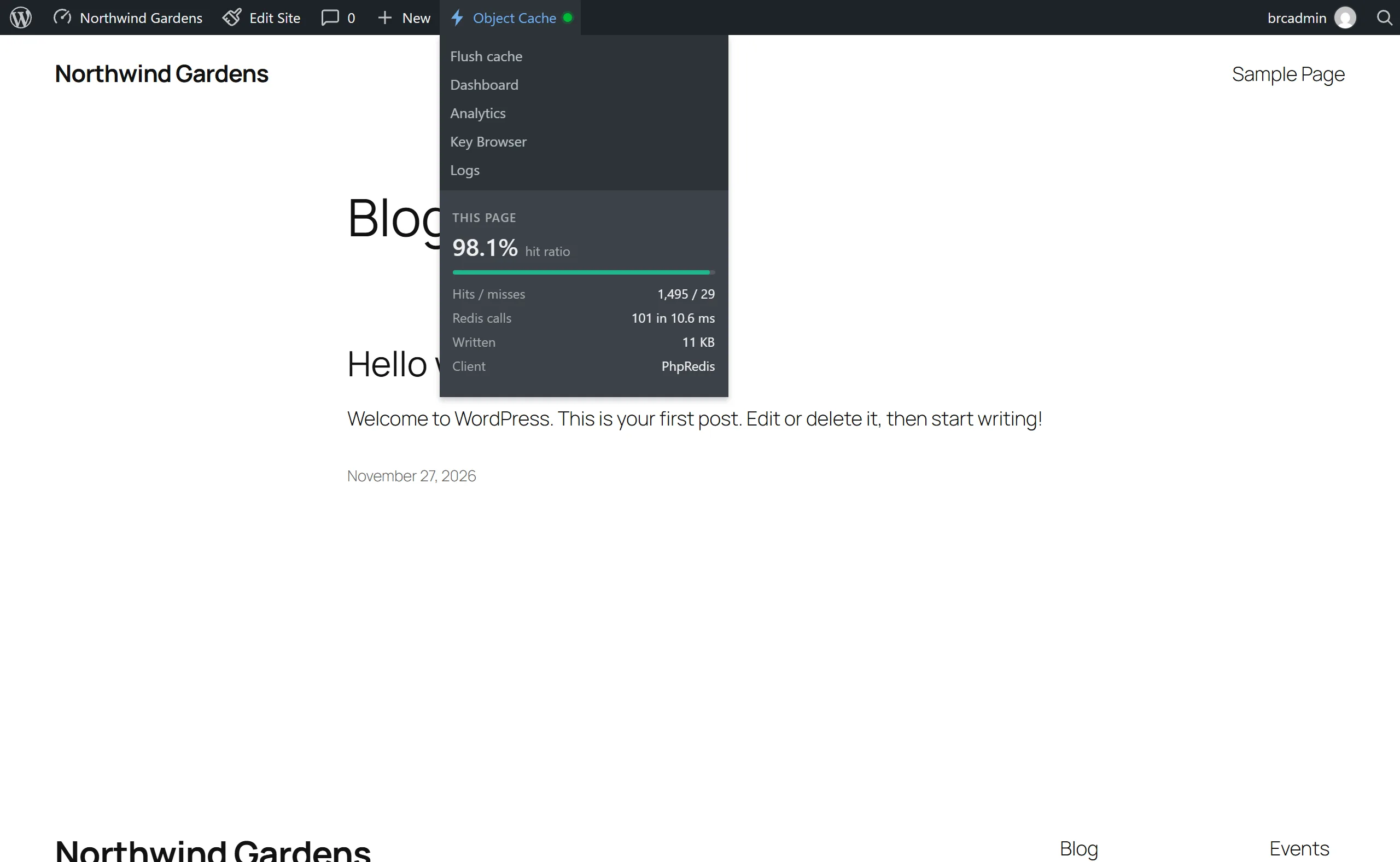
The Object Cache menu in the toolbar, on the site and in the admin, has a status dot, the hit ratio, hits and misses, Redis calls and time of the page you are on, and Flush cache, which works without leaving the page.
Logs
The cache reports connection errors, Redis coming back, flushes and, with Pro, priming runs. Under Logs, pick what to log; errors and warnings also go to the PHP error log. The newest 200 lines are kept in Redis and shown newest first. With Pro, every line can also go to a log file of your choice.
Tools
- Flush: every key of this site, one or more groups, or the whole Redis database, which also removes the keys of anything else that uses it and asks first.
- Diagnostics: a plain text report for a support request, without passwords. Copy it or download it.
- Settings: export the settings to a file and import them on another site. The password is never exported.
WP-CLI
| Command | What it does |
|---|---|
wp bmc status | The connection, the drop-in and the hit ratio. |
wp bmc enable | Test the connection and turn the cache on. |
wp bmc disable | Turn the cache off. |
wp bmc flush [--group=<group>] | Flush this site, or one group. |
wp bmc health | Every health check. |
Pro adds wp bmc analytics, keys, get, delete, prime, topology, network, alerts and license. Run wp help bmc for the options of each.
Multisite
- Network-activate the plugin. One cache serves the whole network, with keys per site and shared groups for data that is the same everywhere.
- The settings are under Network Admin > Object Cache.
- With Pro, a network overview lists the keys, requests and hit ratio of every site, with a flush per site. One key covers the whole network.
Free and Pro
The free plugin is the complete object cache. Better Memory Cache Pro adds:
- Batch prefetching: each kind of page remembers the keys it read, and the next visit loads them in one round trip.
- Cache priming: after a flush, your most visited pages are requested in the background, so the first visitor gets a warm cache.
- Analytics: 24 hours, 7 days and 30 days of requests, hit ratio, Redis time, commands and memory, and the busiest cache groups.
- Key browser: search keys, read decoded values and delete keys.
- Time limits per group, Redis Cluster, Sentinel and read replicas.
- REST API, New Relic, OpenTelemetry, email alerts, a log file and more WP-CLI commands.
Every Pro plan has every Pro feature. Plans differ only in the number of sites and the term.
Sites and terms
| Choice | What you get |
|---|---|
| Sites | 1, 3, 10 or unlimited sites on one key. A multisite network counts as one site. |
| Yearly | Paid once a year and never renewed automatically. Updates and support for 12 months; Pro keeps working after that. |
| Lifetime | One payment, updates for life, nothing to renew. |
Yearly plans start at $12 a year ($1 a month) for one site. Every price is on the plugin page; yearly prices are also shown per month there, but they are billed once a year.
Buy Pro
- On the plugin page, pick Yearly or Lifetime and the number of sites, then click Get Pro.
- Pay on Stripe's secure checkout page.
- Your license key is on the thank-you page and arrives by email. It is also in My account, where you download Better Memory Cache Pro.
Signed in to My account? You can also buy a plan from its Buy and renew tab. Plans, renewals and upgrades have a 14-day money-back guarantee; see the Refund Policy.
Enter the license key
- Install better-memory-cache-pro.zip with Plugins > Add New Plugin > Upload Plugin and activate it. Keep the free plugin active.
- Open Object Cache > License.
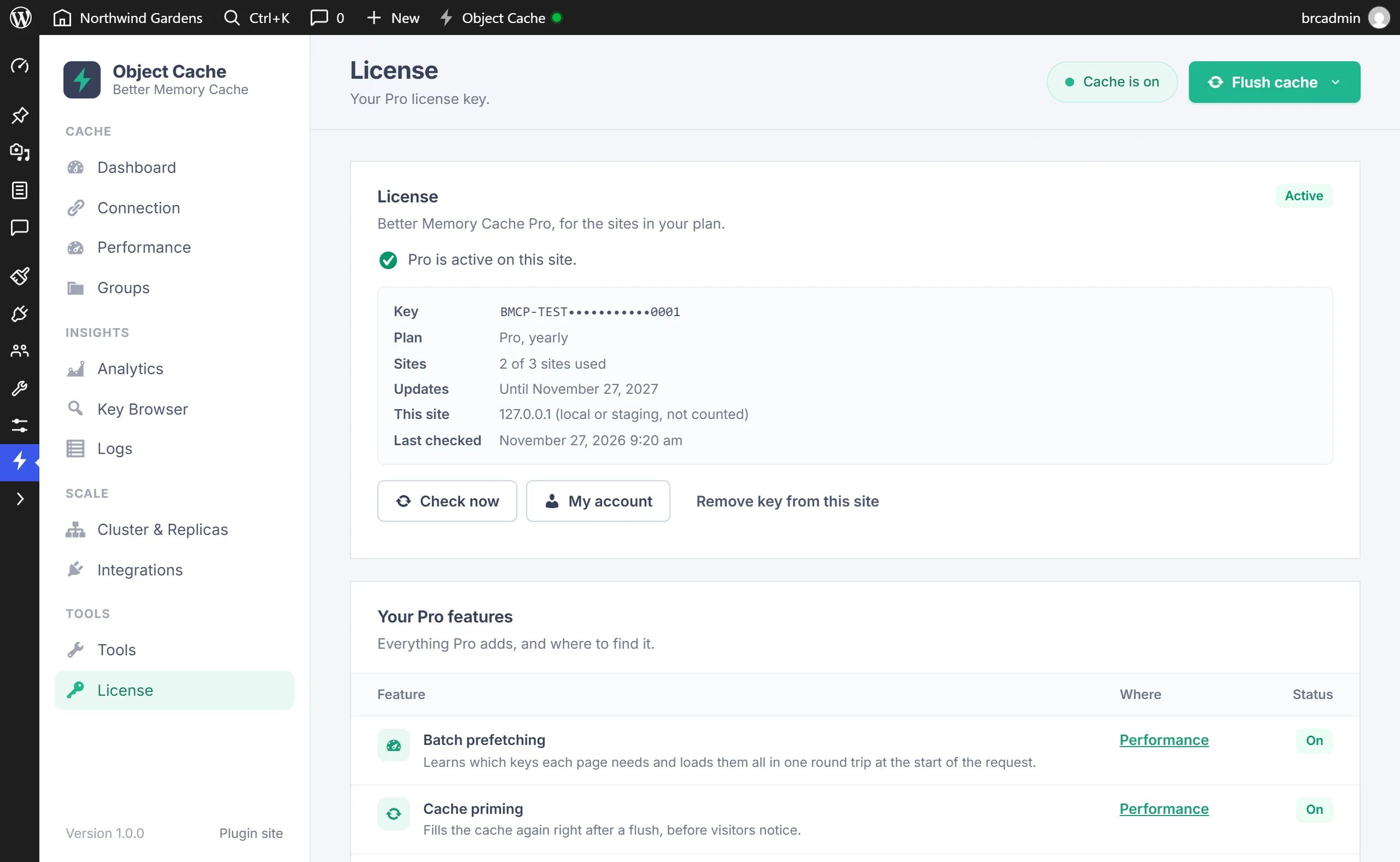
- Paste the key and click Activate. The site is added to your key and the Pro features switch on.
You can also set the key in wp-config.php with define( 'QBMC_LICENSE_KEY', 'BMCP-...' );. On a multisite network, network-activate both plugins and enter the key in Network Admin.
Sites on a key
- A key works on as many sites as its plan: 1, 3, 10 or unlimited. A multisite network counts as one site.
- A site is added to the key the first time Pro checks the key there. My account lists the sites on each key and how many are used.
- When every site on the key is used, a new site is refused until you remove one or upgrade to more sites.
- Local and test copies never use the site:
localhost,127.0.0.1and every other127.*address, private network addresses (10.*,192.168.*and172.16.*to172.31.*),::1,0.0.0.0, and names ending in.localhost,.test,.local,.invalidor.example. - A staging copy on a public address, such as staging.example.com, counts as a site of its own.
Move Pro to another site
Free a site on the key, then enter the key on the new site. There are two ways to free one:
- On the site, the best way: open Object Cache > License on the old site and click Remove key from this site.
- In My account, for a site you can no longer reach: open Licenses, find the site under your key and click Remove. You can remove up to 5 sites per key in 30 days; My account shows how many removals are left.
When a yearly plan ends
- Yearly plans never renew automatically. We email you 14 days and 3 days before the end date.
- When the plan ends, Pro keeps working on your sites with every feature. Only updates and support stop.
- Renew any time from My account. The renewal costs the yearly price for your number of sites, and adds 12 months to the end date, or 12 months from the day you renew if the plan has already ended.
- Lifetime plans never end and never need renewing.
Upgrade
Move a key to more sites, or from yearly to lifetime, at any time with the Upgrade picker under your key in My account. Your key stays the same, and you pay only the difference:
| Upgrade | You pay |
|---|---|
| Lifetime to more sites | The new lifetime price minus your plan's lifetime price, at today's prices. |
| Yearly to more sites | The difference between the two yearly prices for the days left on your plan. If your plan has already ended, the full new yearly price, and a new year starts that day. |
| Yearly to lifetime | The lifetime price minus the unused part of your yearly plan. |
A key can not move from lifetime to yearly or to fewer sites. The smallest charge is $0.50.
Cluster, Sentinel and replicas
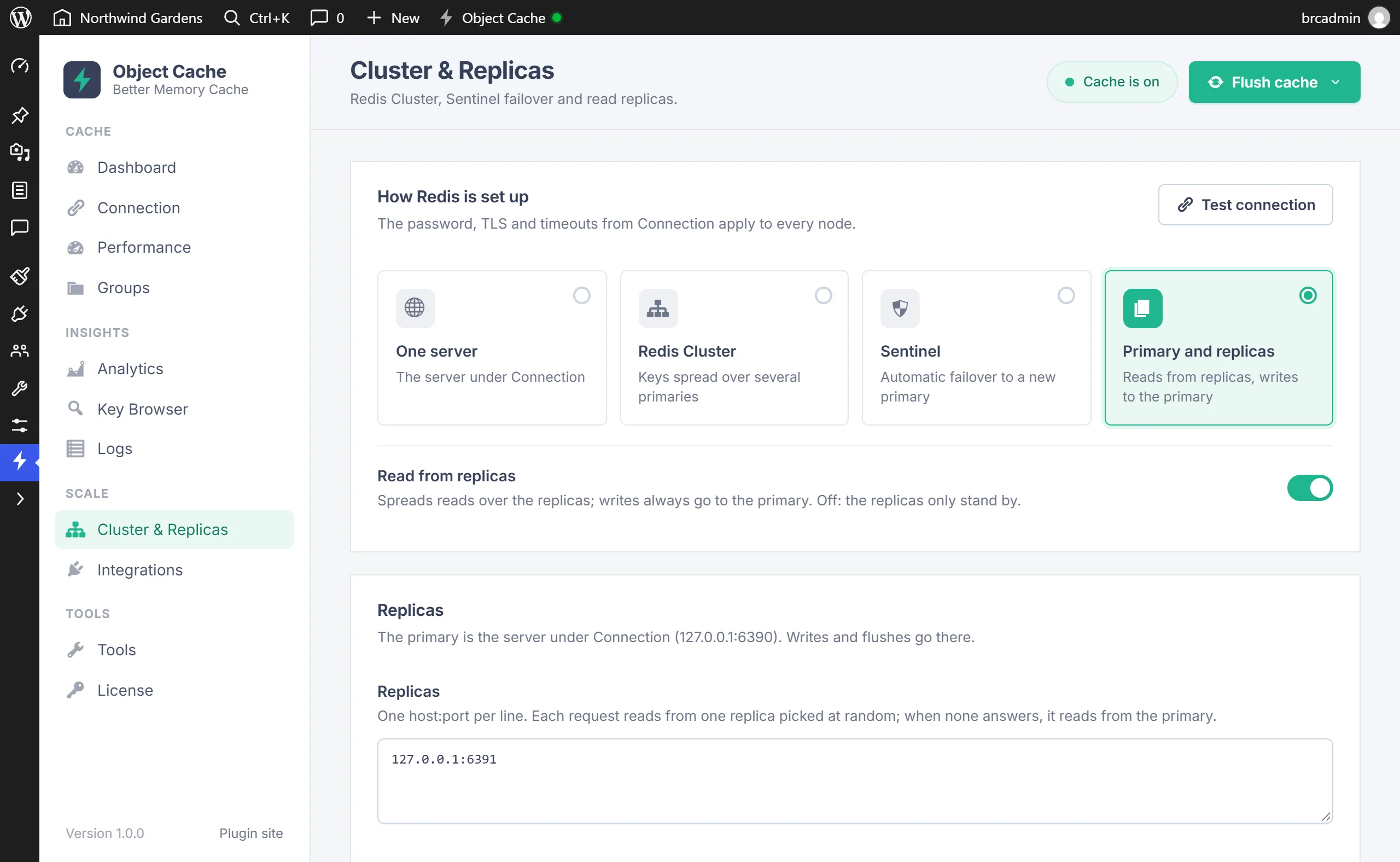
With Pro, Object Cache > Cluster & Replicas sets how Redis is laid out. The password, TLS and timeouts from Connection apply to every node.
- Redis Cluster: keys spread over several primaries, through PhpRedis or Relay. List a few nodes; the others are found by asking the cluster. Reads from replicas are optional.
- Sentinel: the cache asks the Sentinels where the primary is, and follows a failover by itself.
- Primary and replicas: reads go to a replica picked at random and writes to the primary under Connection; a request always reads its own writes.
Connected now shows where the cache sends its commands, and Test connection names the layout before you save.
Analytics and the key browser
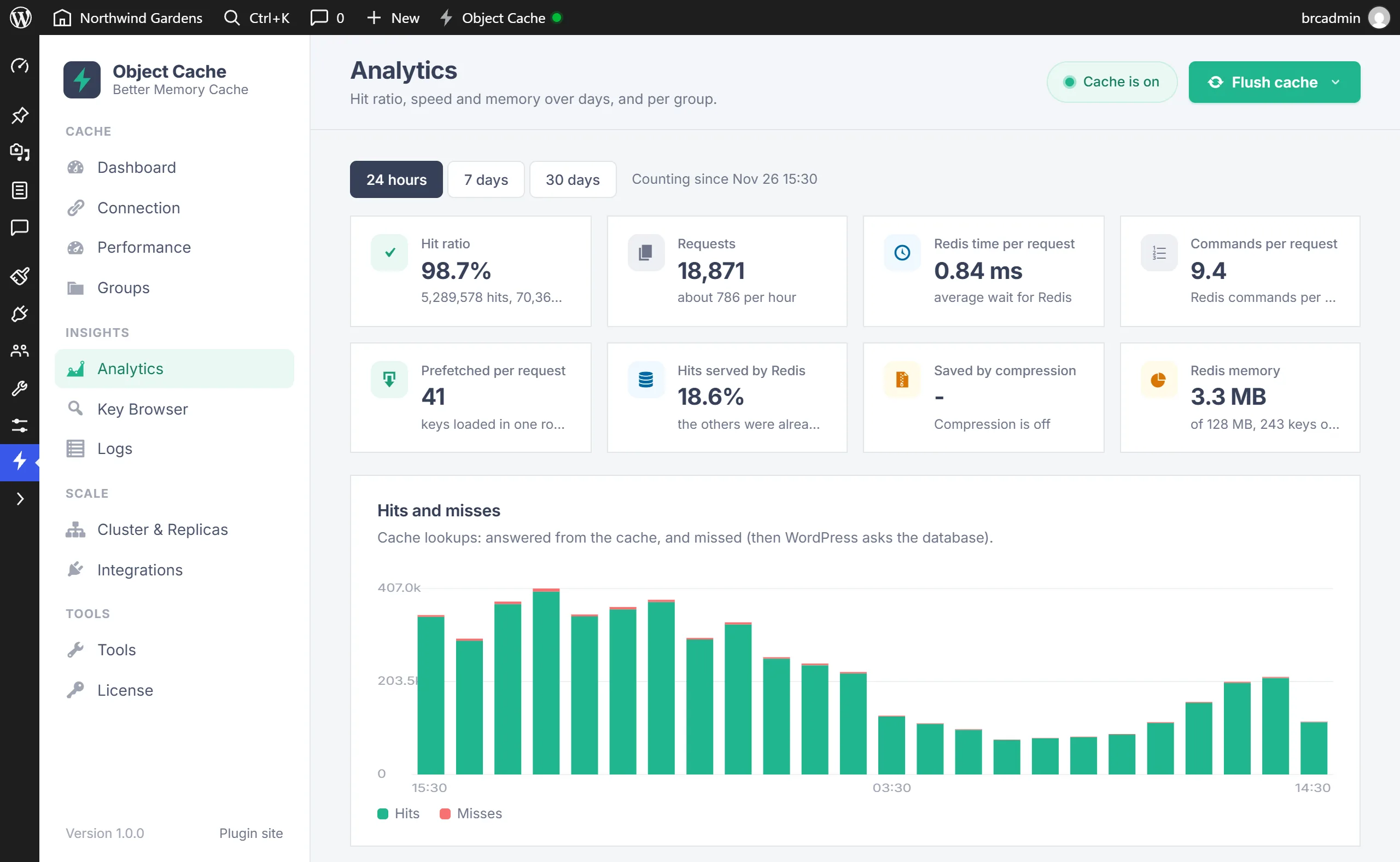
With Pro, Analytics shows requests, hit ratio, Redis time, commands per request, prefetched keys, memory and compression savings over 24 hours, 7 days or 30 days, with charts and the cache groups that are read and missed the most. Numbers are kept in Redis for 32 days.
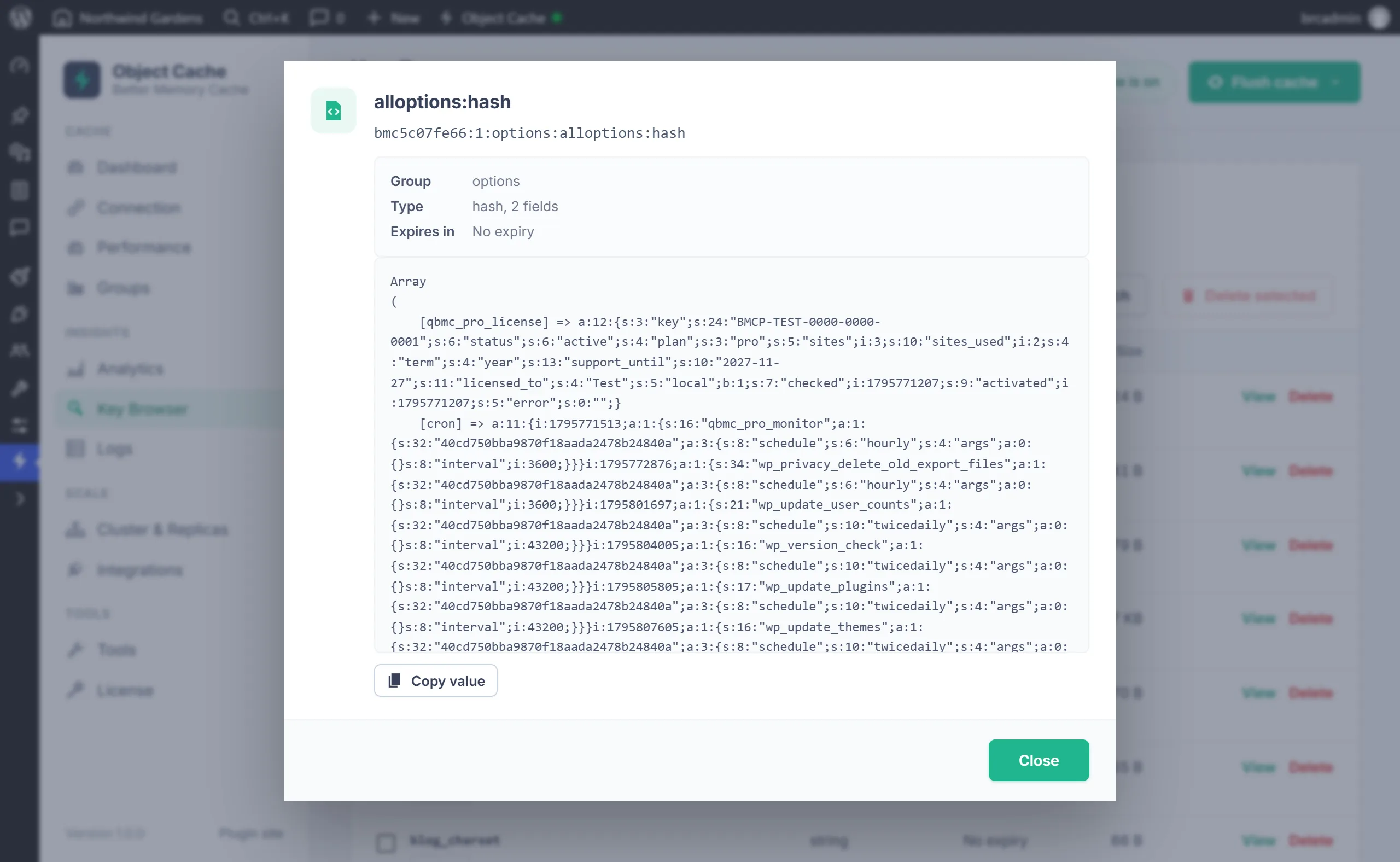
The Key Browser searches the keys of this site by name (* for anything) and group, with their type, time to live and size. View shows a value decoded, the way WordPress stored it; Delete removes keys one by one or in a batch.
Prefetching and priming
- Batch prefetching (under Performance) learns which keys each kind of page reads, and loads them all in one round trip at the start of the next request. The Analytics screen shows how many keys each request prefetched.
- Cache priming (under Performance) requests the home page, your own list, the shop page and the newest posts and pages about 20 seconds after a flush, through WP-Cron. A run stops after 50 seconds. Prime now starts one by hand.
Email alerts and the log file
With Pro, an hourly check under Logs emails you when Redis goes down, fills up past the level you set, evicts keys or refuses connections. Each kind of alert is sent at most every 12 hours. The memory alert needs a maxmemory limit in Redis.
The log file takes every log line too. Use a full path PHP can write, outside the web root.
REST API, New Relic and OpenTelemetry
- REST API (Pro, off until you turn it on under Integrations): status, analytics, health, flush and prime under
/wp-json/bmc/v1, for dashboards, uptime monitors and deploy scripts. Calls need an administrator, for example with an application password. - New Relic (Pro): every Redis command shows as a datastore call in New Relic APM, and each request reports its hits, misses and Redis time. Needs the New Relic PHP agent.
- OpenTelemetry (Pro): a client span for every Redis command, with the cache numbers on the request span. Needs the OpenTelemetry SDK on the server.
- Query Monitor and Site Health work in the free plugin with nothing to set up.
When Pro is off
If Better Memory Cache Pro is deactivated, its key is removed or cancelled, the free plugin goes on caching with your settings as they are. Pro settings are kept and come back when the key is active again.
Cluster, Sentinel or replicas? Switch back to One server under Cluster & Replicas before you remove the key. Without Pro those connections are not made, and the site runs without the object cache until it is set to one server.
A year that has ended changes nothing on the site except updates.
External services and your data
- The free plugin talks only to your Redis server. It sends no data to Quintaphon or anyone else.
- Pro sends its license key, your site's domain and the product name to our license server when you activate, check or remove a key and once a day, and to our store to download updates. Twice a day it reads the public version file on quintaphon.com. It sends nothing about your content, users or visitors.
- Cache priming requests pages of your own site only. Email alerts go through WordPress's own mail setup to the addresses you enter.
- New Relic and OpenTelemetry, when you turn them on, hand Redis timings to the agent or SDK on your server; where they send data is set up there.
Turn off and uninstall
- Turn off on the Dashboard removes
object-cache.php; WordPress goes back to its cache per request. Deactivating the plugin does the same. - Deleting the plugin also removes this site's keys from Redis and its settings. Keys of other sites in the same Redis stay.
Troubleshooting
| Problem | What to do |
|---|---|
| Test connection fails | Check the host, port or socket path and the password with your host. On managed Redis, pick TLS. The message names what Redis or the network answered. |
| Another object cache is installed | Deactivate the other Redis or cache plugin so it removes its object-cache.php, then turn on Better Memory Cache. |
| The drop-in can not be written | WordPress needs write access to wp-content. Copy includes/object-cache.php from the plugin folder to wp-content/object-cache.php by hand. |
| Redis is almost full | Set maxmemory with maxmemory-policy allkeys-lru in Redis, give it more memory, or turn on compression. |
| Changes do not show | Flush the cache from the toolbar. A plugin that changes the database directly, without WordPress functions, leaves old values until a flush. |
| The key is refused on a new site | The key is already on another site. Remove that site in My account, or under License on the old site. |
| Pro shows no updates | The yearly plan has ended, or the site is no longer on the key. Renew, or enter the key again, in My account. |
Changelog
- 1.0.0 (November 27, 2026): First release of Better Memory Cache and Better Memory Cache Pro.
Need help?
With Pro, open a ticket from My account; anyone can reach us through the support page. Attach the diagnostics report from Tools. You can also download the latest free version (v1.0.0) here.