
This guide covers installing and running Domain Move by Quintaphon (version 1.1.1), a free plugin that moves a WordPress site to a new domain with a serialization-safe search and replace. Use it before your first move and as a reference for every screen.
Tip
Domain Move lives under Tools > Domain Move in WordPress. Every screen mentioned below is in its sidebar: Domain Move, Results, Health Check and History.
Overview
Domain Move finds every place your database points at the old domain and rewrites it to the new one: post content, post meta, options, widgets, menus, page builder data and plugin tables. It was built for moving the WordPress admin to a private host while a static copy of the site keeps the public domain, and works just as well for any domain change.
- Dry run first: every table, row and replacement is shown before anything is written, with before and after examples.
- Serialization-safe: serialized data is rewritten token by token and every string length is recalculated. Nothing is ever unserialized, so no plugin code runs while the data changes.
- Exact host matching: the old domain and its
www.form are replaced, never a subdomain such ascdn.example.comand never a longer name such asexample.com.au. - Every link format: plain, JSON-escaped (
https:\/\/) and URL-encoded (https%3A%2F%2F) links.
Requirements
| Item | Needed |
|---|---|
| WordPress | 6.2 or newer (tested up to 7.1) |
| PHP | 7.4 or newer |
| User | An administrator (manage_options). On multisite, only super admins can use the tool. |
| Backup | A fresh, full database backup before every replace |
Install
- Download domain-move.zip.
- In WordPress go to Plugins > Add New Plugin > Upload Plugin, choose the file, click Install Now and activate it. (Domain Move is not in the WordPress.org directory yet.)
- Open Tools > Domain Move.
Before you start
- Point the new domain at your server and add it to the web server and SSL certificate, so WordPress answers on it as soon as the replace is done.
- Take a full database backup. A replace can only be undone from a backup.
- Read the Health Check (see below) for anything to fix first.
Your login cookie
Your login belongs to the old domain. When the replace finishes, Domain Move shows a link to log in again on the new one.
Domains
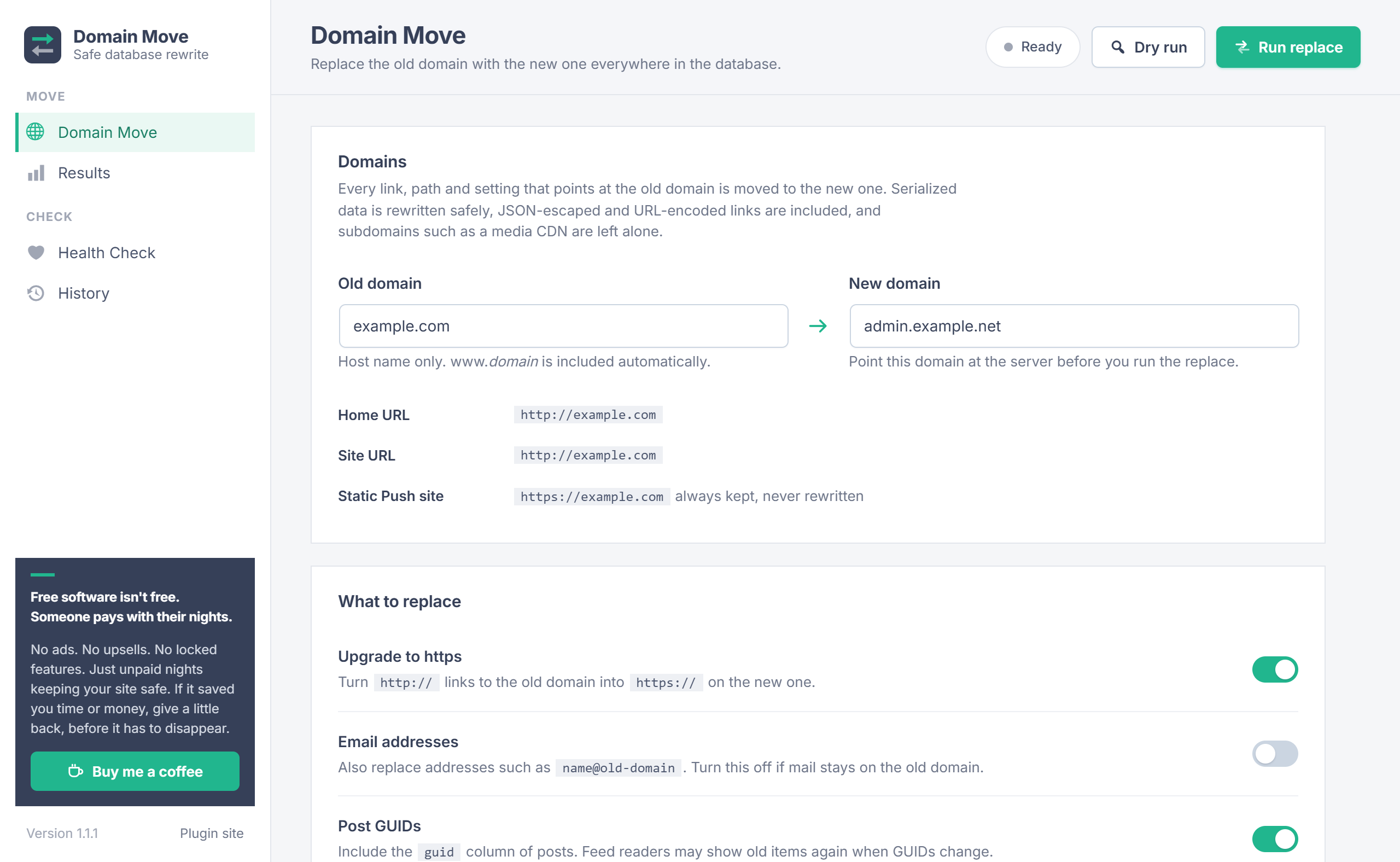
The Domain Move screen is where you set up the move.
- Old domain: filled in from your current site address. Enter the host name only (for example
example.com); thewww.form is included automatically. - New domain: the host WordPress moves to, for example
admin.example.net. - Below the fields you see the current Home URL and Site URL, and the StaticPush site address when StaticPush is set up. That address is always kept.
wp-config.php
If wp-config.php defines WP_HOME, WP_SITEURL, WP_CONTENT_URL, WP_PLUGIN_URL, DOMAIN_CURRENT_SITE or COOKIE_DOMAIN with the old domain, a red notice lists them at the top of this screen. The database replace can't change the file: edit those lines by hand right after the run.
What to replace
| Option | Default | What it does |
|---|---|---|
| Upgrade to https | On | Turns http:// links to the old domain into https:// on the new one. |
| Email addresses | On | Also replaces addresses such as name@old-domain. Turn it off if mail stays on the old domain; the addresses found are then listed and kept. |
| Post GUIDs | On | Includes the guid column of posts. Feed readers may show old items again when GUIDs change. |
The form remembers the new domain, these options, the skip list and the table choice for next time.
Skip list & protected settings
The Skip list keeps extra options and site meta keys untouched: one name per line, with * as a wildcard (for example my_plugin_*). Matching rows are counted as skipped in the results.
Some settings are always protected, whatever the skip list says: Domain Move's own settings and history, and every StaticPush setting and cache, including its static site address. That way the public site keeps its domain while WordPress moves.
Tables
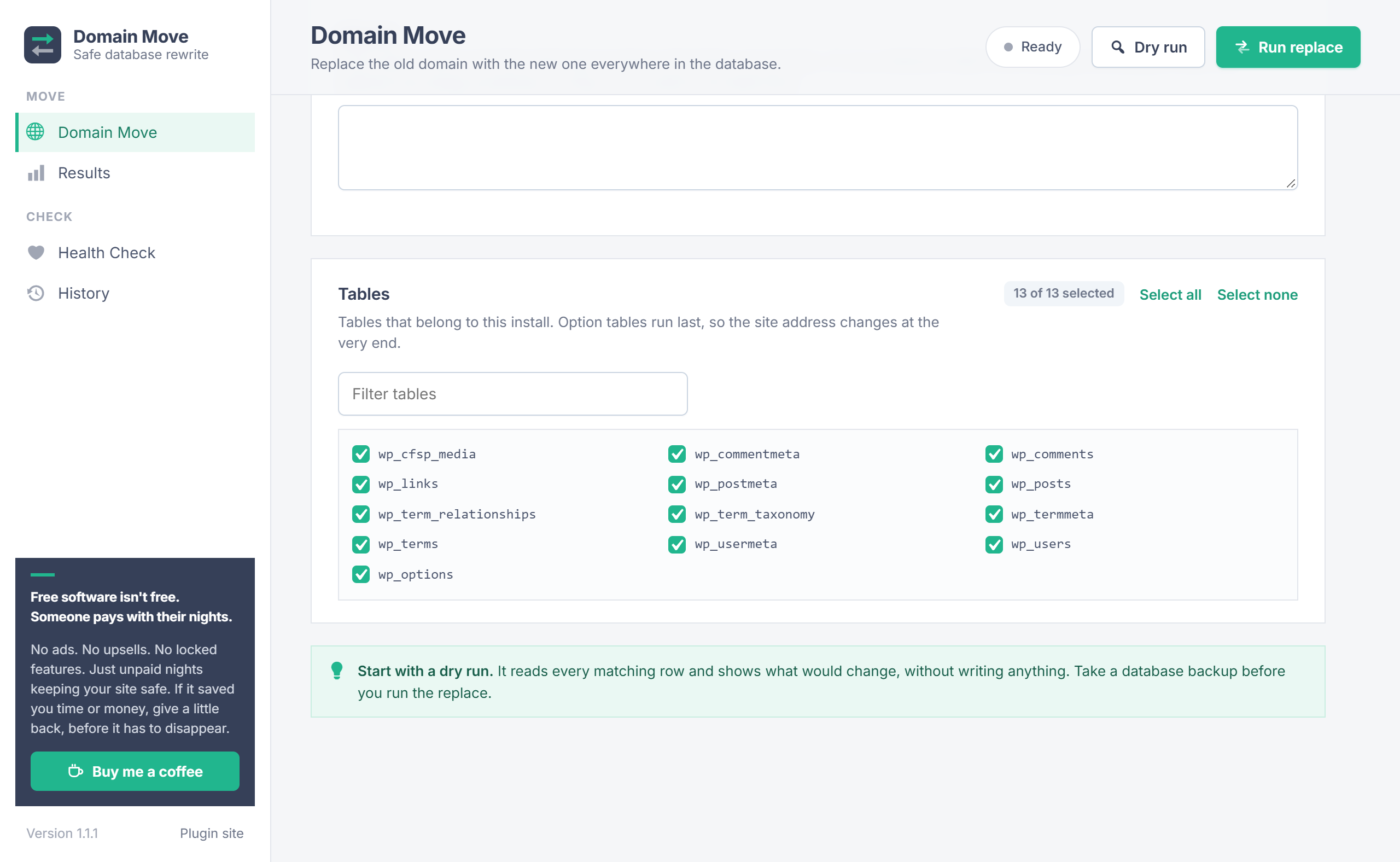
Every table that belongs to this install is listed and selected. Use the filter box on large installs, and Select all or Select none. Option tables always run last, so the site address changes at the very end of the run.
Dry run & results
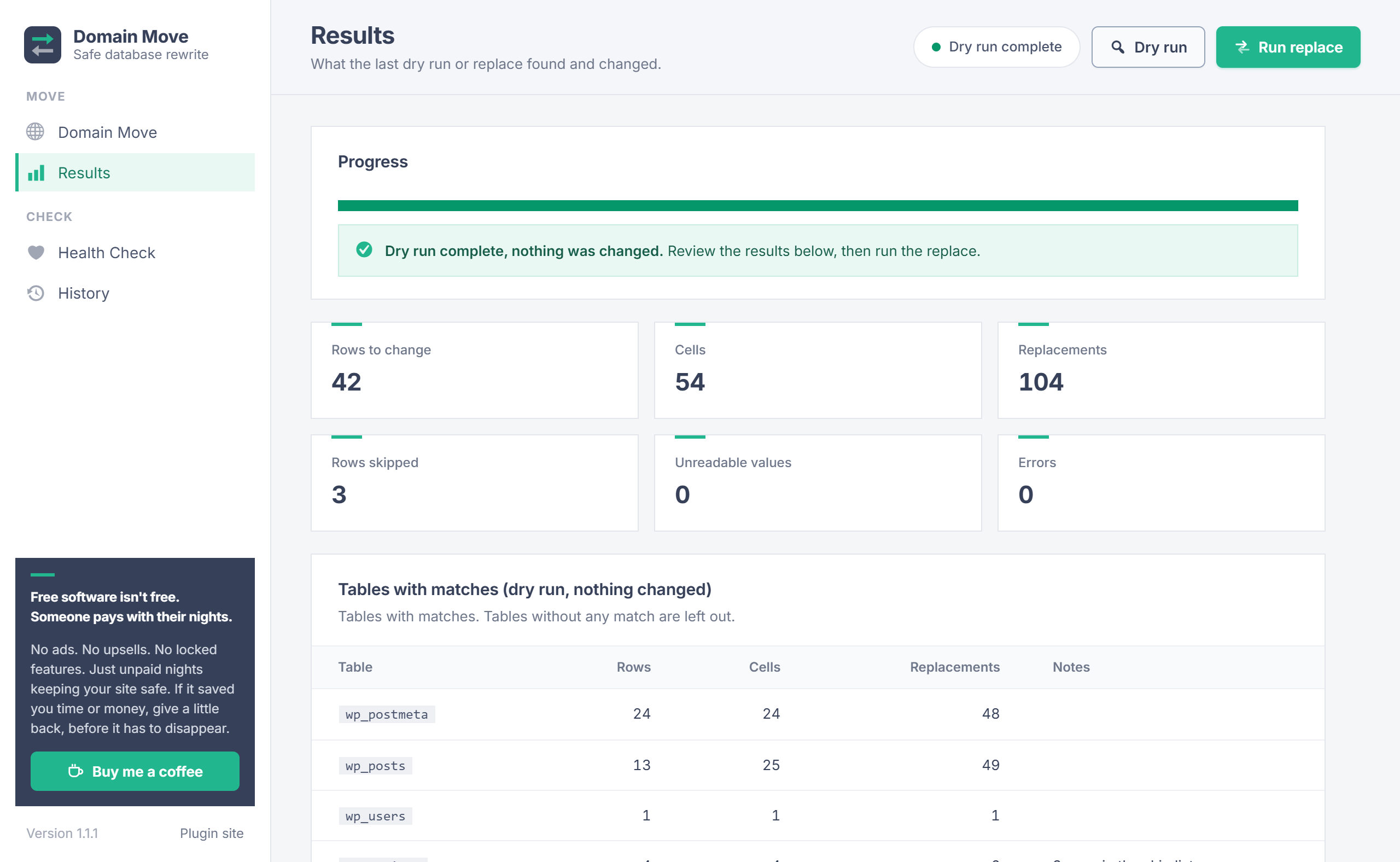
Click Dry run in the top bar. Domain Move reads every matching row in batches of 200 and shows what would change, without writing anything. You can click Stop between batches.
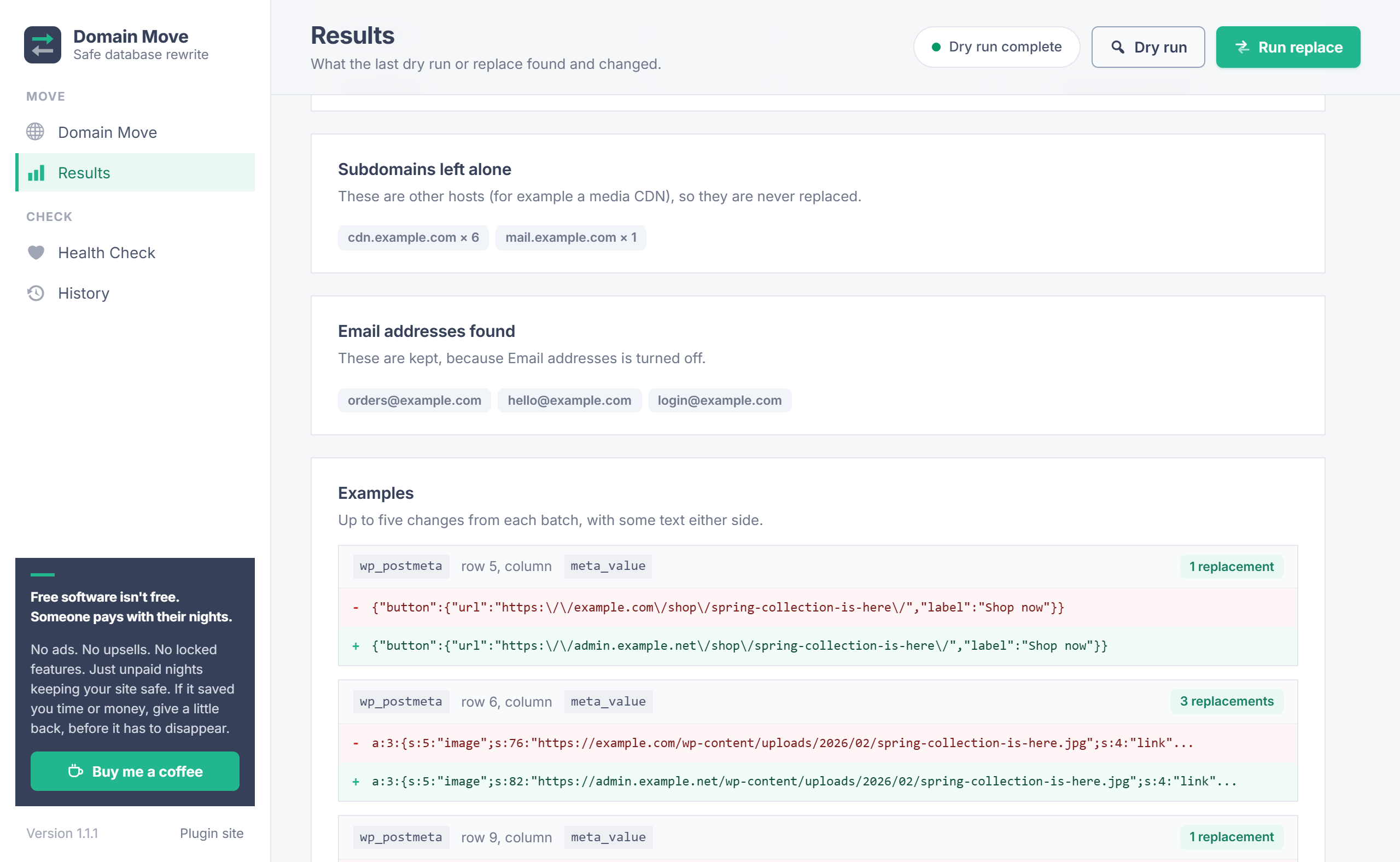
Results shows:
- Totals: rows to change, cells, replacements, rows skipped, unreadable values and errors.
- Tables with matches: rows, cells and replacements per table, with notes such as skipped rows.
- Subdomains left alone: other hosts on the same domain, such as a media CDN, with how often each was found.
- Email addresses found: listed when email replacement is off.
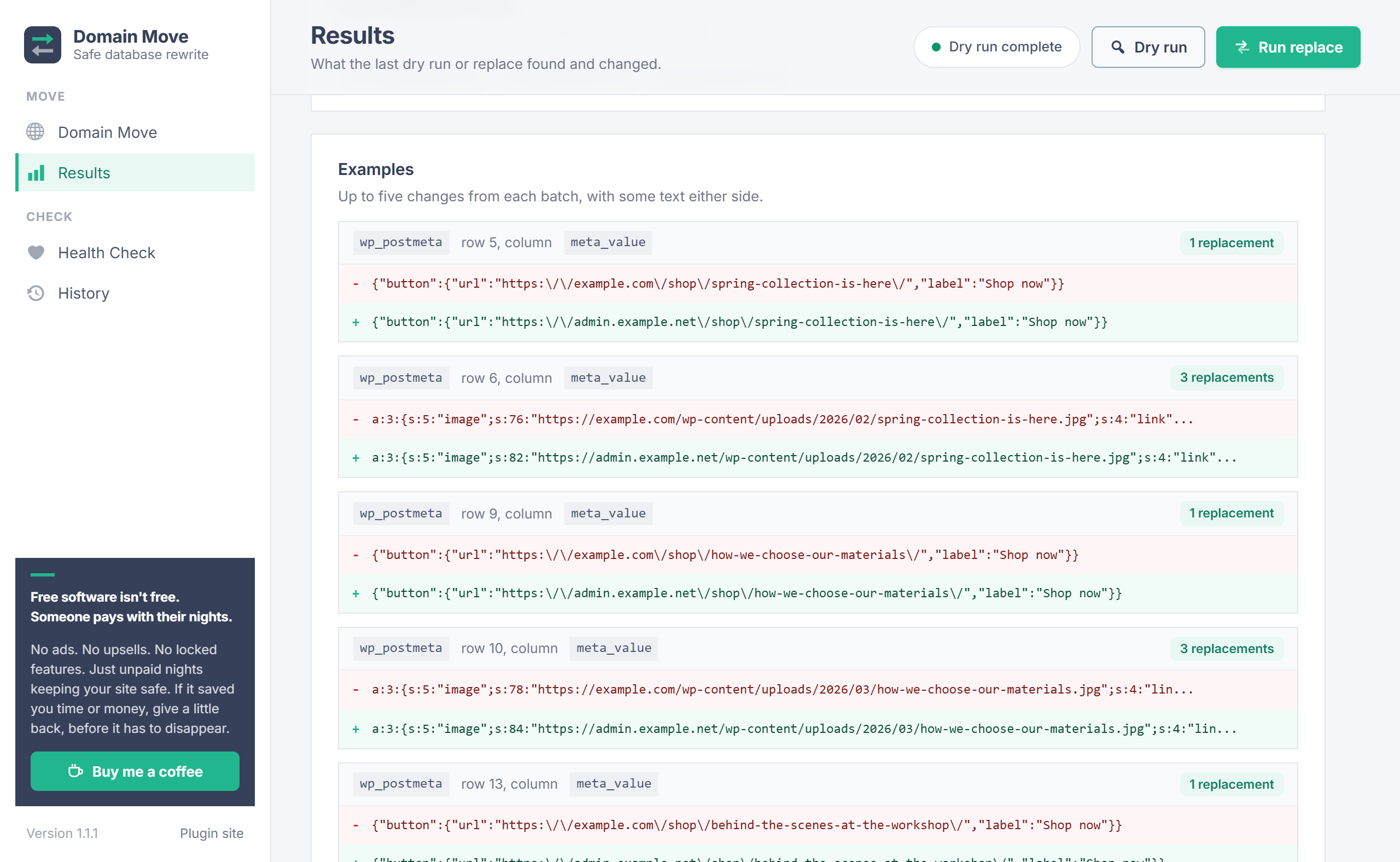
- Examples: up to five changes from each batch, before and after, with some text either side.
Run the replace
- Check the dry run results, the subdomains left alone and the email addresses found.
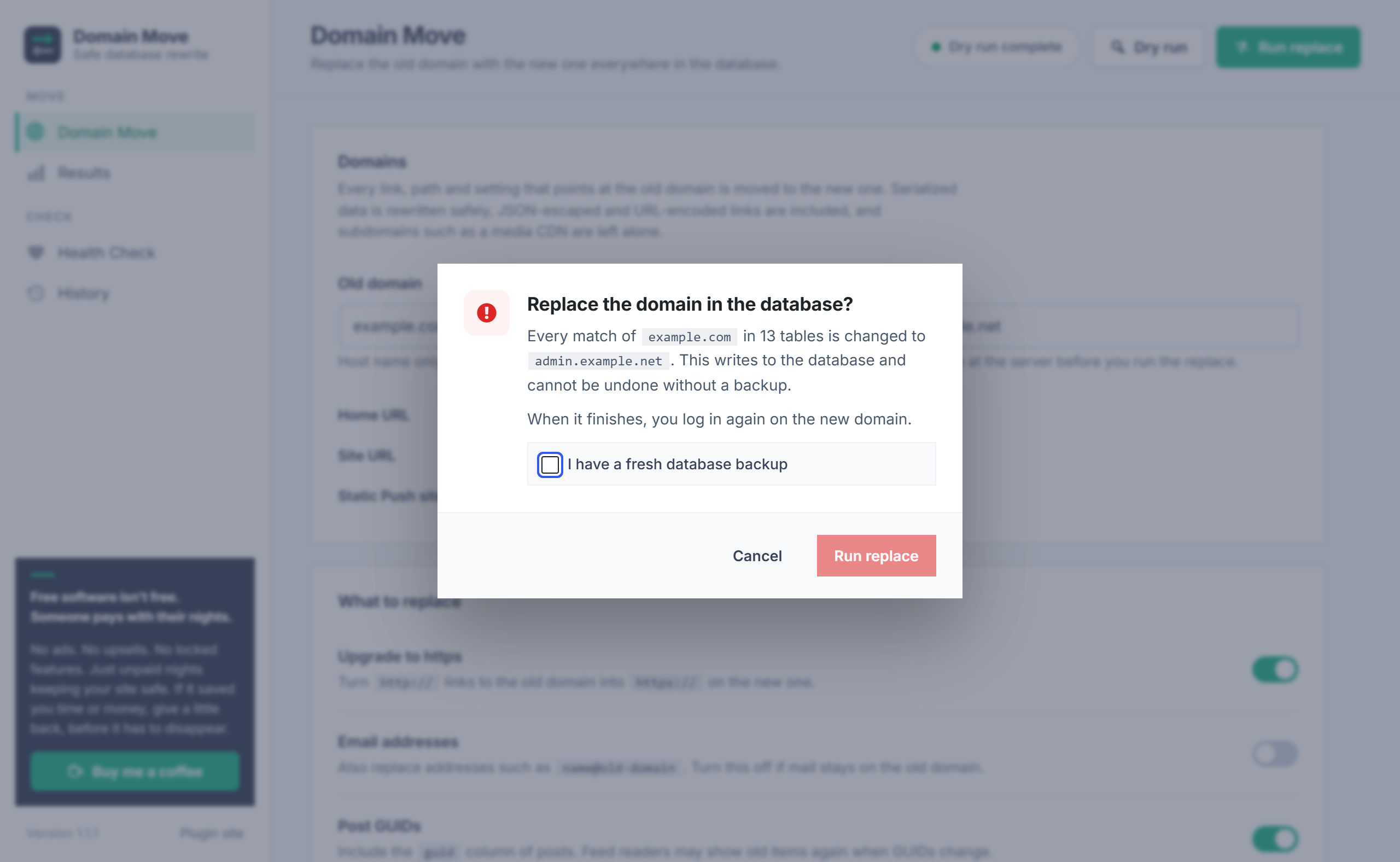
- Click Run replace. A dialog shows the domains and the number of tables, and warns you if no dry run was made with the same settings.
- Tick I have a fresh database backup and confirm.
- Wait for the run to finish. You can stop it between batches; the tables that were done stay changed.
- Log in again on the new domain with the link shown, edit
wp-config.phpif the Health Check listed constants, and clear any page or object cache.
Private admin with StaticPush
A common setup with StaticPush: the public domain (for example example.com) serves a static copy of the site, and WordPress itself moves to a private host (for example admin.example.net).
- Set up StaticPush and push the site once, with its static site address set to the public domain.
- Point the private host at your server and add it to the web server and SSL certificate.
- Back up the database, run a Domain Move dry run from the public domain to the private host, then run the replace.
- Log in on the private host. StaticPush still publishes to the public domain, because its settings are never rewritten.
- Point the public domain at the static host (for example Cloudflare Pages) and run a full StaticPush push.
- Optionally turn on Private WordPress in StaticPush to hide the admin site from visitors and search engines.
Health Check
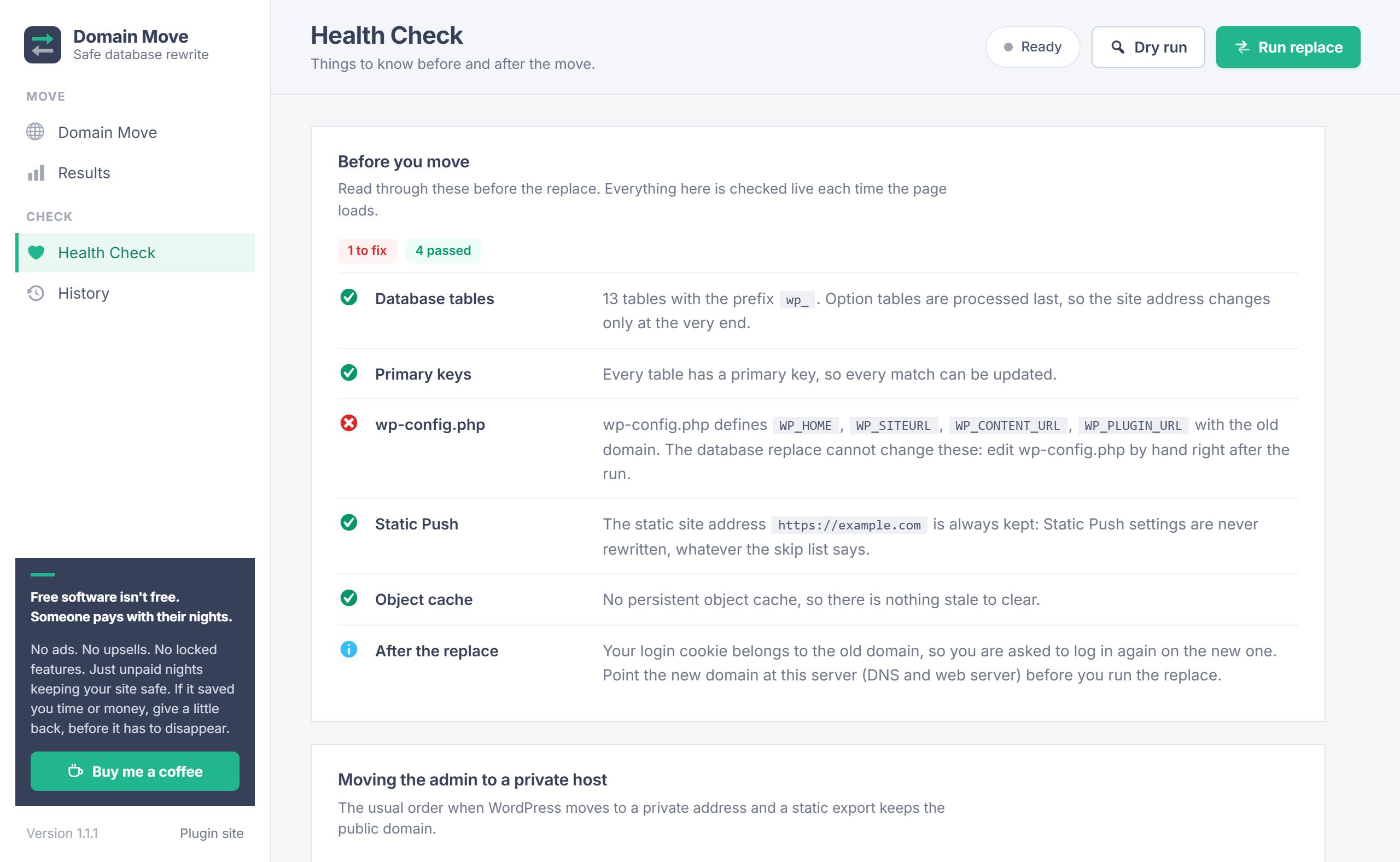
Health Check is checked live each time the page loads:
- Database tables: how many tables use the install's prefix.
- Primary keys: tables without one; their matches are counted but never changed, because a row without a key can't be updated safely.
- wp-config.php: constants that still hold the old domain.
- StaticPush: the static site address that is always kept.
- Object cache and multisite notes, and a reminder about logging in again.
It also lists the usual order of steps when the admin moves to a private host.
History
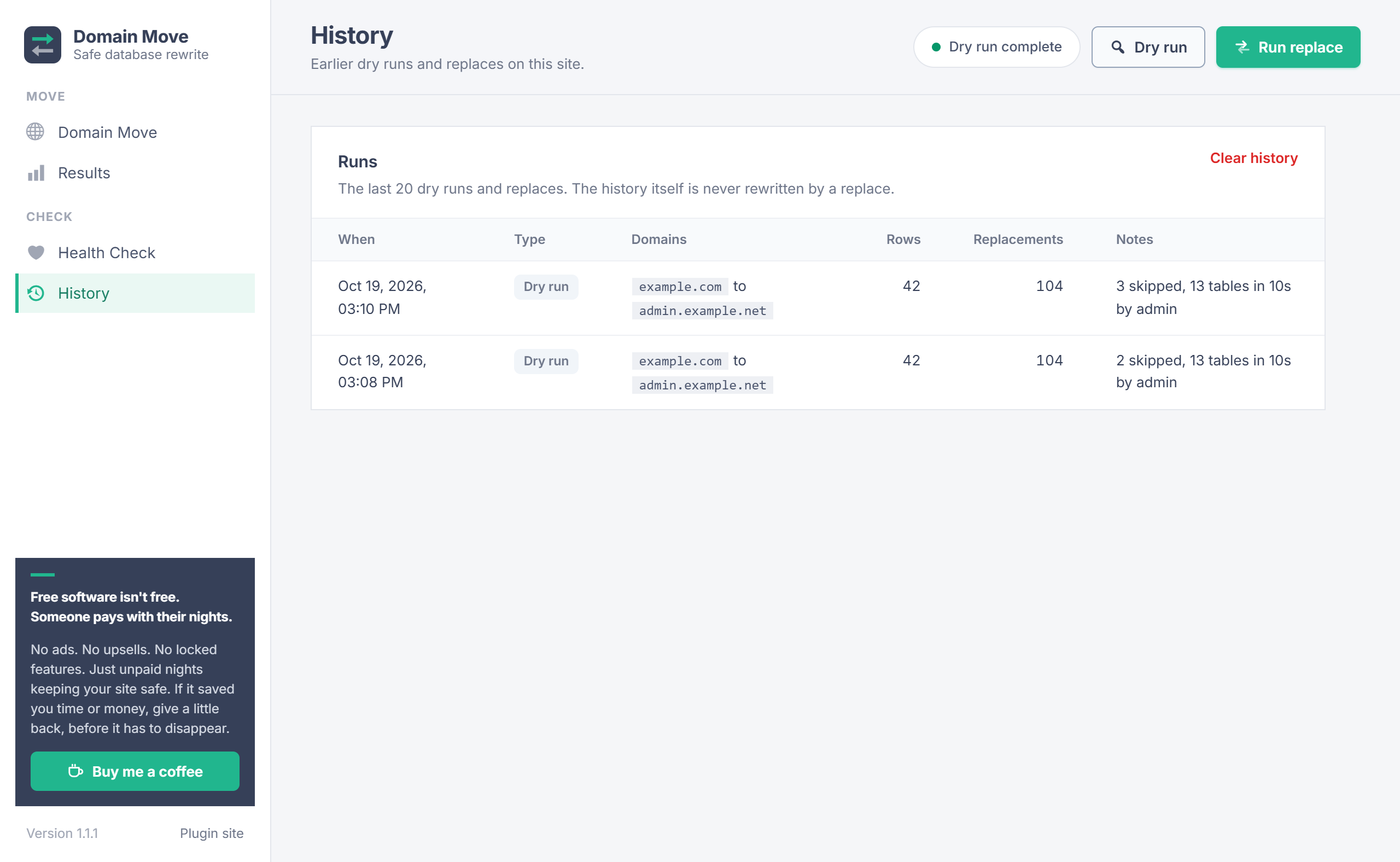
History keeps the last 20 dry runs and replaces: when, which domains, rows and replacements, and notes such as skipped rows or a run that was stopped. A replace never rewrites the history itself. Clear history empties it.
Your data
- Domain Move only changes the database rows you choose, and only when you run the replace. A dry run never writes anything.
- Serialized values are never unserialized, so no plugin code runs while they change. A value that doesn't parse is left exactly as it was and counted as unreadable.
wp-config.phpand other files are never changed.- Deleting the plugin removes only its saved form and run history. Your content is never touched.
- No external services are contacted.
Troubleshooting
| Problem | What to do |
|---|---|
| Logged out after the replace | Expected: your login cookie belongs to the old domain. Log in on the new domain with the link shown when the run finishes. |
| The site still redirects to the old domain | Check the Health Check for WP_HOME or WP_SITEURL in wp-config.php and edit them by hand. Then clear page caches, any object cache and your browser cache. |
| The new domain doesn't load | Point the new domain at your server (DNS) and add it to the web server and SSL certificate. Domain Move only changes the database. |
| Some rows were skipped | They match the skip list, are protected StaticPush settings, or are in a table without a primary key. The Results table and Health Check say which. |
| Unreadable values in the results | Those values were already damaged before the move and are left exactly as they were. |
| Images on a CDN subdomain didn't change | Expected: subdomains are never replaced. They are listed under "Subdomains left alone" so you can update them separately if needed. |
| Something looks wrong after the replace | Restore the database backup you took before the run, then try again after a dry run. |
Changelog
- 1.1.1: StaticPush settings, including the static site address, and its cached data are always protected, even when the skip list is empty or edited. The skip list is only for extra options.
- 1.1.0: New admin screens in the StaticPush design: Results, Health Check and History pages. The replace asks for confirmation and warns when no dry run was made with the same settings, a run can be stopped between batches, and the form remembers your choices. Requires WordPress 6.2.
- 1.0.1: Faster batches on large tables.
- 1.0.0: First release.
Need help?
Questions about a move or a feature request? Contact us on our support page. You can also download the latest version (v1.1.1) here.