


Better Database Backups
Back up the database on a schedule, make whole-site backups, restore in one click and move a site to a new host with a small installer. Free, with Pro plans for more.
On this page24 sections
- Overview
- Requirements
- Install
- First steps
- Make a backup
- Automatic backups
- Restore
- Move a site with the installer
- Keep copies off the server
- Email alerts
- Free and the Pro plans
- Buy a plan
- Enter the license key
- Sites on a key
- Move Pro to another site
- When a yearly plan ends
- Upgrade
- When Pro is off
- Multisite
- WP-CLI
- External services and your data
- Troubleshooting
- Changelog
- Need help?
This guide covers installing and using Better Database Backups by Quintaphon (version 1.0.0), a free plugin that backs up, restores and moves WordPress sites, and Better Database Backups Pro, the paid add-on sold in yearly and lifetime plans. Use it to set up backups, restore or move a site, pick a plan and manage your license.
Tip
A backup on the same server is lost with the server. Keep a copy somewhere else: email database backups to yourself, download a whole-site backup now and then, or use cloud storage with Pro. See Keep copies off the server.
Overview
Better Database Backups puts backups, restores and moves in one plugin with one settings screen:
- Back up on a timer: the database every 12 hours, day, week or month, and the whole site on its own schedule.
- Back up what you need: the database only, the whole site, or the parts you pick.
- Restore in one click: all of a backup or only some parts, with the current database backed up first.
- Move a site: a small installer sets the site up on a new host or a new address.
- Hear about problems: email alerts when a backup fails.
The free plugin works on as many sites as you like. Better Database Backups Pro is an add-on plugin that unlocks more with a license key. See Free and the Pro plans.
Requirements
| Item | Needed |
|---|---|
| WordPress | 5.8 or newer (tested up to 7.1). Multisite networks need the Business plan. |
| PHP | 7.4 or newer, with the zlib extension |
| Database | MySQL or MariaDB (the SQLite drop-in is not supported) |
| User | An administrator. With Business, other roles can be given access. |
| Pro | The free plugin, Better Database Backups Pro and a license key from a plan |
Install
- Download better-database-backups.zip.
- In WordPress go to Plugins > Add New Plugin > Upload Plugin, choose the file, click Install Now and activate it.
- Open Backups in the admin menu. The database is backed up every day at 03:00 from the start.
The plugin is not in the WordPress.org directory yet. Until it is listed there, install it from the ZIP on this site.
First steps
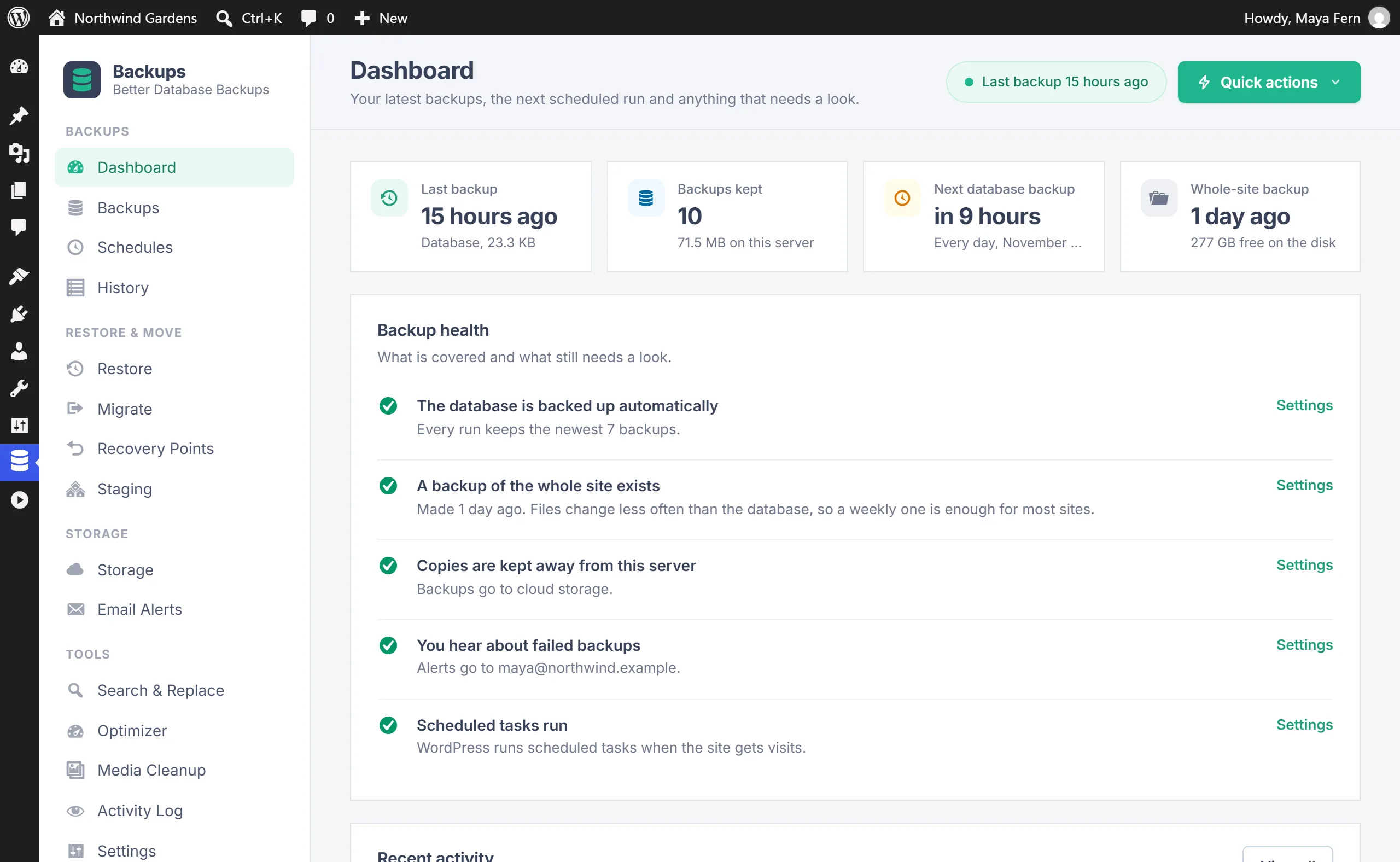
- Open Schedules. Check the time of the daily database backup and how many backups to keep, and turn on a weekly whole-site backup.
- Open Storage and email database backups to yourself, or, with Pro, add cloud storage.
- Open Email Alerts and check who hears about failed backups.
- Run the system check under Tools. It shows the PHP limits, whether backups can run in the background, the free disk space and whether visitors could open the backup folder.
- Work through the Backup health list on the dashboard until every line is green.
Make a backup
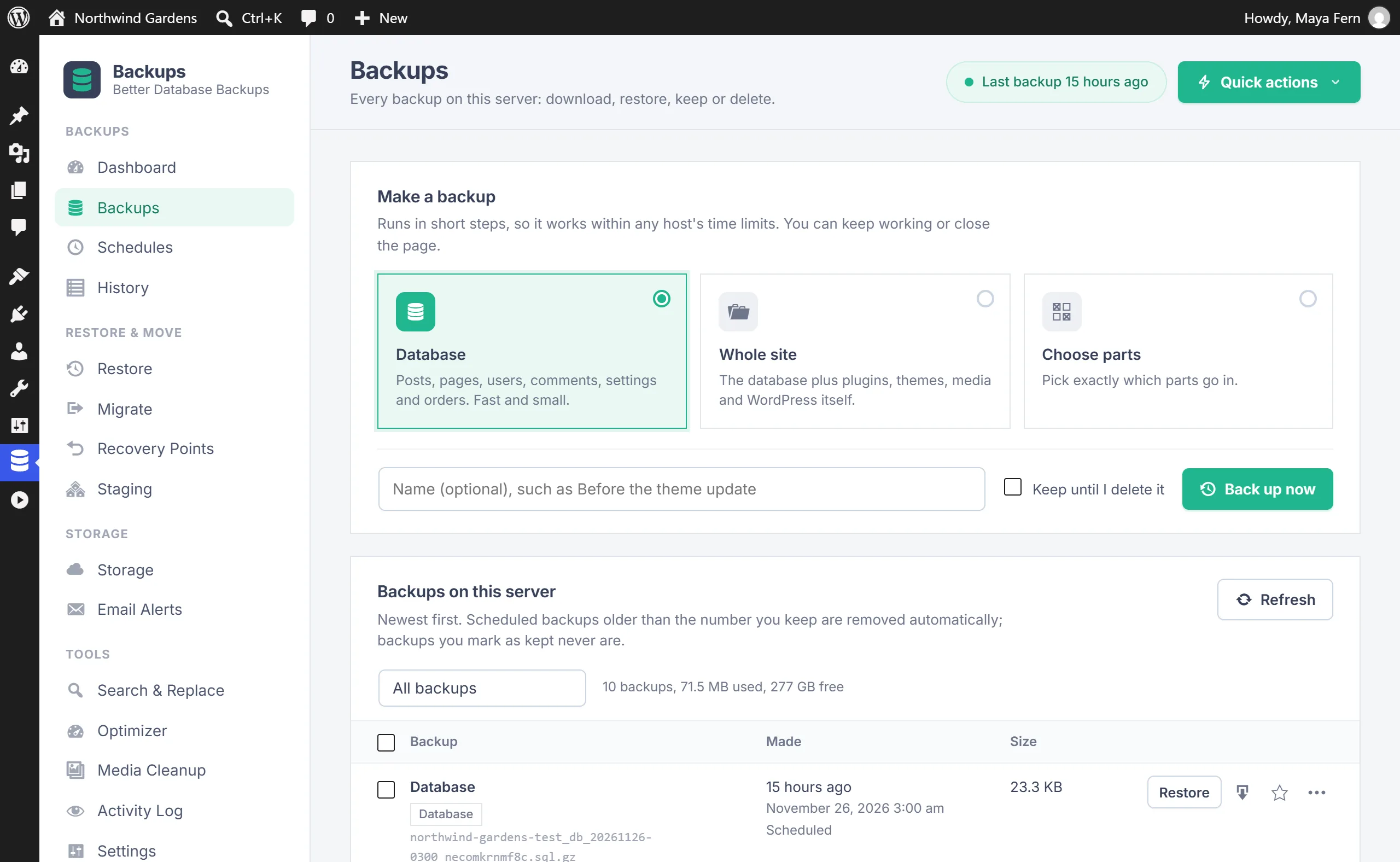
- Open Backups, or use Quick actions at the top of any screen.
- Pick Database, Whole site or Choose parts (database, plugins, themes, media uploads, other
wp-contentfiles, WordPress core files, other folders). - Give it a name if you like, tick Keep until I delete it to protect it from automatic removal, and click Back up now.
The backup runs in steps of a few seconds. You can keep working, or close the page and it finishes in the background. When it is done it is listed under Backups on this server with buttons to restore, download, keep and delete it.
- Database backups are
.sql.gzfiles and whole-site backups are.tar.gzfiles, so any archive tool can open them. - Caches, backups of other plugins, development folders and log files are left out. Under Settings you can change that and leave out files above a size.
- When several sites share one database, only this site's tables are backed up, unless you choose every table under Settings.
Automatic backups
Under Schedules there are two schedules, each with its own timing and number of backups to keep:
| Schedule | Choices |
|---|---|
| Database | Every 12 hours, every day, every week or every month, at the time you pick in the site's time zone, or off. On from the start: every day at 03:00. |
| Whole site | The same choices, for the whole site or only the parts you pick. Off until you turn it on. |
Pro Professional adds hourly and every six hours. Older scheduled backups are removed after each run, down to the number you keep. Backups marked kept are never removed. A run that could not start because the server was busy is tried again a few minutes later.
WordPress starts scheduled tasks when someone visits the site. On a site with very few visits, or with DISABLE_WP_CRON set, ask your host to call wp-cron.php every few minutes. The dashboard warns you when this applies.
Restore
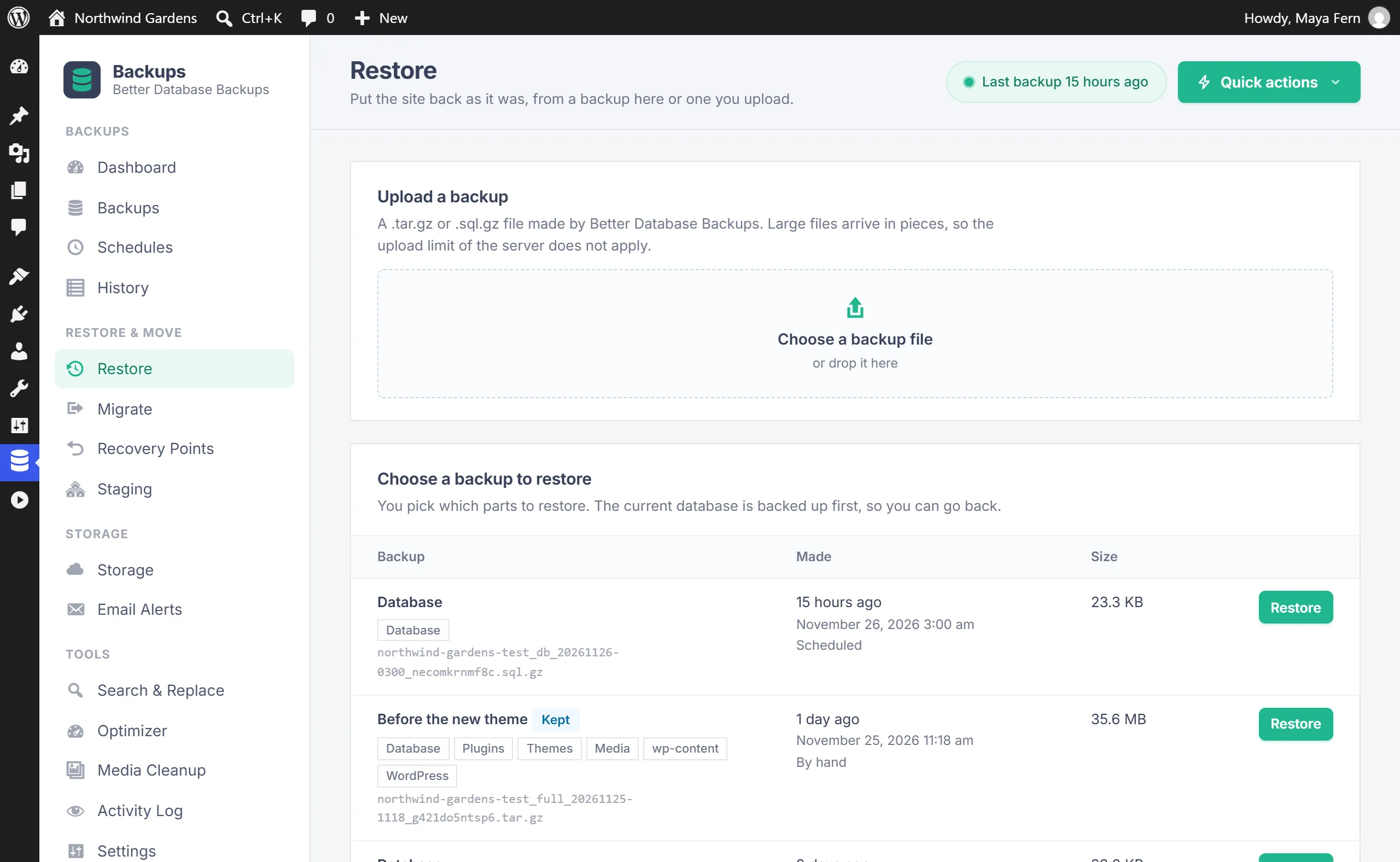
- Open Restore. Pick a backup on this server, or upload a backup made on this site earlier. Uploads of any size arrive in small pieces, so the upload limit of the server does not apply.
- Choose the parts to put back, for example only the database or only the media uploads.
- Click Restore and confirm.
- A backup of the current database is made first, so you can always go back.
- The database of the backup is imported next to the live one and switched in at the end, in one step. If anything goes wrong before that, the live site has not changed.
- Visitors see a short maintenance message while the restore runs.
- You stay signed in when your account is the same in the backup. The plugin's own settings and history stay as they are now, so a restore never turns off your schedule.
Restoring a backup of a different site inside WordPress is part of Pro. Without Pro, move a site with the installer.
Move a site with the installer
Use the installer to move a site to a new host, a new address, or both.
- On the old site open Migrate. Make a whole-site backup if there is none yet (it must include the database and the WordPress core files).
- Click Installer and key next to the backup, download the backup and
installer.php, and note the installer key. - Upload both files into the empty folder of the new site, with FTP or the file manager of your host.
- Create an empty database and a database user in the hosting panel of the new host.
- Open
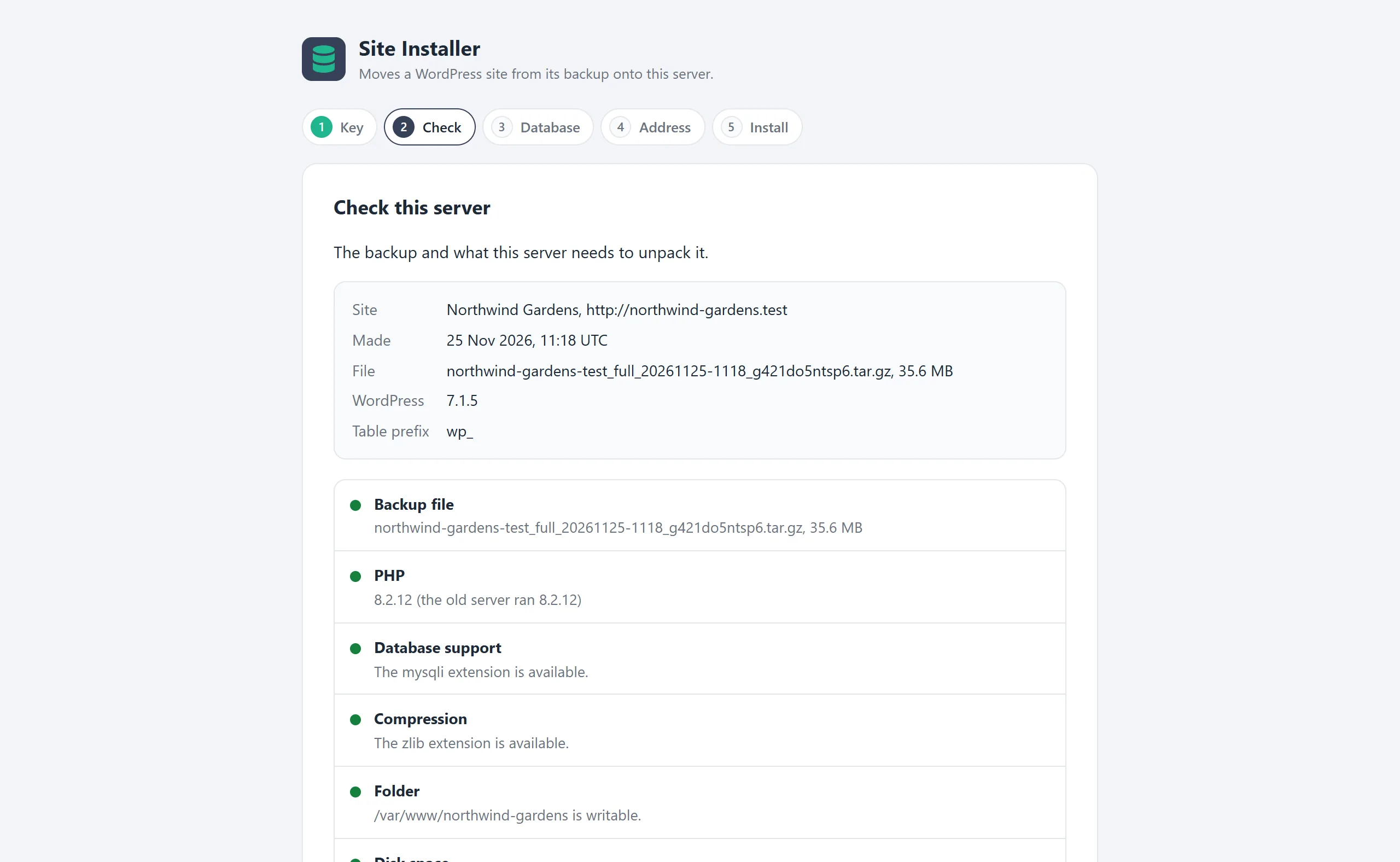
https://your-new-site/installer.phpin a browser and follow the five steps: Key, Check, Database, Address and Install.
The installer unpacks the files, imports the database, changes every address and folder in the database (serialized data included) and writes wp-config.php. You can change the table prefix on the way. When it ends, it deletes itself and the backup file. Only someone with the installer key can use it, so keep the key private.
Keep copies off the server
Every backup is kept on this server first, in wp-content/uploads/better-database-backups/. The folder is closed to visitors and every backup name ends in a random id. To keep backups somewhere else on the server, for example outside the public web folder, add this line to wp-config.php:
define( 'QBDB_BACKUP_DIR', '/path/to/folder' );A copy on the same server is lost if the server fails, so keep one somewhere else too:
- Email (free): under Storage, turn on Email database backups. Each database backup up to the size you set (10 MB by default) is emailed to the addresses under Email Alerts.
- Download (free): download a whole-site backup from Backups now and then.
- Cloud storage (Pro): Amazon S3 and S3-compatible services, Dropbox, Google Drive, OneDrive, FTP and SFTP. Every new backup is sent there on its own, and its cloud copies are removed when the backup is removed here, unless you turn that off.
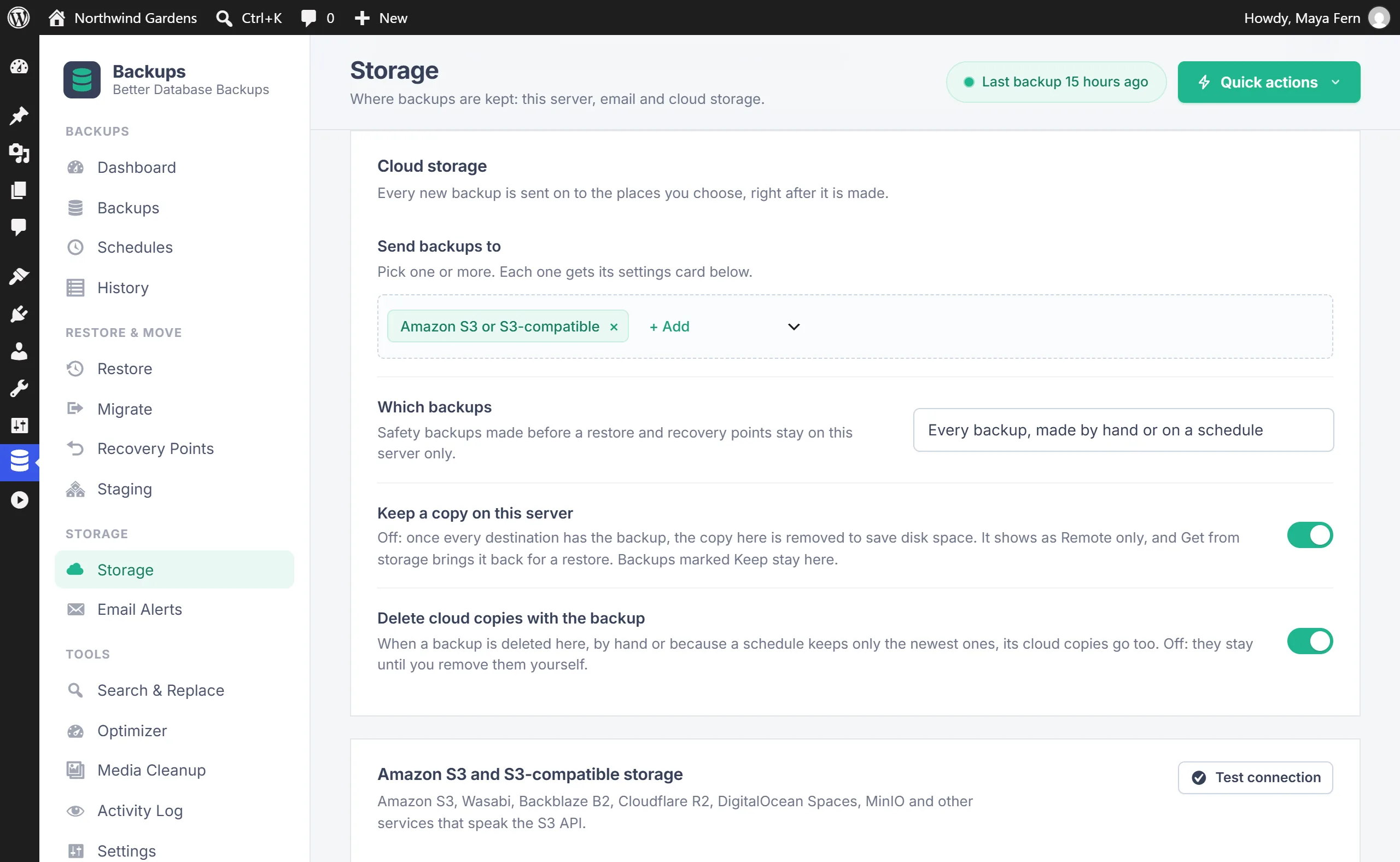
Email alerts
Under Email Alerts, choose to hear about failures only, about every run, or never, and list who gets the emails. Empty means the site's administration email address. Emails are sent with WordPress's own mail setup.
Free and the Pro plans
Each plan includes everything in the plan before it.
Free (unlimited sites)
- Database backups every 12 hours, day, week or month, and a separate whole-site schedule
- Whole-site backups, or only the parts you pick
- One-click restore of all or some parts, with the current database backed up first
- Uploads of backups of any size
- Site installer to move to a new host or domain, with a table prefix change
- Email alerts and emailed database backups
- System check, a closed backup folder and a custom backup folder
Basic
Everything in Free, plus:
- Amazon S3 and S3-compatible, Dropbox, Google Drive, OneDrive, FTP and SFTP
- Archive encryption with a password (AES-256)
- File and table filters
- Recovery points before every update
- Restore backups of other sites, by upload or from an address
- Quick transfers to another site
- Search and replace with a dry run
- cPanel database setup in the installer
- WP-CLI commands and AI assistant abilities
- Standard support
Professional
Everything in Basic, plus:
- Hourly and six-hourly schedules
- Change the table prefix of a live site
- Installer branding: your name, logo and colours
- Settings transfer to your other sites
- Regenerate security keys and salts
- Priority support
Business
Everything in Professional, plus:
- Staging sites with push back
- Incremental backups
- Backup permissions for other roles
- Database optimizer
- Media cleanup
- Activity log
- Multisite networks and single-site export
- Priority support
Sites and terms
| Choice | What you get |
|---|---|
| Sites | 1, 3, 10 or unlimited sites on one key. |
| Yearly | Paid once a year and never renewed automatically. Updates and support for 12 months; Pro keeps working after that. |
| Lifetime | One payment, updates for life, nothing to renew. |
Prices are on the plugin page. Yearly prices are also shown per month there, but they are billed once a year.
Buy a plan
- On the plugin page, pick Yearly or Lifetime, the number of sites and a plan, then click Get.
- Pay on Stripe's secure checkout page.
- Your license key is on the thank-you page and arrives by email. It is also in My account, where you download Better Database Backups Pro.
Signed in to My account? You can also buy a plan from its Buy and renew tab. Plans, renewals and upgrades have a 14-day money-back guarantee; see the Refund Policy.
Enter the license key
- Install better-database-backups-pro.zip with Plugins > Add New Plugin > Upload Plugin and activate it. Keep the free plugin active.
- Open Backups > License.
- Paste the key and click Activate. The site is added to your key and the Pro features of your plan switch on.
You can also set the key in wp-config.php with define( 'QBDB_LICENSE_KEY', 'BDBP-...' );. On a multisite network, network-activate both plugins and enter the key in Network Admin.
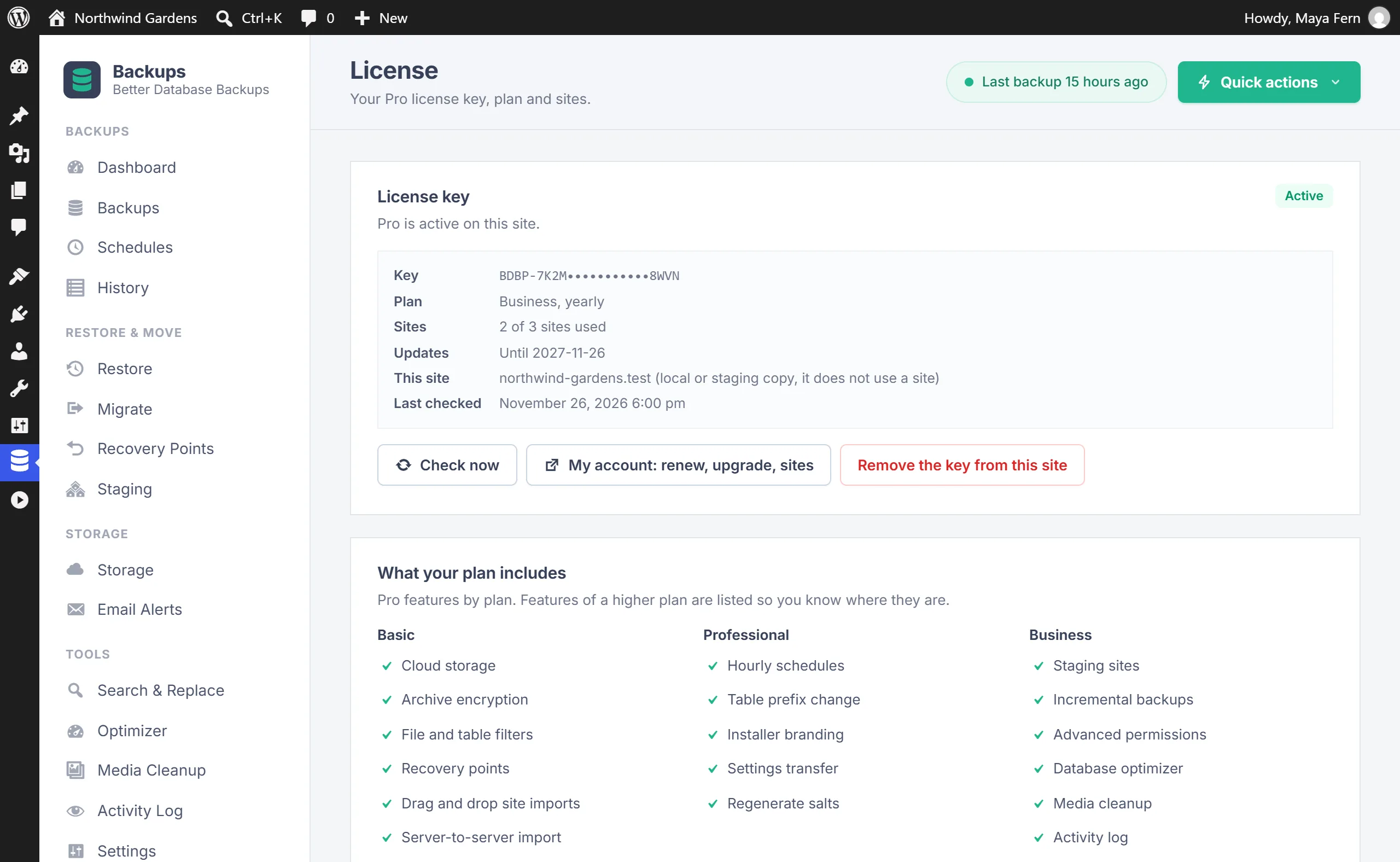
Sites on a key
- A key works on as many sites as its plan: 1, 3, 10 or unlimited.
- A site is added to the key the first time Pro checks the key there. My account lists the sites on each key and how many are used.
- When every site on the key is used, a new site is refused until you remove one or upgrade to more sites.
- Local and test copies never use a site:
localhost,127.0.0.1and every other127.*address, private network addresses (10.*,192.168.*and172.16.*to172.31.*),::1,0.0.0.0, and names ending in.localhost,.test,.local,.invalidor.example. - A staging copy on one of those addresses is free. A staging copy on a public address, such as staging.example.com, uses a site like any other. Staging sites made with Business live inside the main site and do not use a site.
Move Pro to another site
Free a site on the key, then enter the key on the new site. There are two ways to free one:
- On the site, the best way: open Backups > License on the old site and click Remove the key from this site.
- In My account, for a site you can no longer reach: open Licenses, find the site under your key and click Remove. You can remove up to 5 sites per key in 30 days; My account shows how many removals are left.
A site moved with the installer to a new address takes a site of its own the first time Pro checks the key there; free the old one when it is gone. A site that is no longer on the key runs without Pro; see When Pro is off.
When a yearly plan ends
- Yearly plans never renew automatically. We email you 14 days and 3 days before the end date.
- When the plan ends, Pro keeps working on your sites with every feature of your plan. Only updates and support stop.
- Renew any time from My account. The renewal costs the yearly price of your plan and number of sites, and adds 12 months to the end date, or 12 months from the day you renew if the plan has already ended.
- Lifetime plans never end and never need renewing.
Upgrade
Move to a higher plan, to more sites, or from yearly to lifetime at any time with the Upgrade picker under your key in My account. Your key stays the same, and you pay only the difference:
| Upgrade | You pay |
|---|---|
| Lifetime to a bigger lifetime plan | The new lifetime price minus your plan's lifetime price, at today's prices. |
| Yearly to a bigger yearly plan | The difference between the two yearly prices for the days left on your plan. If your plan has already ended, the full new yearly price, and a new year starts that day. |
| Yearly to lifetime | The lifetime price minus the unused part of your yearly plan. |
A plan can not move from lifetime to yearly or to fewer sites. The smallest charge is $0.50.
When Pro is off
If Better Database Backups Pro is deactivated, its key is cancelled, or the site was removed from the key, the free plugin goes on backing up the site. Until Pro is back:
- Pro features stop and the free features go on as before;
- encrypted backups can still be opened and backups in cloud storage can still be fetched while the add-on is installed, so nobody is locked out of their own backups;
- staging sites keep working on their own; delete them under Staging first if you remove the add-on for good;
- Pro settings are kept and come back when the key is active again.
An ended yearly plan changes nothing on the site except updates.
Multisite
- Multisite networks need the Business plan. Without it, the plugin shows what is needed on a network and makes no backups.
- Network-activate both plugins. The plugin is managed under Network Admin > Backups, and the license key is entered there.
- Back up and restore the whole network, or export one site of the network as a standalone site. Its super admins become its administrators, plugins active across the network stay active, and its media addresses are changed for the installer.
- Set the exported site up on any host with its installer.
WP-CLI
With Pro, every plan, the wp bdb commands work from the command line:
| Command | What it does |
|---|---|
wp bdb backup [--db] [--components=<list>] [--label=<text>] [--keep] | Make a backup of the whole site, the database or the parts you list. |
wp bdb list [--format=<format>] | List the backups on this server. |
wp bdb restore <id> [--components=<list>] [--yes] | Restore a backup, all or some parts. |
wp bdb delete <id>... [--yes] | Delete backups. |
wp bdb installer <id> [--output=<file>] | Write the installer of a whole-site backup. |
wp bdb status and wp bdb cancel | Show or stop the backup or restore that is running. |
External services and your data
- The free plugin sends no data to Quintaphon or anyone else. To run backups in the background and to test the backup folder, it sends requests to your own site only. Emails go through WordPress's own mail setup.
- Pro sends its license key, your site's domain and the product name to our license server, to check the key and to get updates. It sends nothing about your content, users or visitors.
- Cloud storage (Amazon S3 or the S3-compatible service you name, Dropbox, Google Drive, OneDrive, your FTP or SFTP server) is used only when you add it, with your own account and keys. Backups go straight there; nothing passes through Quintaphon.
- Quick transfers send a backup to the other site you connect. Server-to-server import downloads a backup from the address you enter. The cPanel tools of the installer talk to the cPanel of the host you install on.
Troubleshooting
| Problem | What to do |
|---|---|
| Scheduled backups do not run | WordPress runs scheduled tasks when someone visits. Ask your host to call wp-cron.php every few minutes, especially with DISABLE_WP_CRON set. |
| A backup stops part way | Lower Settings > Seconds per step, then run it again. The log under History shows where it stopped. |
| Background runs fail | Run the system check under Tools. If the site can not call itself, backups still run while the page is open. |
| The disk is full | Keep fewer backups under Schedules, delete old ones, or with Pro turn off Keep a copy on this server once cloud storage has them. |
| The installer refuses the key | Use the key shown next to that backup on the Migrate screen of the old site. Each backup has its own key. |
| The key is refused on a new site | Every site on the key is used. Remove a site in My account or upgrade to more sites. |
| Pro shows no updates | A yearly plan has ended, or the site is no longer on the key. Renew, or enter the key again, in My account. |
Changelog
- 1.0.0 (November 26, 2026): First release of Better Database Backups and Better Database Backups Pro.
Need help?
With a plan, open a ticket from My account; anyone can reach us through the support page. You can also download the latest free version (v1.0.0) here.