

This guide covers installing and using Unused Media Review by Quintaphon (version 2.0.0), a free plugin that finds the media nothing on your site uses, shows it with thumbnails and removes what you pick into an archive you can restore. Use it for the first cleanup and as a reference for every screen.
Tip
The plugin lives under Media > Unused Media. It has four screens: Overview, Review, Kept and Archive.
Overview
Over the years a Media Library fills up with images from deleted posts, replaced logos, test uploads and files nobody remembers. Unused Media Review handles them in a safe order:
- Scan: reads your posts, custom fields, settings and theme, then lists every media item nothing points to. Nothing is changed.
- Review: you see each item with its thumbnail and decide. Keep it, or select it for removal.
- Remove: each item is checked again, then moved with its files and database rows into an archive.
- Restore or delete: an archive brings the items back with the same IDs, or frees the space for good.
Requirements
| Item | Needed |
|---|---|
| WordPress | 5.8 or newer (tested up to 7.1) |
| PHP | 7.2 or newer |
| User | An administrator (the manage_options capability) |
| Disk | Room in the uploads folder for the archive. Files are moved, not copied, so an archive takes no extra space. |
Install
- Download unused-media-review.zip.
- In WordPress go to Plugins > Add New Plugin > Upload Plugin, choose the file, click Install Now and activate it.
- Open Media > Unused Media.
Activating the plugin changes nothing on your site. It only adds the screen for administrators.
Back up first
Take a backup of your database and the uploads folder before removing media from a live site, as you would before any bulk change.
Overview screen
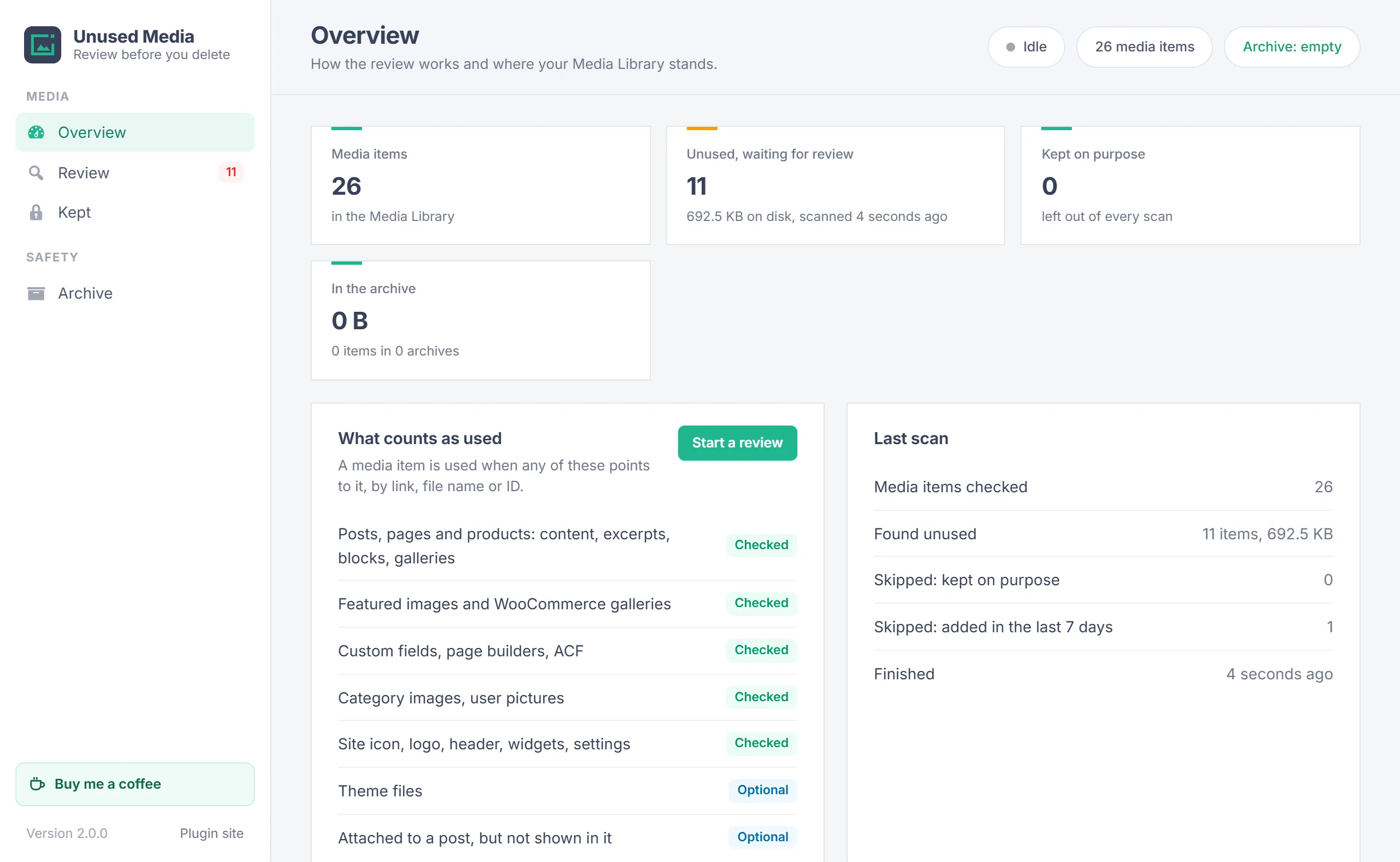
The Overview shows the number of media items, how many unused items wait for review and their size on disk, how many items you kept and the space the archives hold. Below that it lists what the scan checks and the details of the last scan.
What counts as used
A media item counts as used when any of these point to it, by link, file name or ID:
- The content or excerpt of a post, page or product: inserted images, image blocks, links, galleries and gallery shortcodes.
- A featured image or a WooCommerce product gallery.
- A custom field, including ACF fields and page builder data such as Elementor.
- A category or term image, or a user picture.
- Site settings: site icon, custom logo, header and background images and widgets.
- Your active theme and its parent theme, when a file is named in the theme's PHP, CSS, JavaScript or JSON files (optional, on by default).
Posts in every status count, including drafts, scheduled posts, private posts and posts in the trash. Revisions and auto-drafts do not.
Scan
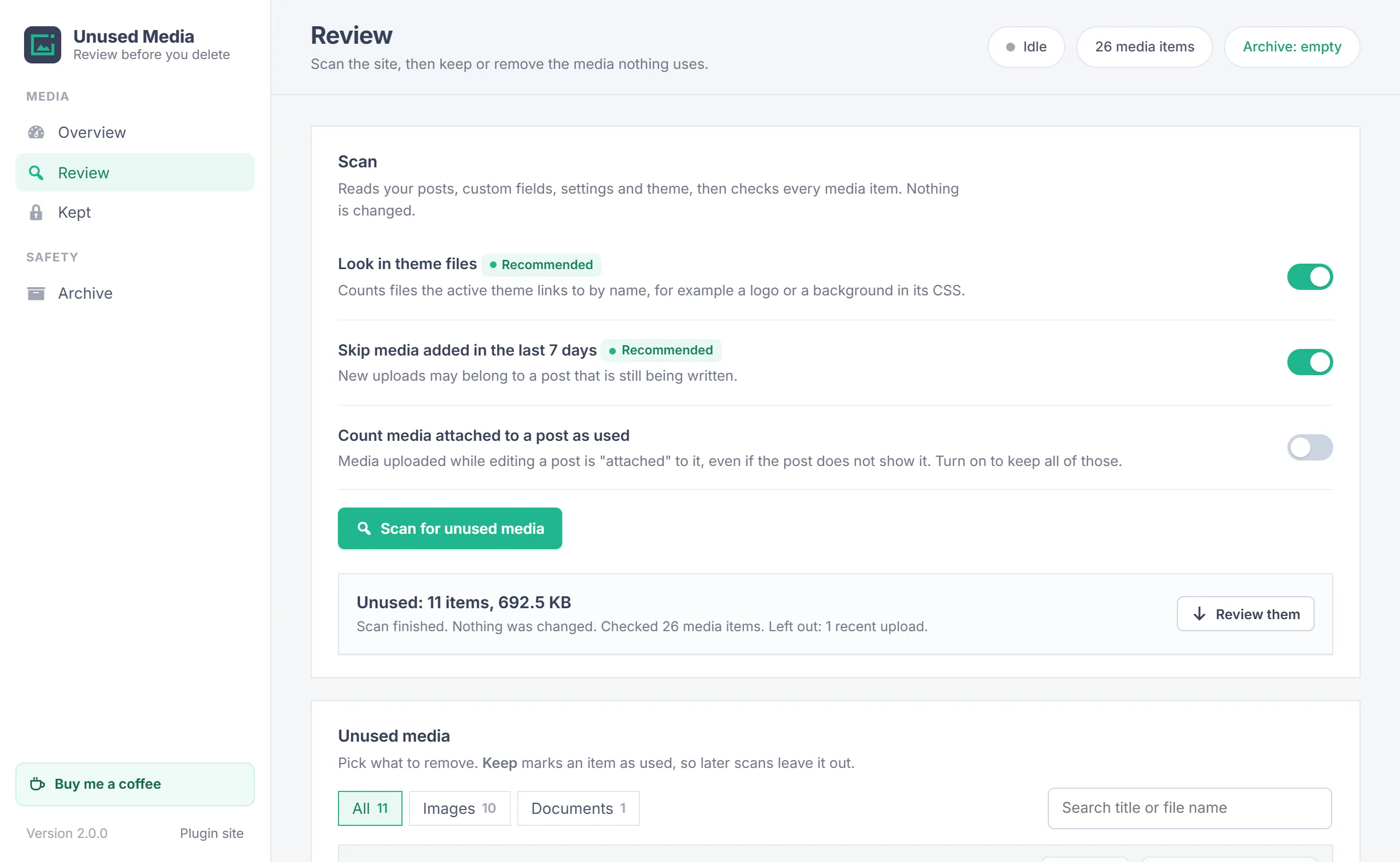
Open Review, check the options and click Scan for unused media.
| Option | Default | What it does |
|---|---|---|
| Look in theme files | On | Counts files the active theme links to by name, for example a logo or a background in its CSS. |
| Skip media added in the last 7 days | On | New uploads may belong to a post that is still being written, so they are left out. |
| Count media attached to a post as used | Off | Media uploaded while editing a post is "attached" to it, even if the post does not show it. Turn on to keep all of those. |
The scan runs in seven short steps (posts, custom fields, term data, user data, settings, theme files, check), so it never hits a PHP time limit. Keep the tab open; Stop ends it after the current step. When it finishes you see how many items are unused, their size and what was left out.
Review the results
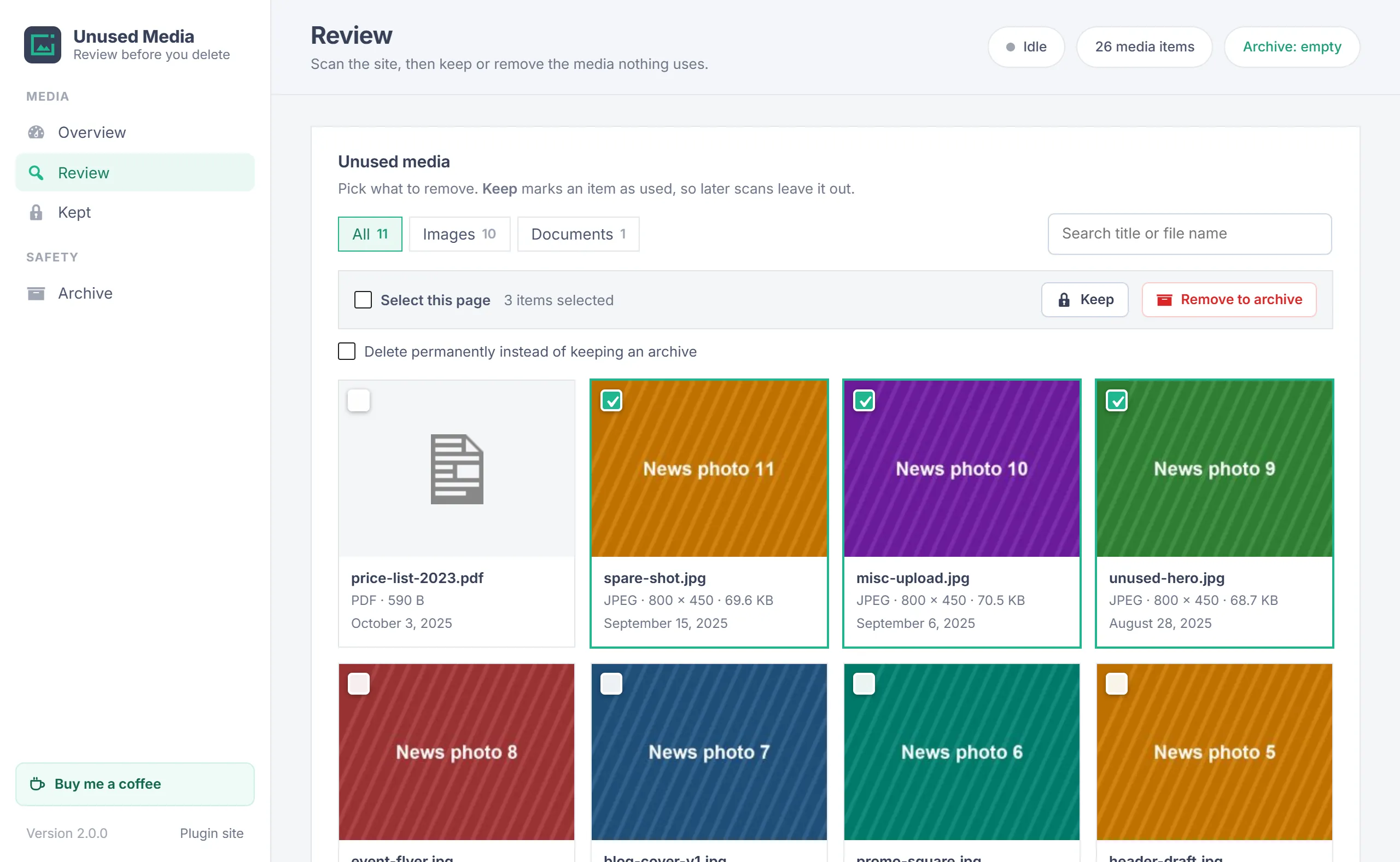
The Unused media grid shows each item with its thumbnail, file name, type, dimensions, size, upload date and, when it has one, the post it was attached to. Click a file name to open the item in WordPress in a new tab.
- Filter by Images, Video, Audio, Documents or Other, and search by title or file name.
- Tick items one by one, or Select this page. A link then offers to select every result that matches the filter, across all pages.
Keep items
Select items and click Keep when you want to hold on to them. Kept items leave the review list and later scans leave them out. The Kept screen lists them with the same grid; select one and click Review again to put it back in the next scan.
Remove to the archive
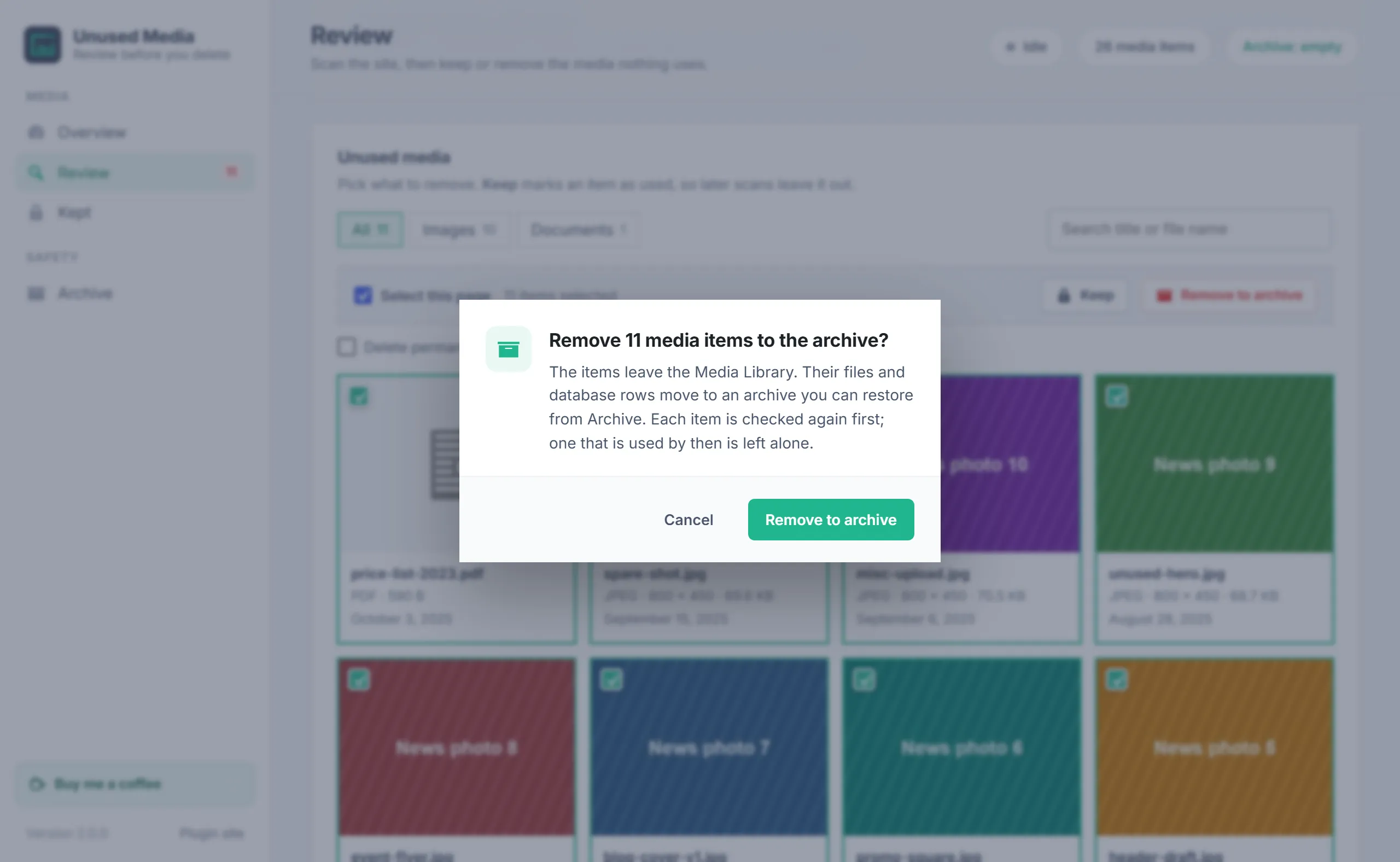
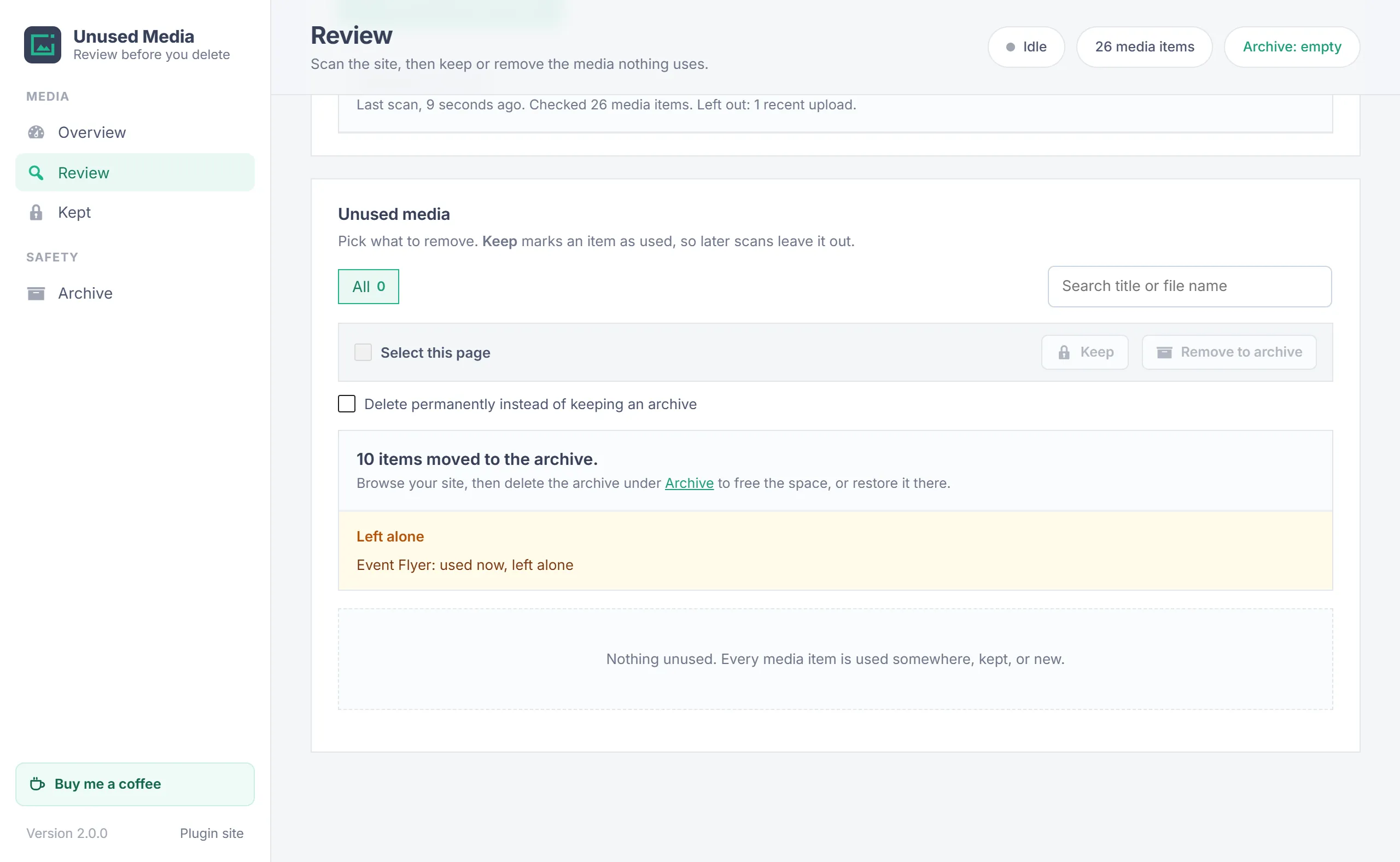
- Select the items and click Remove to archive, then confirm.
- The plugin first reads the posts changed since the scan, the featured images and the site settings again. An item that is used by then is left alone.
- Each remaining item is removed from the Media Library. Its files move into the archive in their original folder layout, together with its database rows: the media item, its custom fields (alt text, image data) and its terms.
- A report shows how many items moved and lists any that were left alone.
Archive and restore
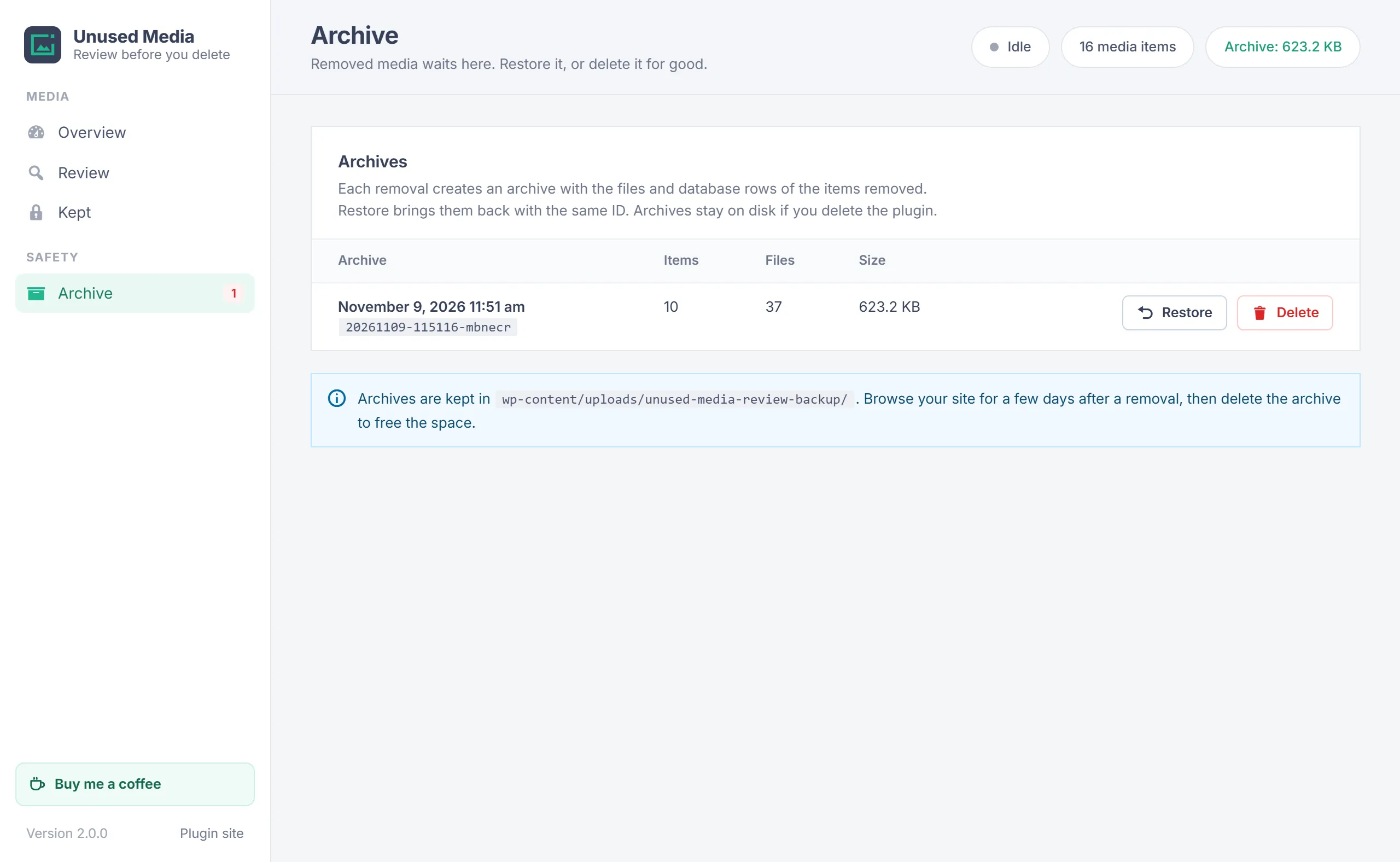
Each removal creates an archive in wp-content/uploads/unused-media-review-backup/. The Archive screen lists them with the date, the number of items and files and the size.
- Restore brings every item back to the Media Library with its files, title, alt text, captions and terms. Items get their old ID when it is still free, so links by ID keep working. If a file can not go back, for example because a new file now has its name, the archive is kept so nothing is lost.
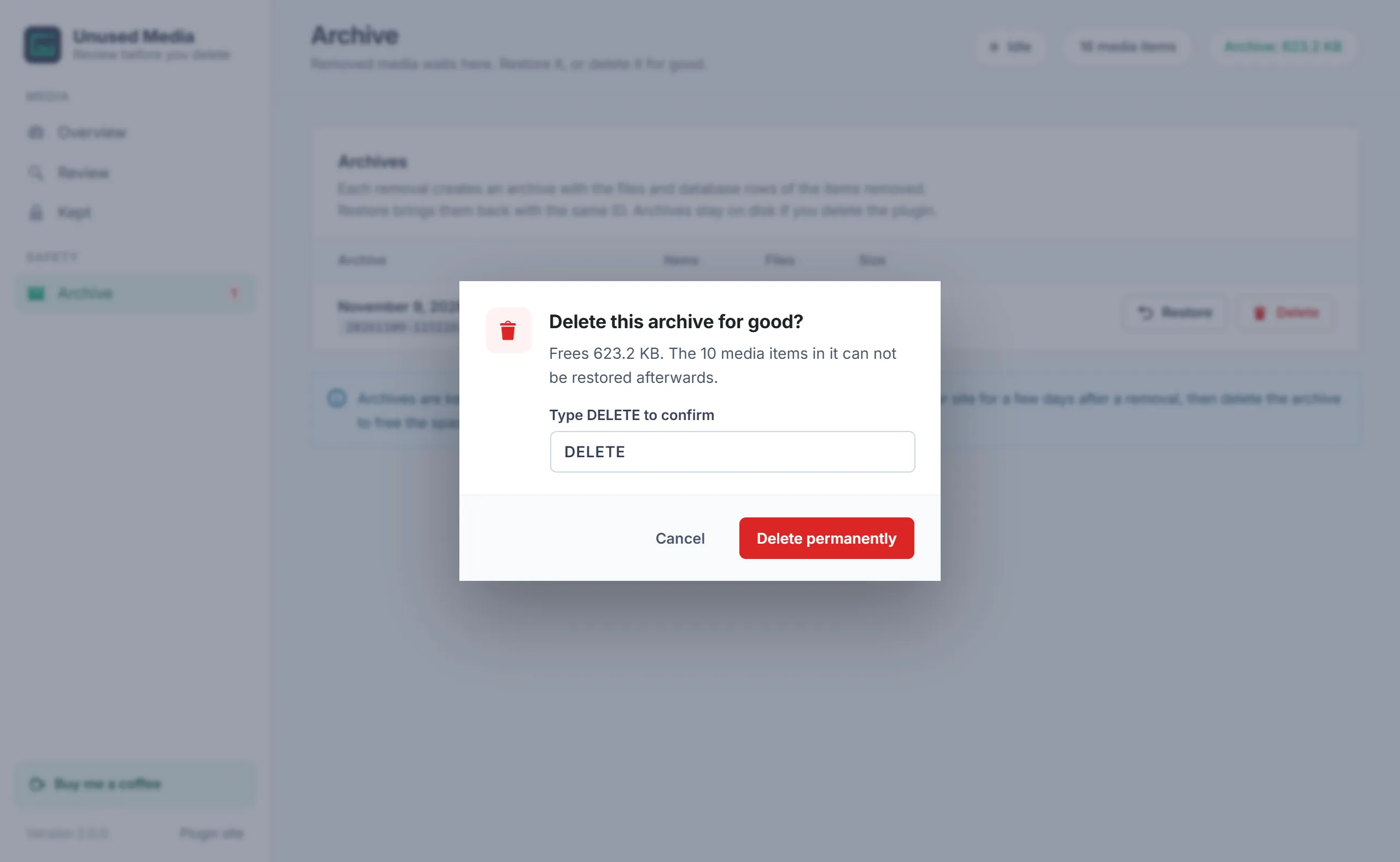
- Delete frees the space for good. You type DELETE to confirm.
When to delete an archive
Browse your site for a few days after a removal. When every page looks right, delete the archive to get the space back.
Delete for good
Tick Delete permanently instead of keeping an archive above the grid to skip the archive. The items and their files are deleted from the Media Library and the server. This needs DELETE typed in the dialog and can not be undone; each item is still checked again first.
Your data
- The plugin stores the scan options, the last scan result, the kept list and the state of a running removal or restore in a few options. It adds no database tables.
- It adds nothing to the front end, sends no data anywhere and loads no external files.
- Deleting the plugin removes its options. Archives stay on disk because they hold your files: delete them under Archive first, or remove the folder yourself.
Troubleshooting
| Problem | What to do |
|---|---|
| An image I use is listed as unused | A plugin or theme may store it in a way no scan can see. Click Keep on it. If you removed it already, restore the archive. |
| An image I never use is not listed | Something points to it: a link, its file name, or its ID in a custom field or setting. Uploads from the last 7 days and kept items are left out too. |
| Something is missing on the site after a removal | Click Restore on that archive under Archive. |
| An item was "left alone" | Something started using it after the scan. Nothing to do; scan again for a fresh list. |
| A scan stopped halfway | Start a new scan. A scan only reads, so nothing needs to be undone. |
| Images on a CDN or cloud storage | Removing an item moves the files in your uploads folder. Remote copies are handled by your offload plugin, if it reacts to deleted media. |
Changelog
- 2.0.0 (November 9, 2026): Rebuilt for every site: a full scan of posts, custom fields, term and user data, settings, widgets and theme files. A new screen under Media > Unused Media with Overview, Review, Kept and Archive; a review grid with thumbnails, filters, search and select all; kept items; removals go to an archive that restores with the same IDs; every item is checked again before removal; deleting for good needs DELETE typed. Now licensed under the GPL, version 2 or later.
- 1.0.0 (October 8, 2026): First release, made for one site with a fixed list of items.
Need help?
Questions about setup or a feature request? Contact us on our support page. You can also download the latest version (v2.0.0) here.