

This guide covers installing and using Media Size Cleanup by Quintaphon (version 1.2.0), a free plugin that removes image size files your site no longer needs, rebuilds the sizes you keep and finds orphan files in the upload folders. Use it for the first cleanup and as a reference for every screen.
Tip
The plugin lives under Media > Size Cleanup. It has four screens: Overview, Image sizes, Orphan files and Backups.
Overview
WordPress copies every uploaded image into each registered size. When you switch themes, change the sizes under Settings > Media or remove a plugin, the old copies stay on disk. Media Size Cleanup finds them and removes them in a safe order:
- Scan: a dry run that lists every file it would remove, per size, with a CSV download.
- Clean up: moves those files to a backup folder and rebuilds the sizes you keep with your current settings.
- Restore: puts every file and the old size data back in one click.
- Orphan files: files in the year and month upload folders that no media item uses.
Nothing changes until you start a cleanup, and every cleanup can be undone until you delete its backup.
Requirements
| Item | Needed |
|---|---|
| WordPress | 5.8 or newer (tested up to 7.1) |
| PHP | 7.2 or newer, with GD or Imagick for the rebuild |
| User | An administrator (the manage_options capability) |
| Disk | Free space for the backup, about the size the scan reports |
Install
- Download media-size-cleanup.zip.
- In WordPress go to Plugins > Add New Plugin > Upload Plugin, choose the file, click Install Now and activate it.
- Open Media > Size Cleanup.
Activating the plugin changes nothing on your site. It only adds the screen for administrators.
Overview screen
The Overview shows the number of images in the library, how many sizes are registered (and how many come from the theme or plugins), the result of the last size cleanup and the space your backups hold. Below that it explains what each run removes, rebuilds and skips.
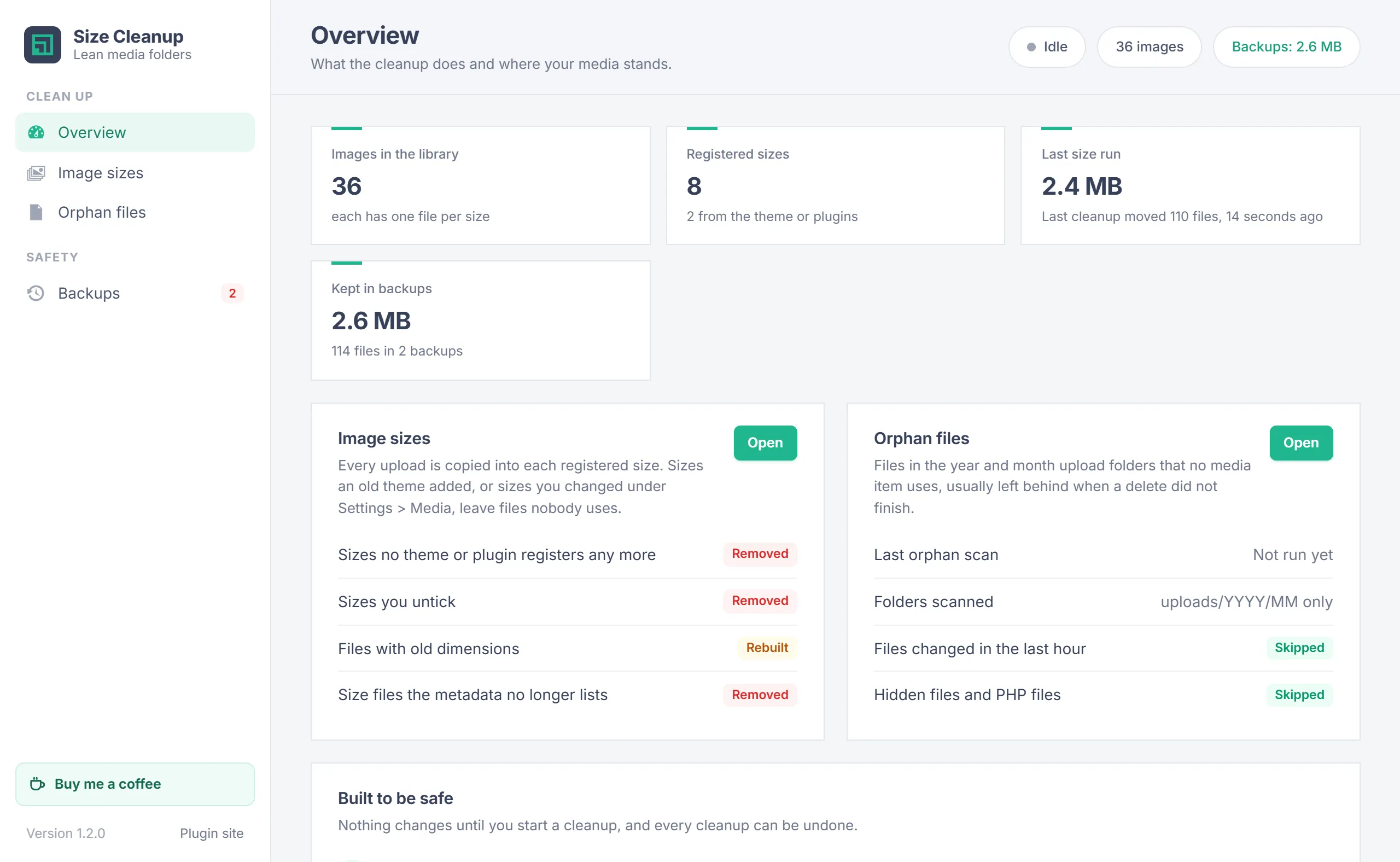
Image sizes
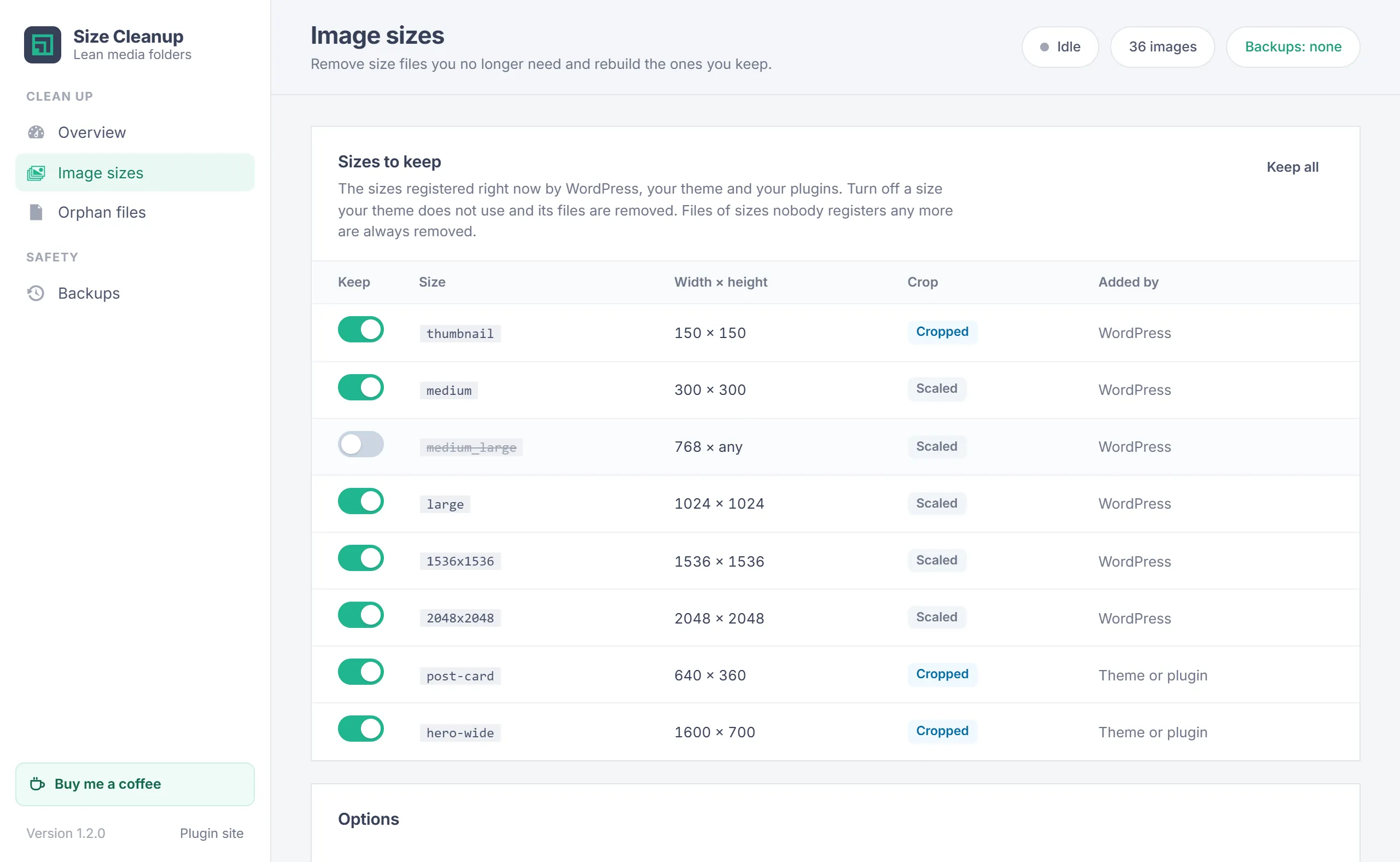
The Sizes to keep table lists every size registered right now by WordPress, your theme and your plugins, with its width, height, crop and who added it. Turn off a size your theme does not use and its files are removed. Keep all turns every size back on.
Files of sizes that nobody registers any more, for example from an old theme, are not in the table and are always removed.
Check your theme first
Only turn off a size when you are sure nothing shows it. WordPress uses medium_large and the 1536 and 2048 sizes in responsive image markup, so keep them unless your theme says otherwise.
Options
| Option | Default | What it does |
|---|---|---|
| Rebuild the kept sizes | On | Creates the kept sizes again with the current Settings > Media values. Needed after you change those sizes. Slower, since every image is resized. |
| Remove files with outdated dimensions | On | Kept-size files whose width and height no longer match the current settings. With rebuild on, they are replaced by new ones. |
| Remove leftover size files | On | Files on disk named like an image's sizes (photo-300x200.jpg) that its data no longer lists. |
| Skip files linked in your content | On | Keeps any file linked in posts, pages, custom fields or settings, so old articles keep their images. |
| Delete files permanently | Off | Deletes instead of moving to a backup. Needs DELETE typed in the confirmation and can not be undone. |
The page remembers the sizes and options you used last.
Scan and clean up
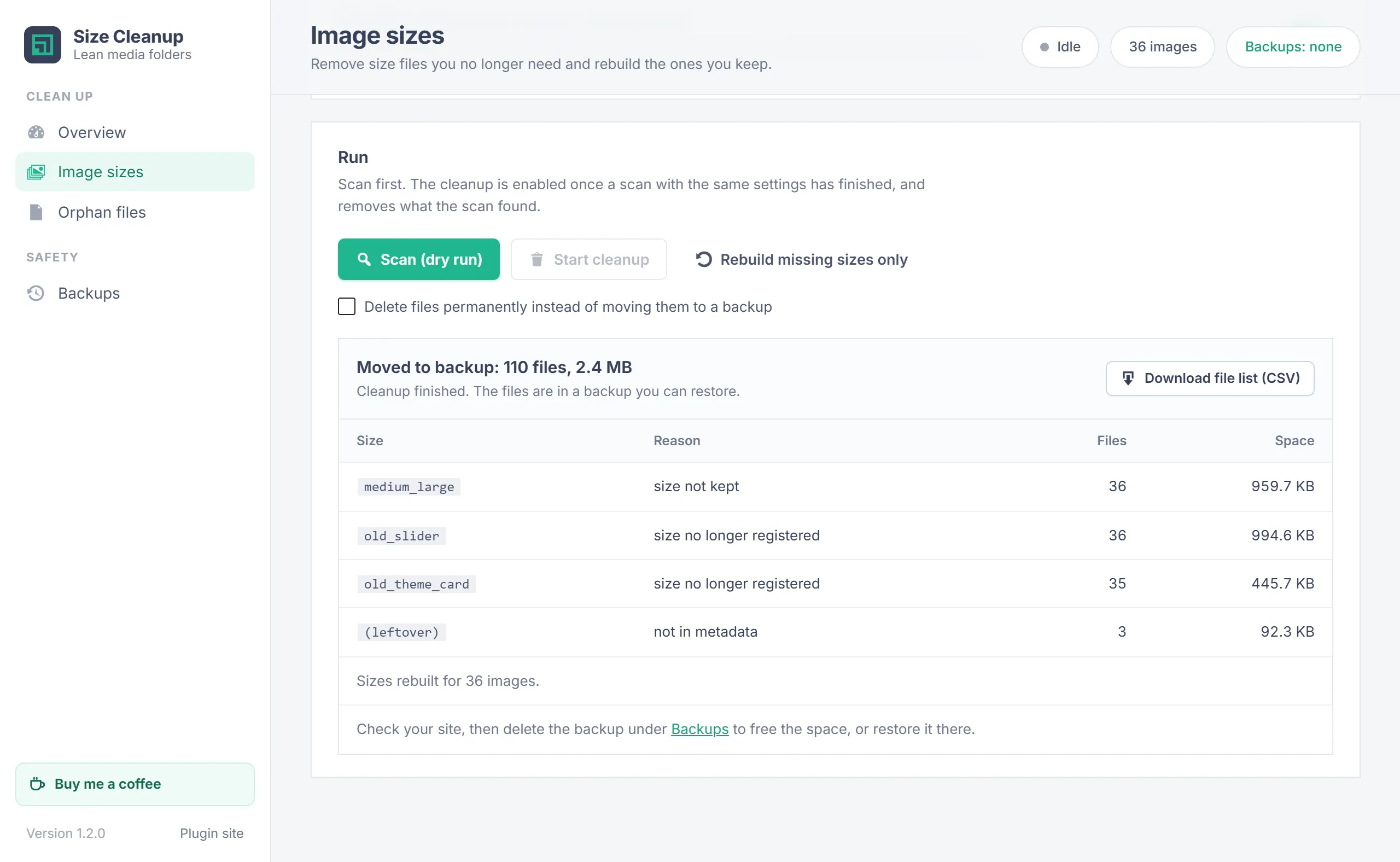
- Click Scan (dry run). The scan reads every image and lists what it would remove, grouped by size and reason, with the total space. Nothing is changed. Download file list (CSV) gives the full list.
- Click Start cleanup. It is enabled only after a scan with the same sizes and options; change anything and you scan again.
- Confirm the dialog. The files move to a new backup, and with rebuild on, each image gets its kept sizes created again.
- Keep the tab open until the run finishes. Stop ends it after the current batch; everything done so far is in the backup.
Large libraries
The work runs in short batches, so PHP time limits are never hit. A cleanup with rebuild on takes about as long as regenerating thumbnails. Only the tab that started a run can drive it.
Rebuild missing sizes
Rebuild missing sizes only creates the kept sizes for images that lack them, for example after you add a theme with new sizes. It removes nothing and needs no scan.
Orphan files
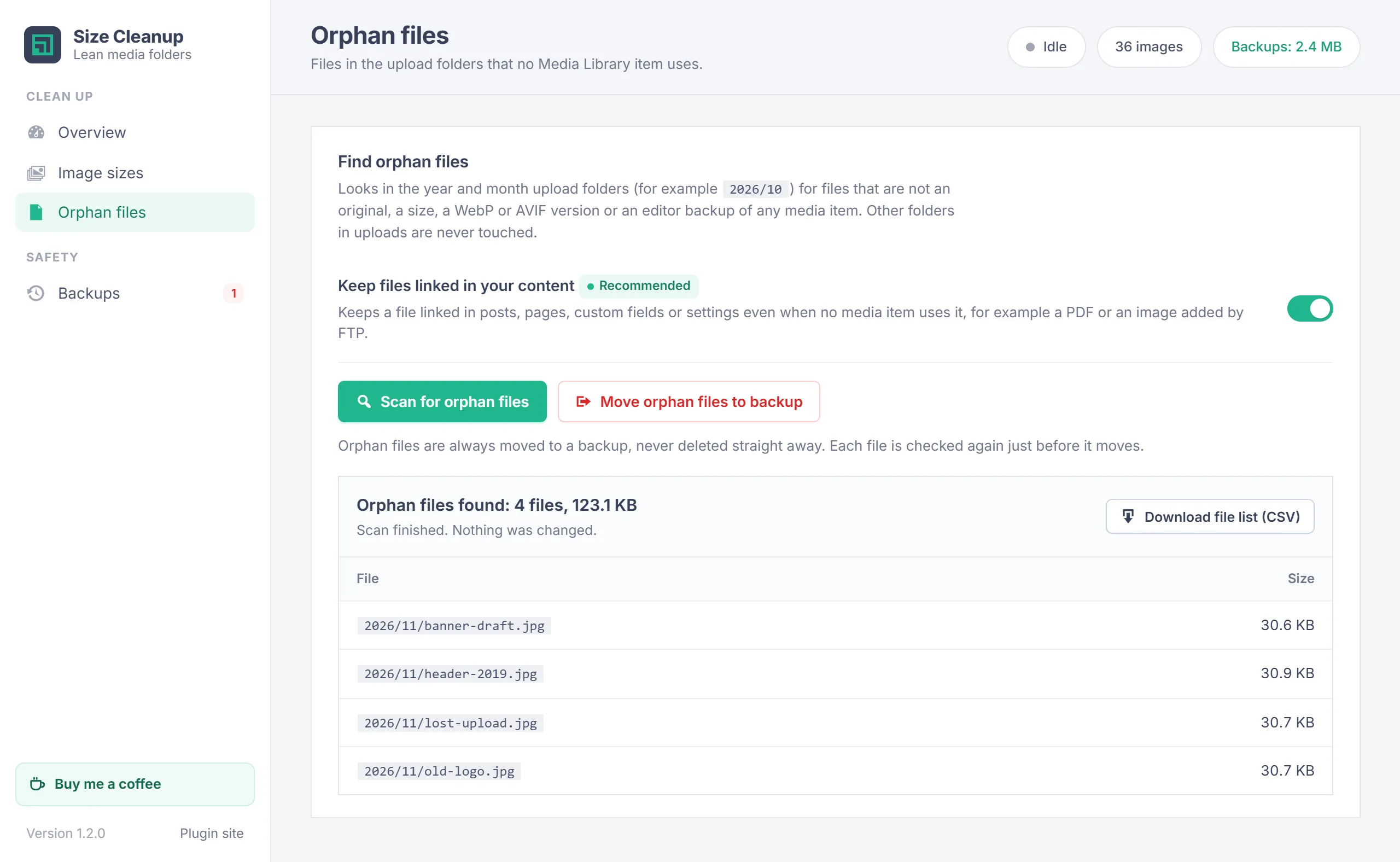
The Orphan files screen looks in the year and month upload folders (for example 2026/10) for files that are not an original, a size, a WebP or AVIF version or an editor backup of any media item. These are usually left behind when a delete did not finish, or were copied in by FTP.
- Only the
uploads/YYYY/MMfolders are scanned; other folders in uploads are never touched. - Files changed in the last hour, hidden files and PHP files are skipped.
- Keep files linked in your content (on by default) keeps a file that a post, page, custom field or setting links to.
- Orphan files are always moved to a backup, never deleted straight away, and each file is checked again just before it moves.
Backups and restore
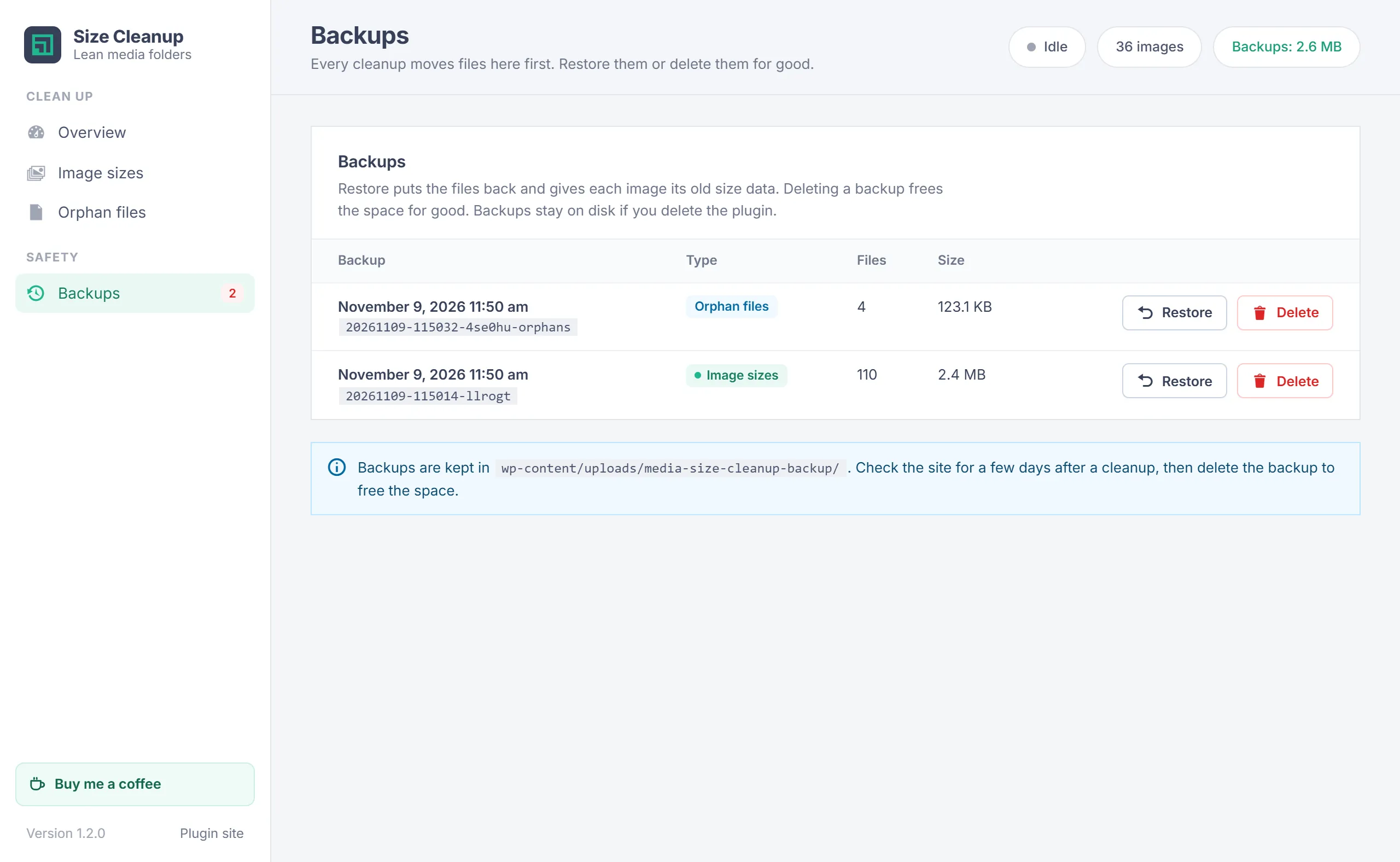
Each cleanup and each orphan move creates a backup in wp-content/uploads/media-size-cleanup-backup/. It holds the moved files in their original folder layout, plus each image's old size data. The Backups screen lists them with the date, type, number of files and size.
- Restore puts every file back and gives each image its old size data. If a file can not go back, for example because a new file now has its name, the backup is kept so nothing is lost.
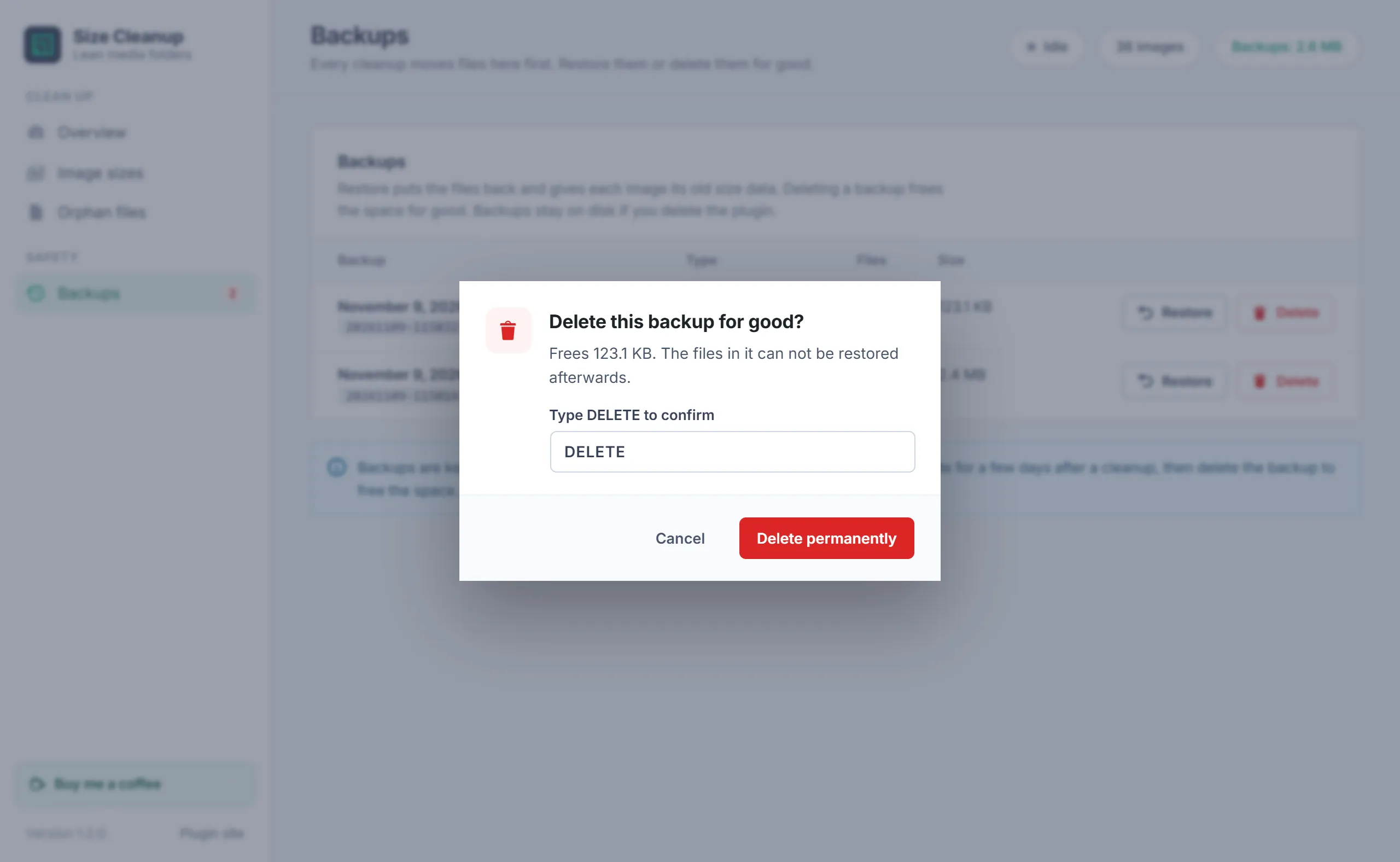
- Delete frees the space for good. You type DELETE to confirm.
When to delete a backup
Browse your site for a few days after a cleanup. When every page looks right, delete the backup to get the space back.
What is never removed
- The uploaded file of every media item.
- The full-size original WordPress keeps for scaled images (
-scaled). - Image editor backups.
- With the default options, any file linked in your content.
- Anything outside the uploads folder.
Your data
- The plugin stores the sizes and options you picked, the state of the current run and the last scan result in a few options. It adds no database tables.
- It adds nothing to the front end, sends no data anywhere and loads no external files.
- Deleting the plugin removes its options. Backups stay on disk because they hold your files: delete them under Backups first, or remove the folder yourself.
Troubleshooting
| Problem | What to do |
|---|---|
| Start cleanup stays greyed out | Run a scan with the current sizes and options. Changing a switch after the scan needs a new scan. |
| An image looks wrong after a cleanup | Click Restore on that cleanup under Backups, then turn the size back on and scan again. |
| A run stopped halfway | Open the screen again and start a new scan. What was moved so far is in the backup and can be restored. |
| Some images were not rebuilt | The image editor could not read them. Their old size files are kept. Check that GD or Imagick is installed. |
| A file I need is listed as an orphan | Leave Keep files linked in your content on, or restore it from the orphan backup after the move. |
| Images on a CDN or cloud storage did not change | The plugin works on the files in your uploads folder. Remote copies are not changed. |
Changelog
- 1.2.0 (November 9, 2026): New screen under Media > Size Cleanup with Overview, Image sizes, Orphan files and Backups. The cleanup turns on only after a matching scan, the page remembers your sizes and options, deleting for good needs DELETE typed, and a run can be stopped. A failed rebuild keeps the image's size files, and a restore that can not put every file back keeps the backup. Now licensed under the GPL, version 2 or later.
- 1.1.0 (October 27, 2026): Orphan files: find files in the year and month upload folders that no media item uses, and move them to a backup.
- 1.0.2 (October 27, 2026): Rebuild missing sizes only. A size the rebuild can not create keeps its old file, and only the browser tab that started a run can drive it.
- 1.0.0 (October 26, 2026): First release: pick the sizes to keep, rebuild with current settings, leftover files, scan with CSV, backup and restore.
Backups made with earlier versions are listed under Backups in 1.2.0 and can still be restored.
Need help?
Questions about setup or a feature request? Contact us on our support page. You can also download the latest version (v1.2.0) here.