
This guide covers installing and using Media Bulk Download by Quintaphon (version 1.0.0), a free plugin that downloads your media files in bulk as ZIP archives. Use it for your first download and as a reference for every screen.
Tip
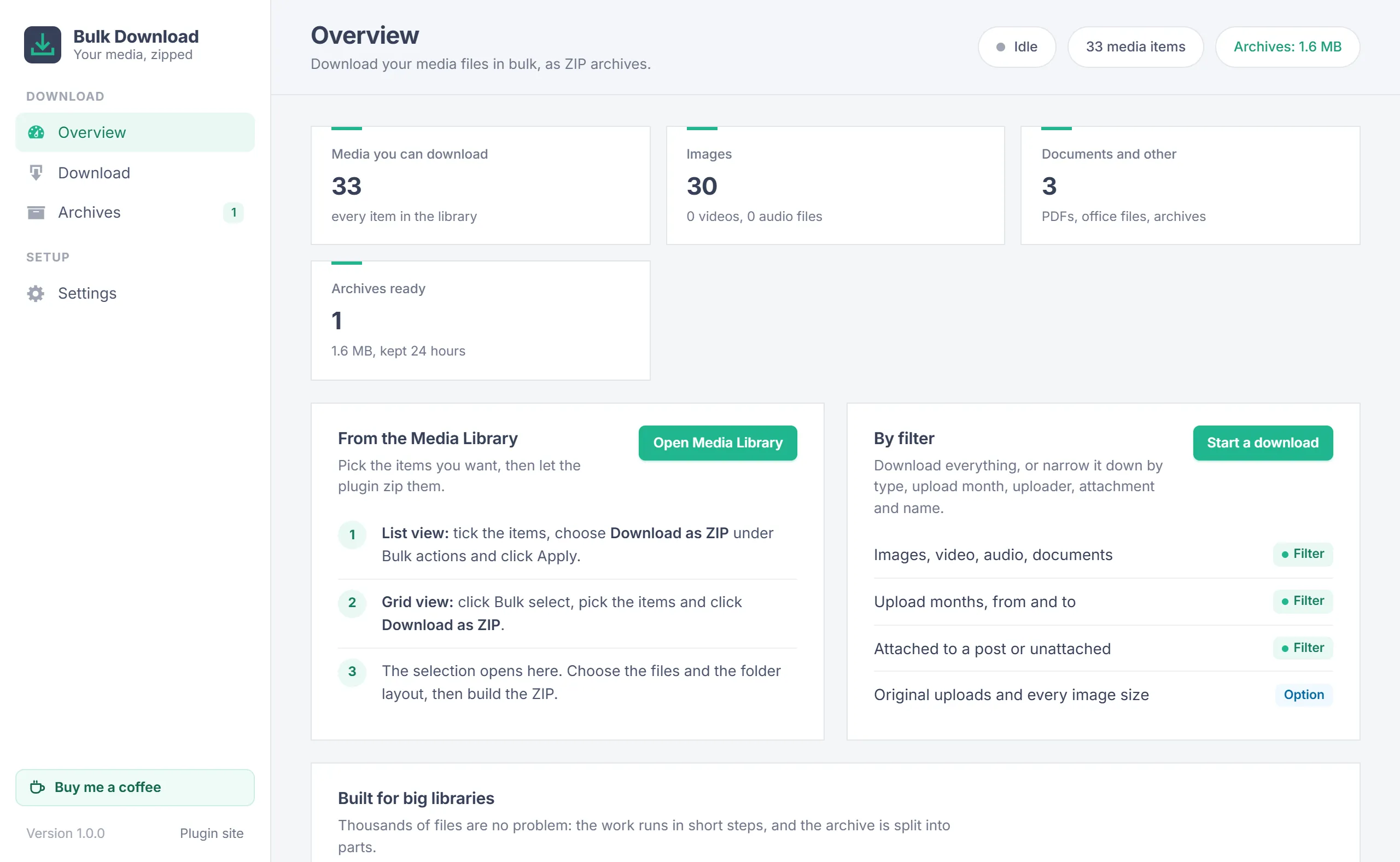
The plugin adds Download as ZIP to the Media Library and a screen under Media > Bulk Download with Overview, Download, Archives and Settings.
Overview
WordPress lets you upload many files at once but download them only one by one. Media Bulk Download packs any part of your Media Library into ZIP archives:
- Pick: items you select in the Media Library, everything, or the items that match a filter.
- Choose: which files of each item to take and how to arrange them in folders.
- Build: the archive is built in short steps on the server and split into parts when it is large.
- Download: right away, or later from Archives, until the archive is removed automatically.
The plugin only reads your media. It never changes, moves or deletes a media file.
Requirements
| Item | Needed |
|---|---|
| WordPress | 5.8 or newer (tested up to 7.1) |
| PHP | 7.2 or newer. The PHP zip extension is used when present; without it the plugin uses the ZIP library that ships with WordPress, which is slower. |
| User | Anyone who can upload files (the upload_files capability). Authors get their own uploads only; see Who can download what. |
| Disk | Free space in the uploads folder about the size of the files you download, until the archive is removed. |
Install
- Download media-bulk-download.zip.
- In WordPress go to Plugins > Add New Plugin > Upload Plugin, choose the file, click Install Now and activate it.
- Open Media > Bulk Download, or go to Media > Library.
Activating the plugin changes nothing on your site. It adds the bulk action, the grid button and the screen.
From the Media Library
The quickest way to download a handful of files:
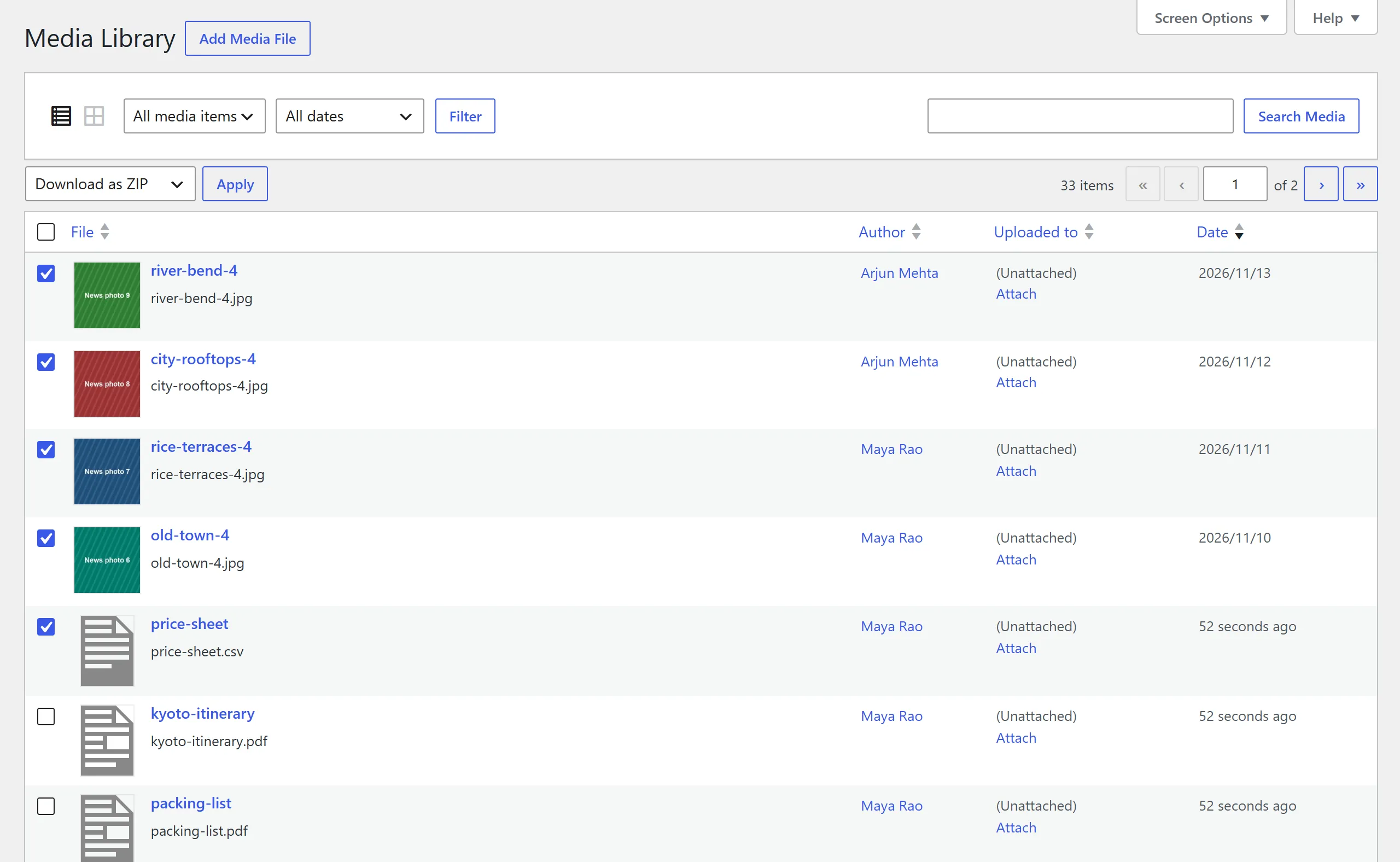
- List view: tick the items, choose Download as ZIP under Bulk actions and click Apply.
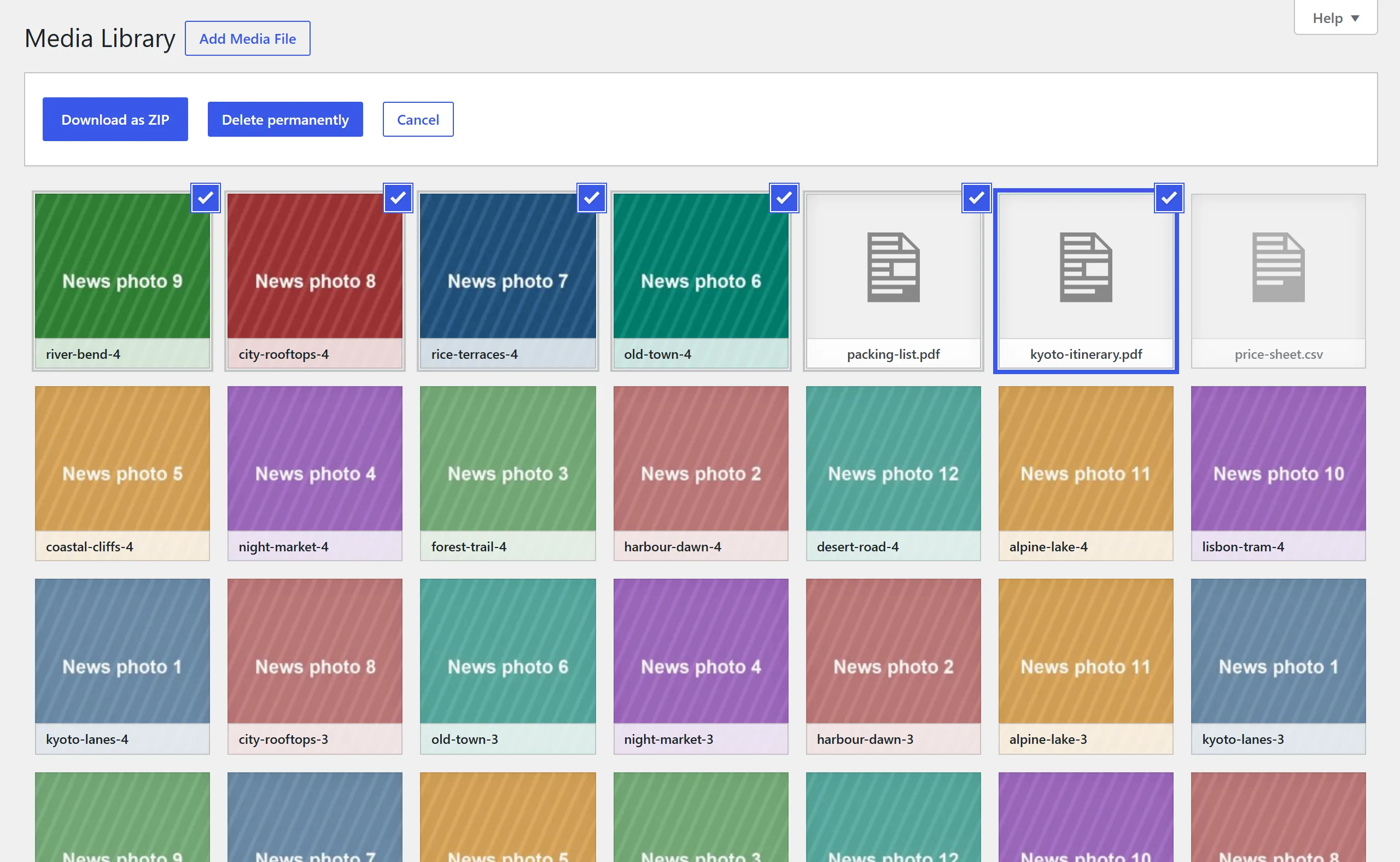
- Grid view: click Bulk select, pick the items and click Download as ZIP. The button appears next to Delete permanently while Bulk select is on.
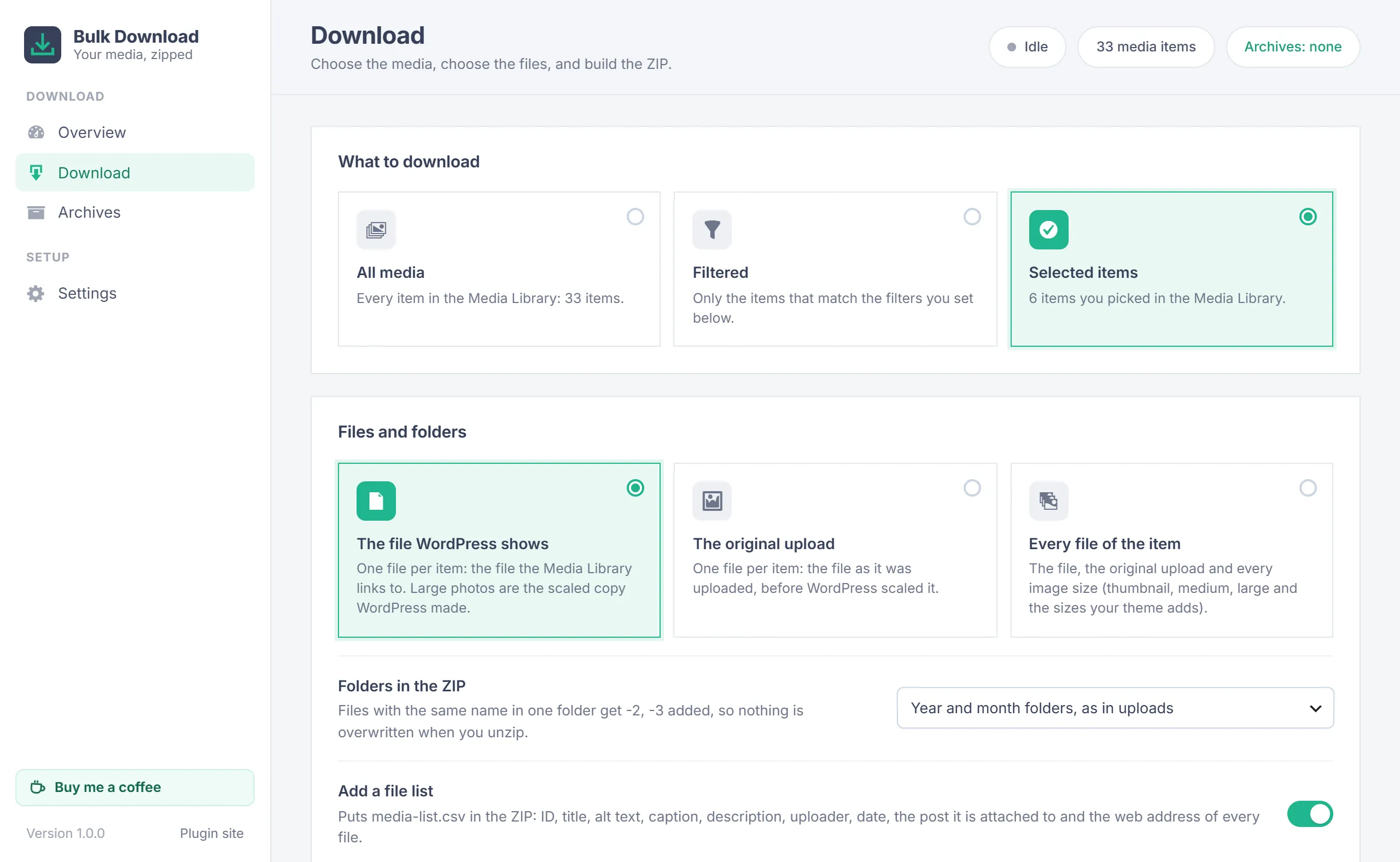
The selection opens on the Download screen with Selected items chosen. A selection is kept for an hour; after that, select the items again.
What to download
The Download screen starts by asking what to download:
| Choice | What it takes |
|---|---|
| All media | Every item in the Media Library (for authors: every item they uploaded). |
| Filtered | Only the items that match the filters below. |
| Selected items | The items you picked in the Media Library. Shown only when you came from there. |
A line above the Build button shows how many items will be downloaded and updates as you change the choices.
Filters
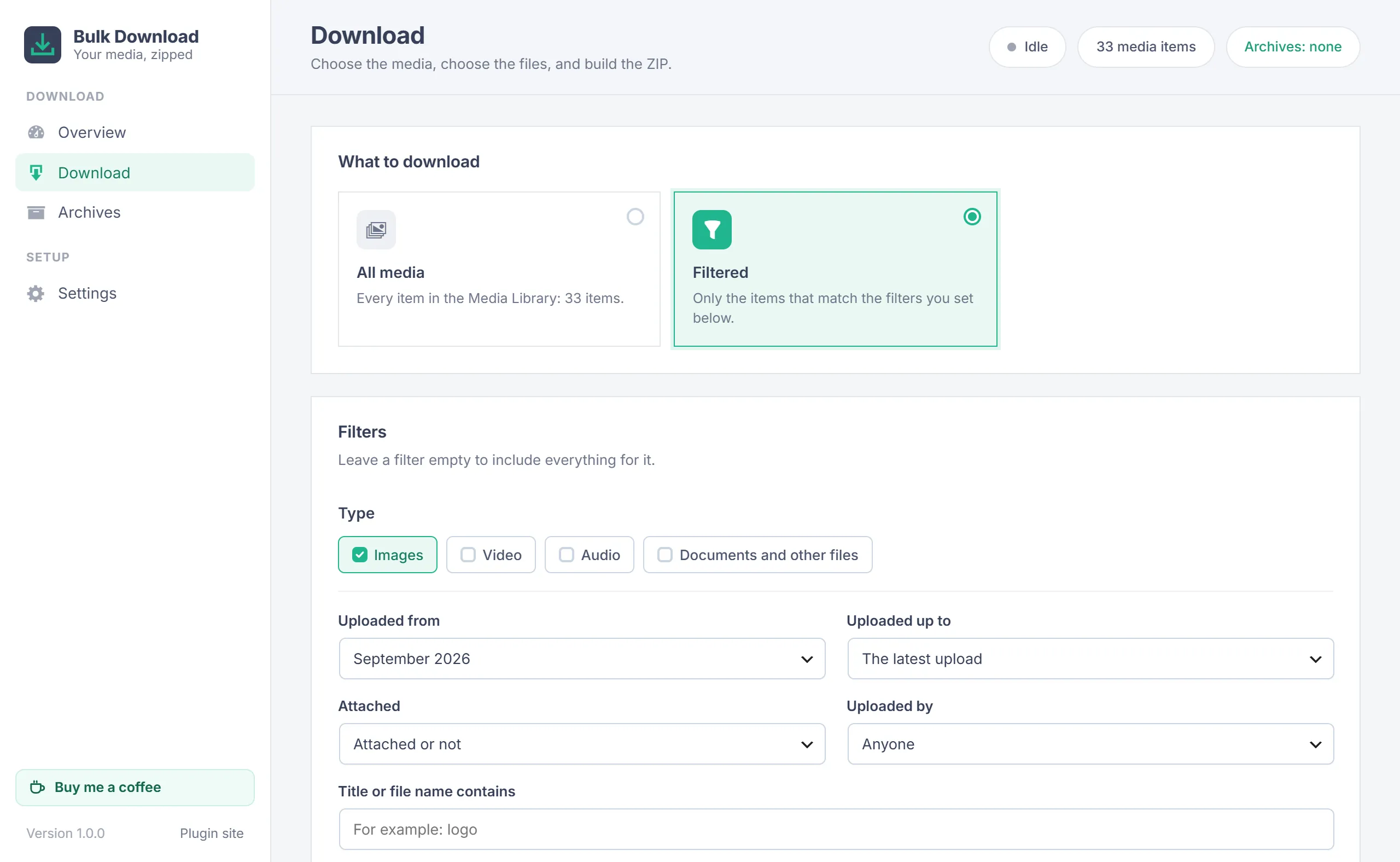
With Filtered chosen, leave a filter empty to include everything for it:
- Type: images, video, audio, and documents and other files. Tick one or more.
- Uploaded from and Uploaded up to: a range of months, as in the Media Library date filter.
- Attached: attached to a post or page, or unattached.
- Uploaded by: one user's uploads (editors and administrators only).
- Title or file name contains: a word in the title, the slug or the file name.
Files and folders
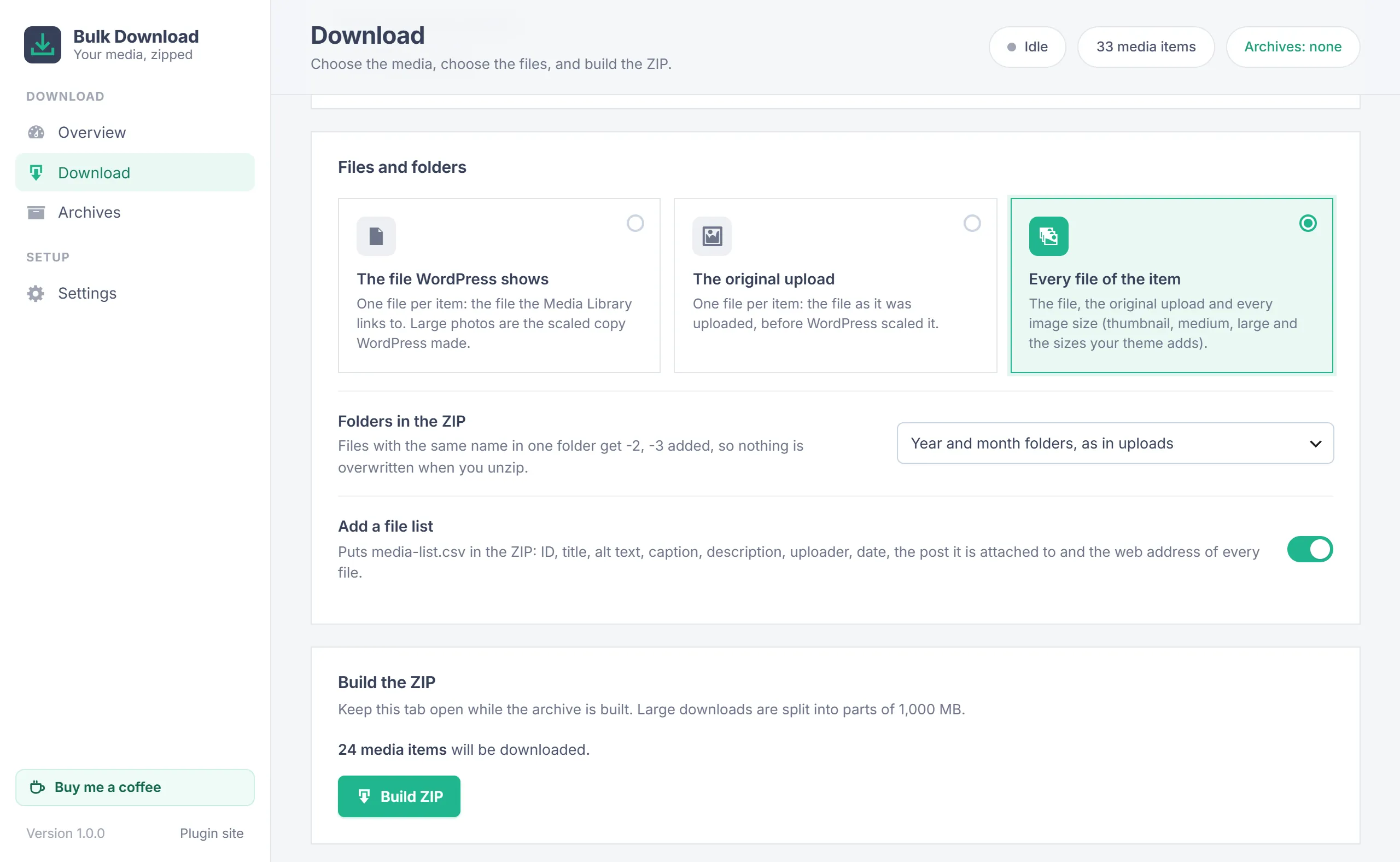
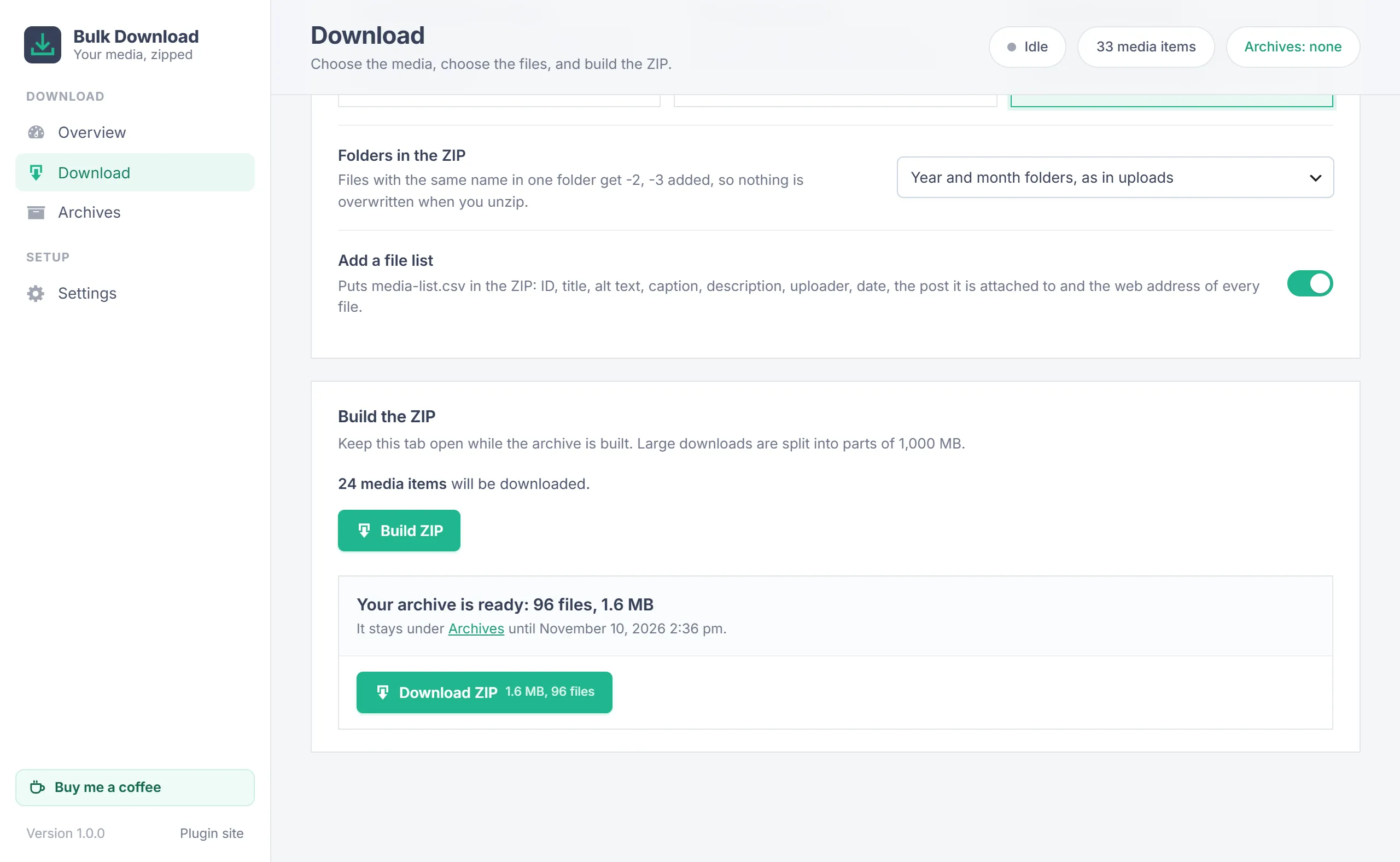
Files per item decides which files go into the ZIP:
| Choice | Files |
|---|---|
| The file WordPress shows | One file per item: the file the Media Library links to. For large photos this is the scaled copy WordPress made (photo-scaled.jpg). |
| The original upload | One file per item: the file as it was uploaded, before WordPress scaled it. |
| Every file of the item | The file, the original upload and every image size (thumbnail, medium, large and the sizes your theme adds), plus WebP or AVIF copies an image plugin recorded. |
Folders in the ZIP:
- Year and month folders, as in uploads: 2026/09/photo.jpg. Unzipped, it matches your uploads folder.
- All files in one folder.
- One folder per type: images, video, audio and documents.
- One folder per post: named after the post each file is attached to; unattached files go to
unattached.
When two different files would get the same path, the second becomes photo-2.jpg, the next photo-3.jpg and so on, so nothing is overwritten when you unzip.
Add a file list puts media-list.csv in the first part: one row per file with the ID, title, file in the ZIP, which file it is, type, size, upload date, uploader, alt text, caption, description, attached post and web address. It opens in any spreadsheet.
Build and download
- Click Build ZIP. More than 2,000 items ask for a confirmation first.
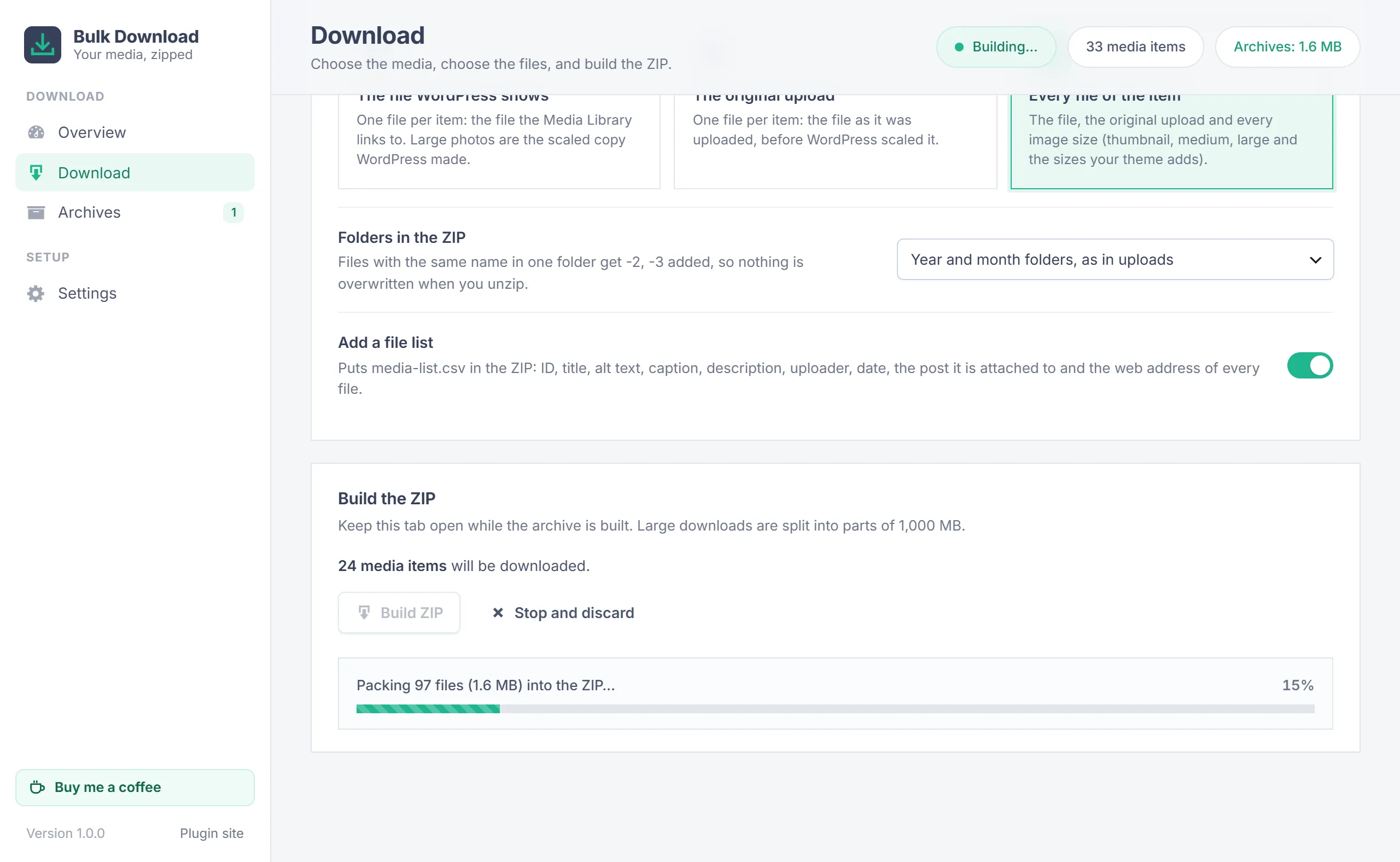
- The plugin lists the files of 100 items at a time, then packs them into the ZIP in batches. The progress bar shows each step. Keep the tab open.
- When the archive reaches the part size (1000 MB by default), the next files go into a new part.
- When it is done, a single archive starts downloading by itself. A large one shows one button per part.
Stop and discard ends the build after the current step and removes the unfinished archive. Files that disappear while the archive is built, and items whose file is not on the server, are listed under Skipped.
Archives
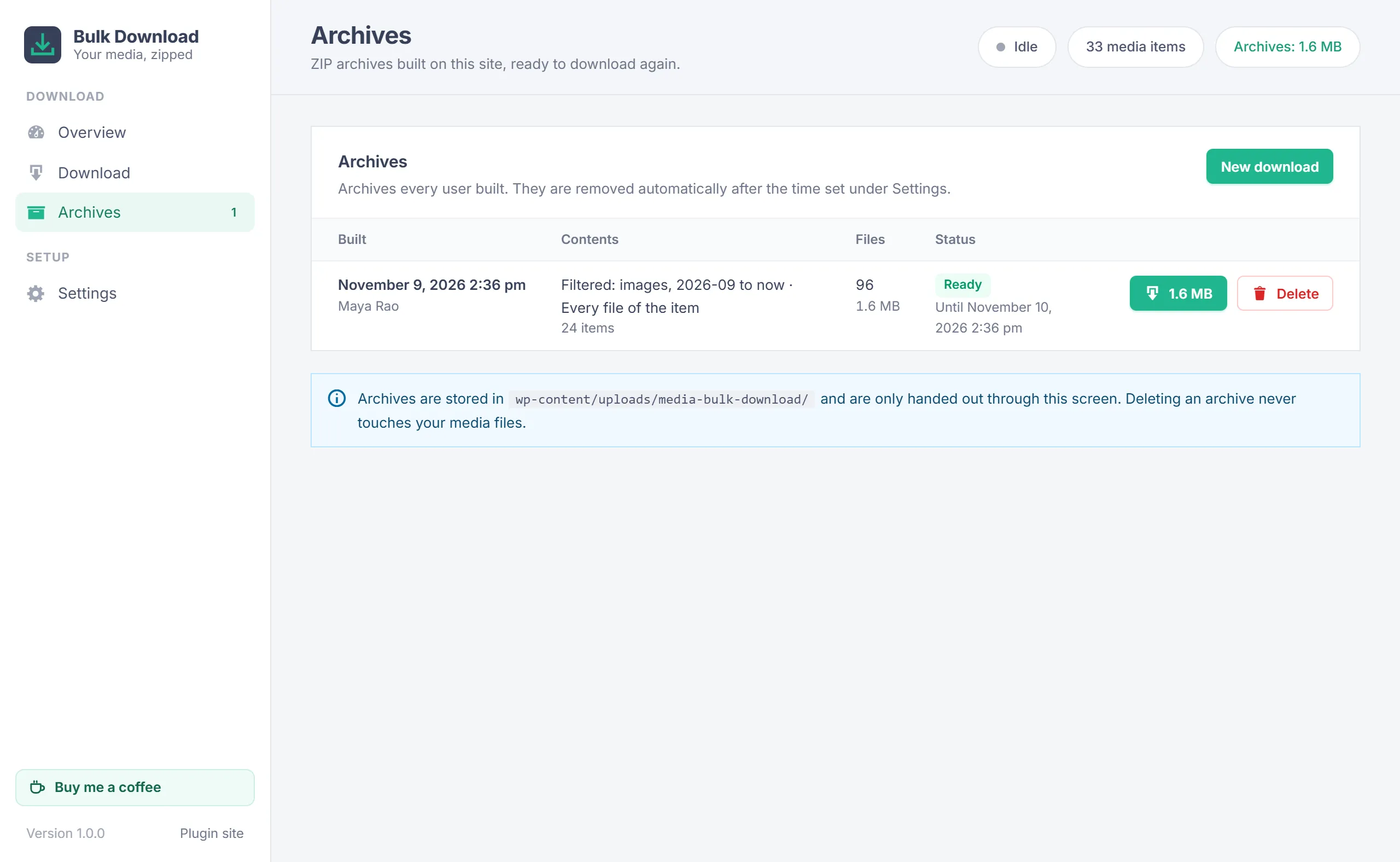
The Archives screen lists the archives you built (administrators see everyone's), with what they hold, the number of files, the status and how long they stay. Each part has its own download button, and Delete removes an archive straight away. Deleting an archive never touches your media files.
Settings
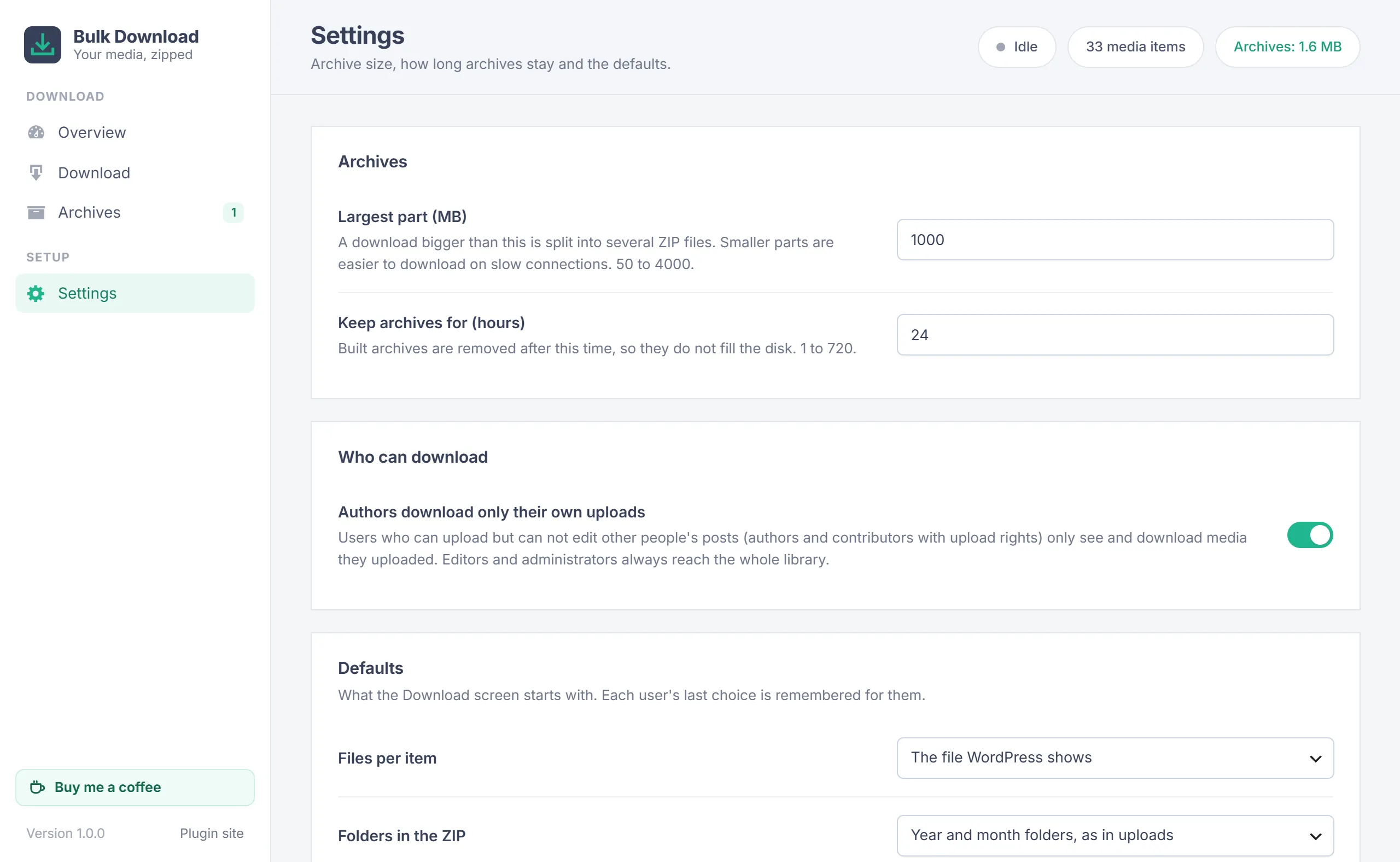
Administrators find these under Settings:
| Setting | Default | What it does |
|---|---|---|
| Largest part (MB) | 1000 | A download bigger than this is split into several ZIP files. 50 to 4000. |
| Keep archives for (hours) | 24 | Built archives are removed after this time. 1 to 720. |
| Authors download only their own uploads | On | See Who can download what. |
| Files per item, Folders in the ZIP, Add a file list | The file WordPress shows, year and month folders, on | What the Download screen starts with. Each user's last choice is remembered for them. |
Who can download what
- Users who can edit other people's posts (editors and administrators) can download the whole library.
- Users who can upload but not edit others' posts (authors, and contributors given upload rights) see and download only their own uploads, also when they pick items in the Media Library. Turn off Authors download only their own uploads to let them download everything.
- An archive is handed out only to the user who built it and to administrators, after a login check. Download links are tied to the session and do not work for anyone else.
Your data
- Archives are stored in
wp-content/uploads/media-bulk-download/, each in a folder with a long random name. The folder blocks direct access on Apache and IIS and has no index. - Archives are removed after the keep time by an hourly WordPress task, and when anyone opens the plugin screen. An archive that was never finished is removed after 6 hours.
- The plugin stores its settings in one option and each user's last choices in their user data. It adds no database tables.
- It adds nothing to the front end, sends no data anywhere and loads no external files.
- Deleting the plugin removes its settings and every archive it built.
Troubleshooting
| Problem | What to do |
|---|---|
| "This server can not write ZIP files" | PHP has no zip extension and the WordPress ZIP library is missing. Ask your host to turn on the PHP zip extension. |
| Items are listed under Skipped | Their file is not on this server, for example after a failed upload or when media is offloaded to cloud storage. |
| The build stopped with a disk error | The server ran out of space. Delete old archives, choose fewer items or a smaller part size, and build again. |
| "This archive is no longer available" | It was removed after the keep time. Build it again. |
| "Being built in another browser tab" | Only the tab that started a build can drive it. Use that tab, or start a new build. |
| An author can not find a file | Authors only get their own uploads. An administrator can change this under Settings. |
Changelog
- 1.0.0 (November 9, 2026): First release: Download as ZIP in the Media Library list and grid views, a Download screen with filters, three file choices, four folder layouts and a CSV file list, archives built in steps and split into parts, private downloads, automatic clean-up, and own-uploads-only for authors.
Need help?
Questions about setup or a feature request? Contact us on our support page. You can also download the latest version (v1.0.0) here.