

This guide covers installing and using Featured Image Manager (version 2.2.0), a free plugin for managing the featured images of your posts, pages and custom post types. Use it for the first setup and as a reference for every screen.
Tip
The plugin's menu in WordPress is called Featured Images. It has four screens: Dashboard, Bulk Manager, Automated Presets and Columns & Preferences.
Overview
- Bulk Manager: set, replace, spread or remove featured images across many posts in a guided task, with a review of the matching posts before anything changes.
- Automated Presets: rules that give posts a featured image when they are saved, by category, tag, author, post type or custom taxonomy, with the first image in the content as an option.
- Post lists: a Featured image column you can edit in place, and a "Without featured image" view.
- Dashboard: your featured image coverage, the posts that are missing an image and the active rules.
The plugin only changes which image is set as a post's featured image. Your image files are never edited or deleted.
Requirements
| Item | Needed |
|---|---|
| WordPress | 6.2 or newer (tested up to 7.1) |
| PHP | 7.4 or newer |
| Content | Post types with featured image support (posts, pages, WooCommerce products and most custom post types) |
| License | GNU GPL, version 2 or later, free |
Install
- Download featured-image-manager-quintaphon.zip.
- In WordPress go to Plugins > Add New Plugin > Upload Plugin, choose the file, click Install Now and activate it.
- Open Featured Image Manager > Dashboard.
Upgrading from 1.x
Upload the new ZIP the same way and choose Replace current with uploaded. On first load, version 2.0 imports your settings, rules and per-user preferences from version 1 automatically. The old version 1 options are kept, not deleted.
Dashboard
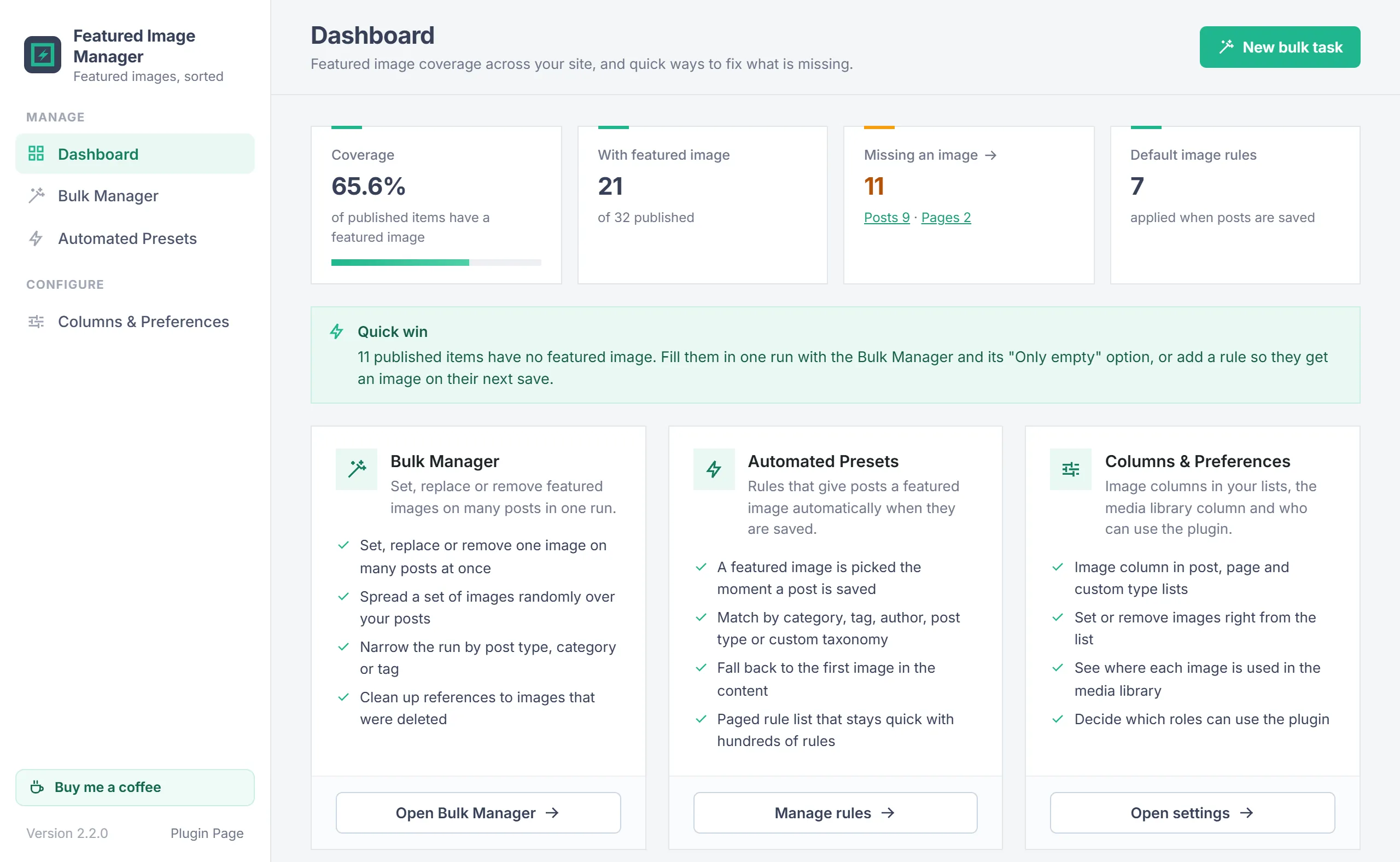
The Dashboard shows how complete your featured images are:
- Coverage: the share of published items that have a featured image. It is rounded down, so it only says 100% when nothing is missing.
- With featured image and Missing an image: how many published items have one and how many don't. "Missing an image" opens the list filtered to the items without one, with a link per post type when several types are missing images.
- Default image rules: how many Automated Presets rules are set up.
The numbers refresh automatically when posts, featured images or rules change. New bulk task opens the Bulk Manager. Below the numbers, a card for each screen links to it.
Bulk Manager
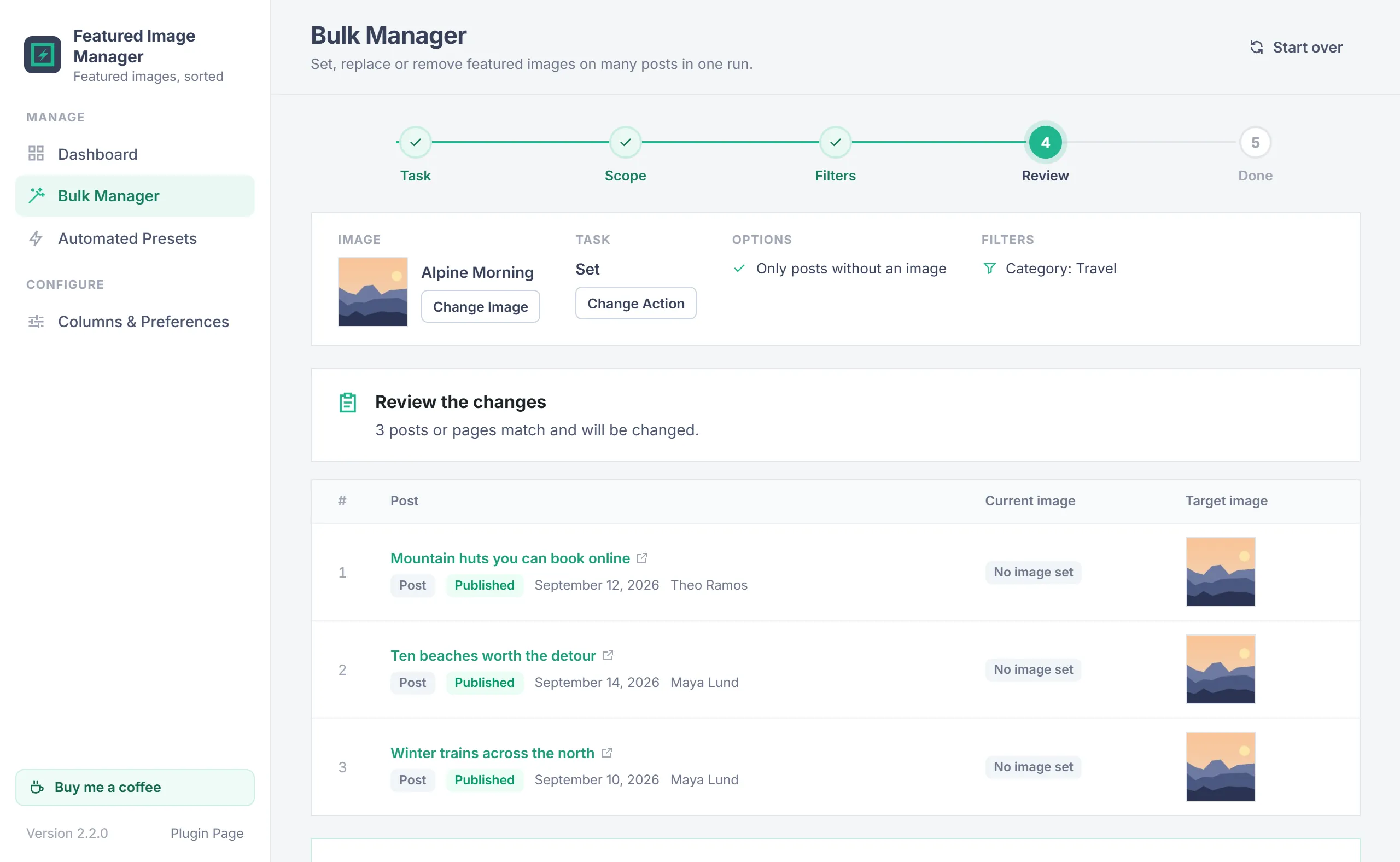
The Bulk Manager walks you through five steps, shown at the top of the screen: Task, Scope, Filters, Review and Done. Start over goes back to the first step at any time.
It works with posts, pages and every public post type that supports featured images. Published, scheduled, draft, pending and private posts are included.
Before a big change
A bulk task changes the featured image of many posts at once and cannot be undone automatically. Take a database backup first if you may want to go back.
Tasks
| Task | What it does |
|---|---|
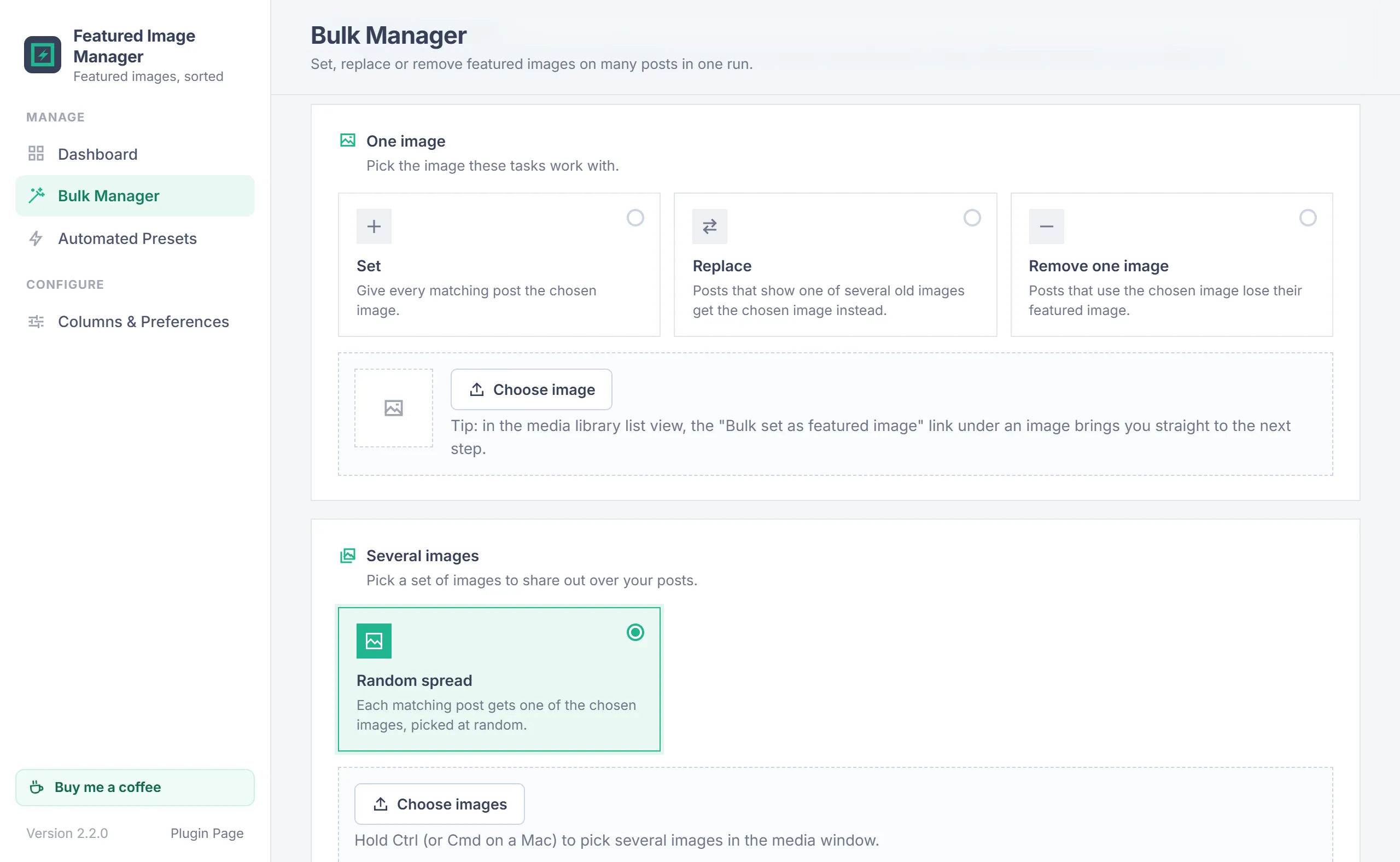
| Set | Choose one image; every matching post gets it as its featured image. |
| Replace | Posts that use any of the old images you pick get the chosen image instead. |
| Remove one image | Removes the chosen image as the featured image of every post that uses it. |
| Random spread | Pick several images (hold Ctrl or Cmd); each matching post gets one of them at random. |
| Remove all | Clears the featured image of every post that matches the filters. |
| Orphan cleanup | Removes featured image references to images that no longer exist in the media library. |
You can also start from the Media Library: the Bulk set as featured image row action on an image opens the Bulk Manager at the Scope step, with the Set task and that image chosen.
Scope & filters
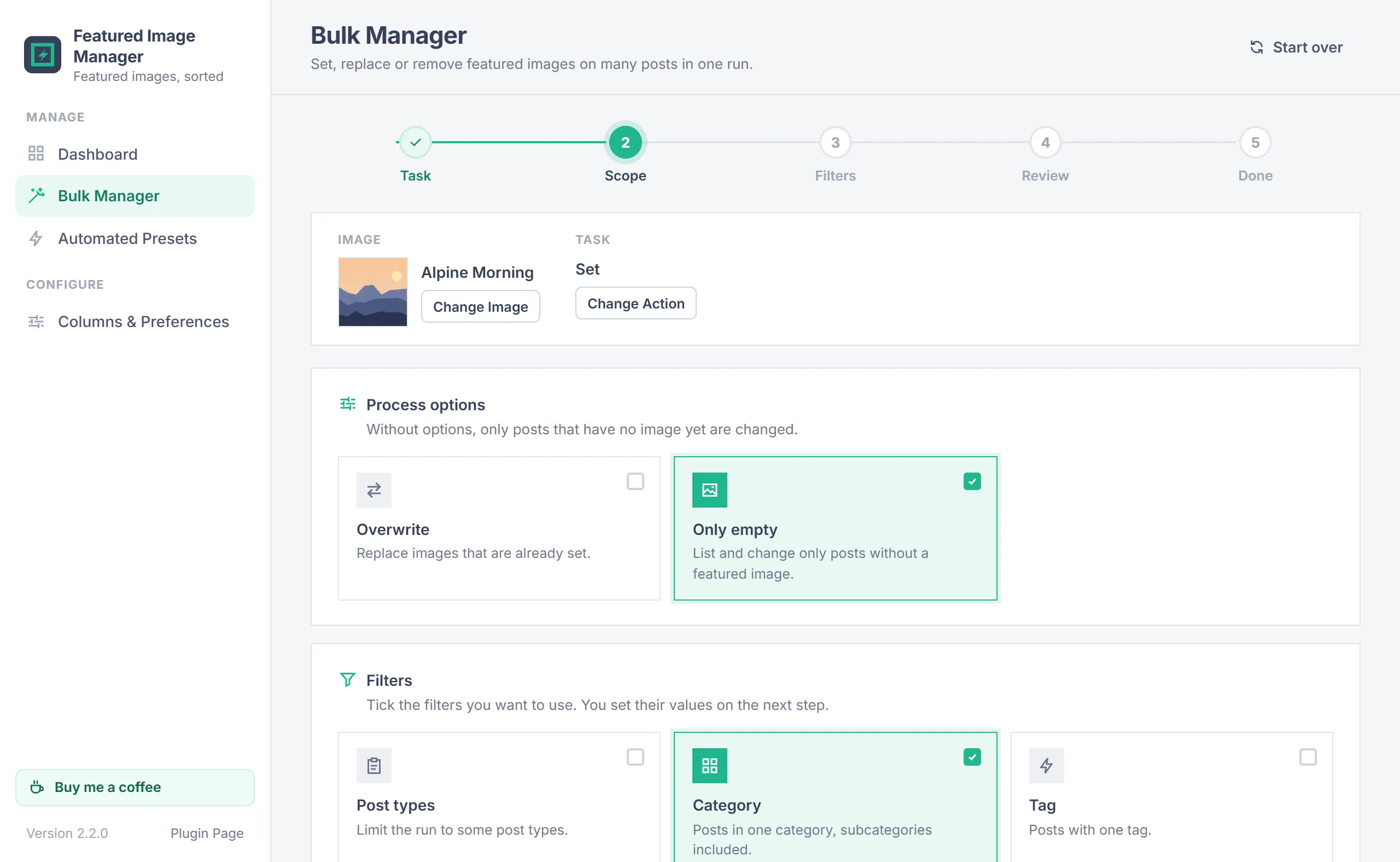
For Set and Random spread, the Scope step has two process options:
- Overwrite: posts that already have a featured image get the new one too.
- Only empty: only posts without a featured image are listed and changed. This is the quickest way to fill the gaps.
Without either option, every matching post is listed, but only the posts that have no image yet are changed.
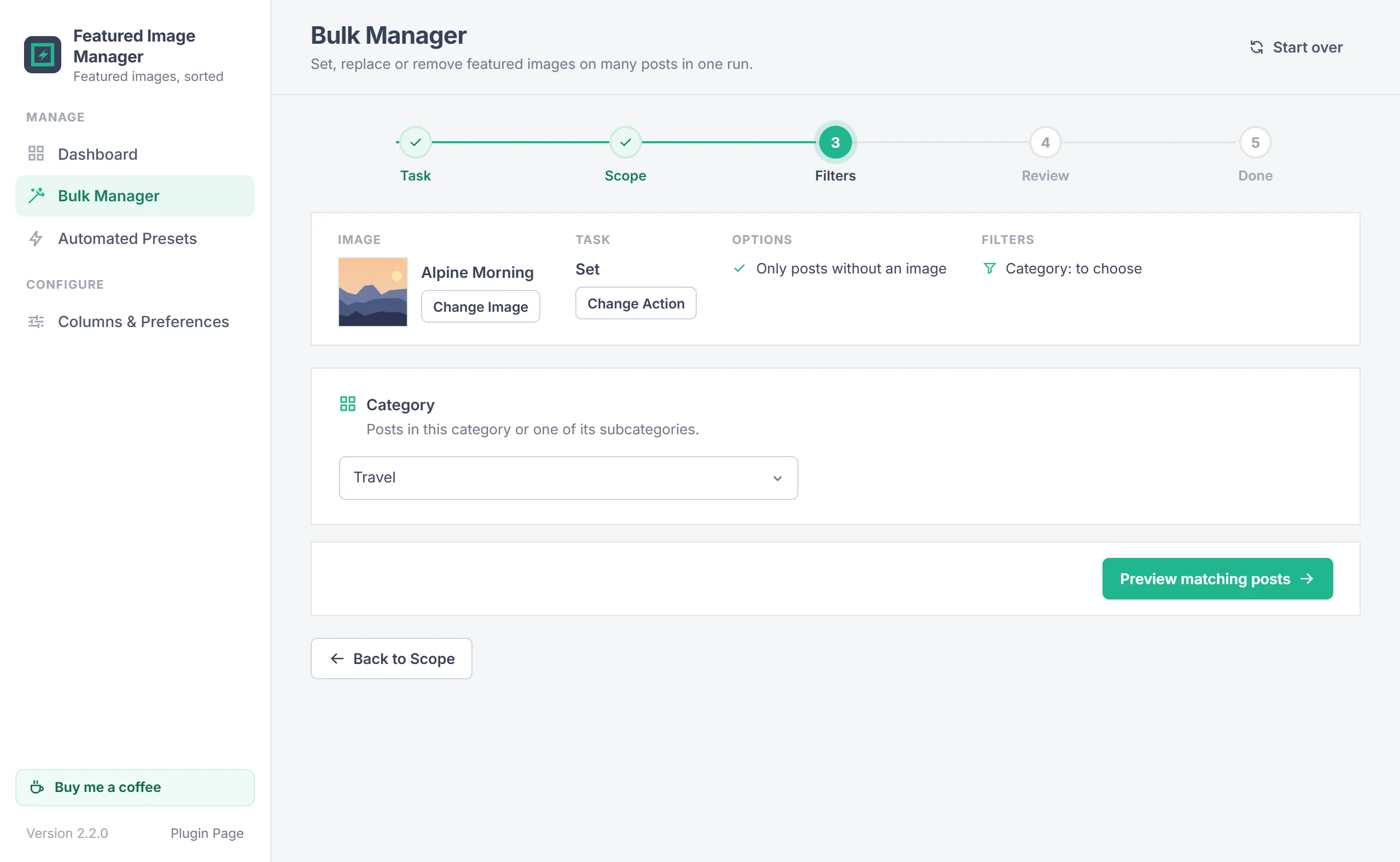
Then tick the filters to narrow the job down: Post types, Category and Tag. Leave them unticked to include every post. In the Filters step you pick the values, for example the category Travel; a category includes its subcategories.
Two tasks work differently. Replace asks for the old images to replace on the Scope step instead (hold Ctrl or Cmd to pick several) and has no filters. Orphan cleanup skips the options and filters and goes straight to the list of broken references.
Review & results
The Review step lists the matching posts with their current image and their target image, and says how many posts match and how many will change. On large sites the list shows the first 100 posts; the change applies to all of them. Nothing changes until you click Apply now and confirm.
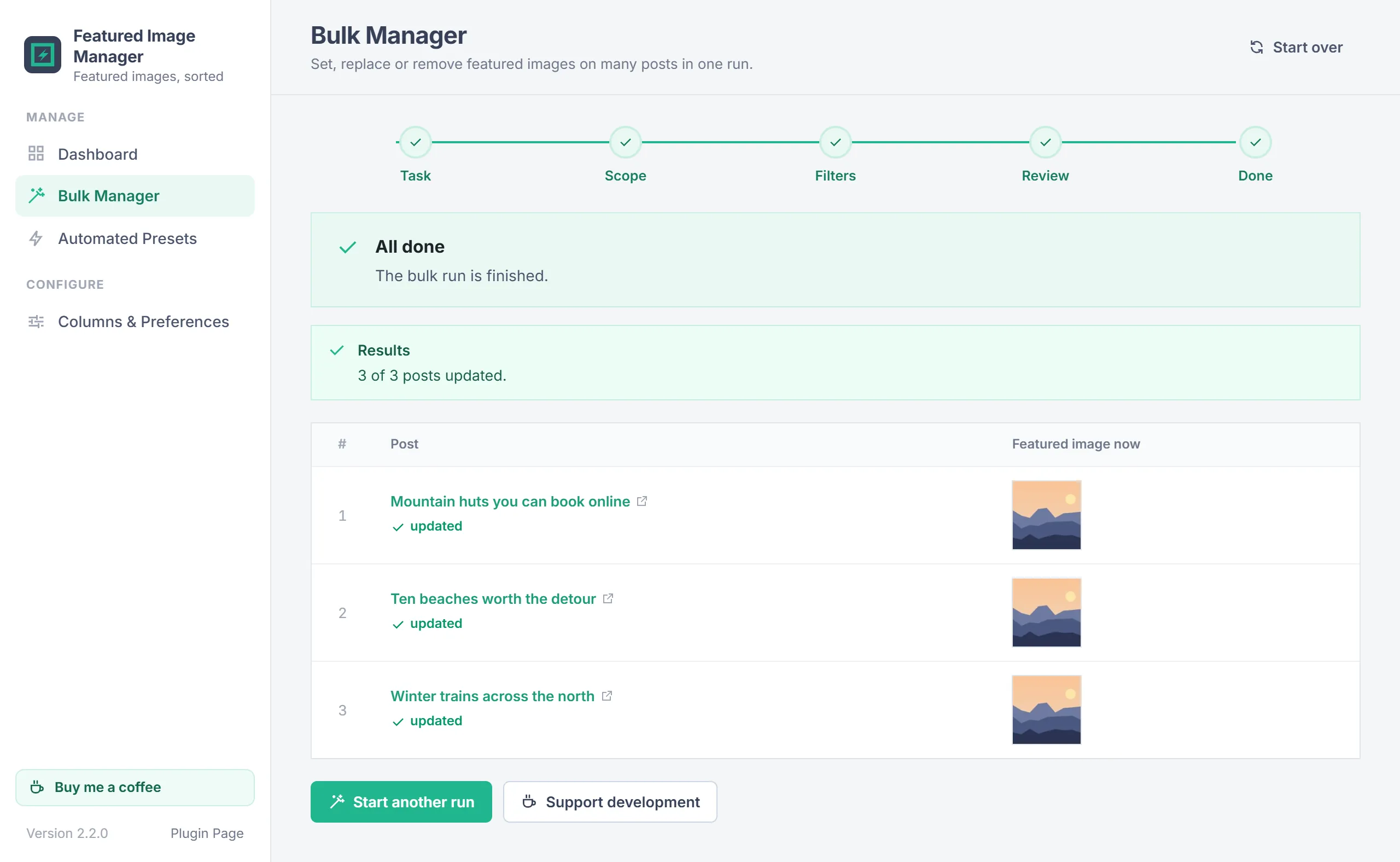
The change then runs in batches of 100 with a progress bar, so large sites don't time out. If the connection drops, your progress is kept and Try again continues. Done shows how many posts were updated, how many already had the result, how many were skipped because you are not allowed to edit them, and the result for each post. Each user has their own task, kept for 24 hours, so two people can use the Bulk Manager at the same time.
Orphan cleanup shows how many broken references it found and removes them with Delete references. It only checks the media library records (an image that was deleted, or an item that is not an image), never the files on disk, so media offloaded to S3, R2 or similar is safe.
Automated Presets
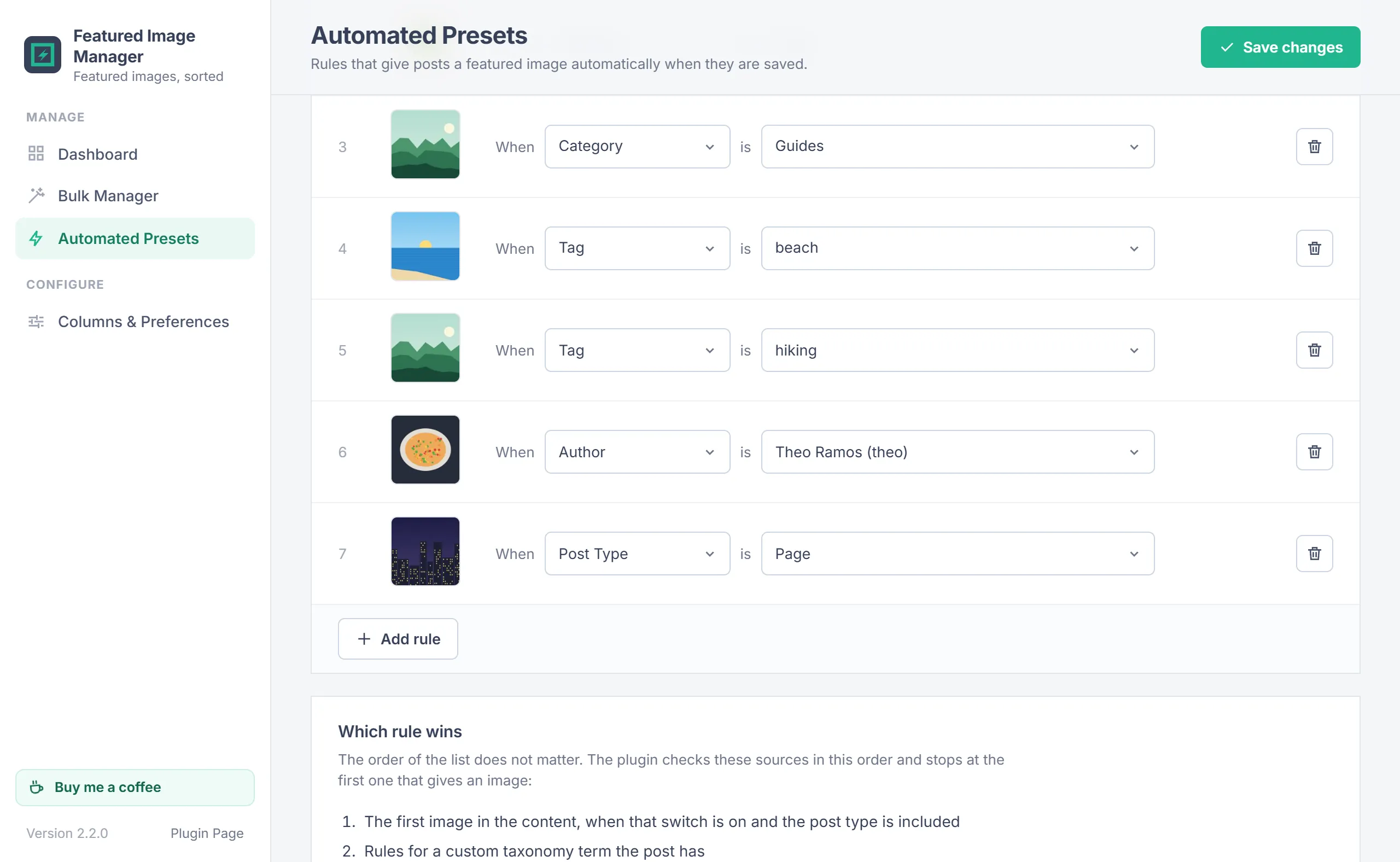
Rules give posts a featured image automatically when they are saved. Each rule is one line: When a condition is a value, with the image to use.
- Click Add rule.
- Click the image tile to choose an image.
- Choose the condition: Category, Tag, Author, Post Type or a custom taxonomy, then the value. Long value lists have a search box.
- Click Save changes.
The order of the list does not matter. The plugin checks these sources in this order and stops at the first one that gives an image:
- The first image in the content, when that switch is on and the post type is included.
- Rules for a custom taxonomy term the post has.
- Rules for a tag the post has.
- Rules for a category the post is filed in directly. A rule for a parent category does not match a post that is only in a child category.
- Rules for the post author.
- Rules for the post type.
A new rule for a condition that already has a rule replaces the older one, and the save message says how many were replaced. The Author list shows every user who can edit posts, whatever their role. The rule list is split into pages of 25, 50 or 100 rules (50 by default, remembered per user), so it stays fast with hundreds of rules.
A rule whose category, tag, author or post type no longer exists is kept and marked missing, so you can delete it yourself. A rule whose image is deleted from the media library is removed.
First image & overwrite
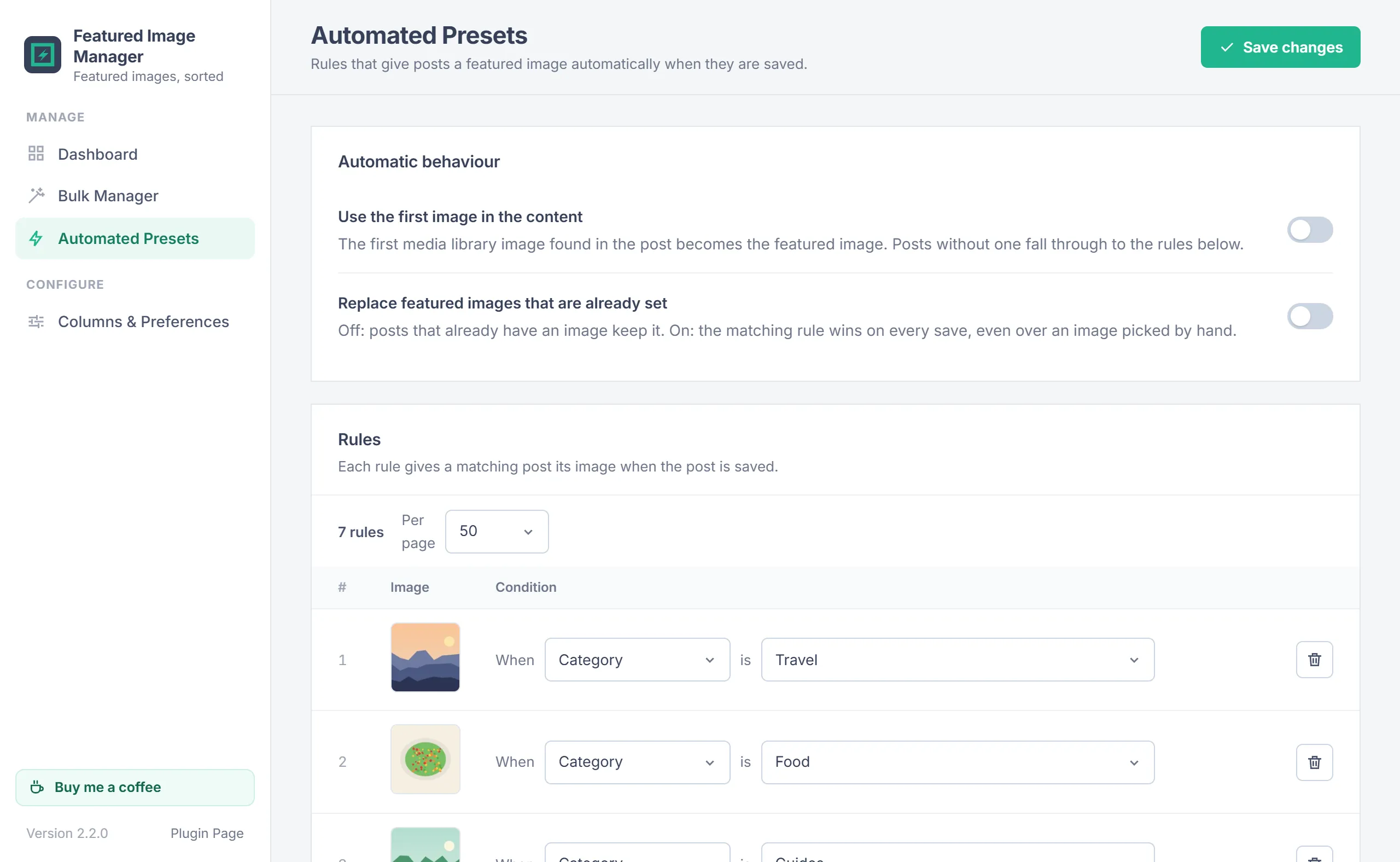
Two switches under Automatic behaviour, at the top of the first page of Automated Presets, control what happens before the rules:
| Switch | Default | What it does |
|---|---|---|
| Use the first image in the content | Off | If the post contains an image from the media library, the first one becomes the featured image. Under For these post types, tick the types to use it for; leave all unticked to use it for every post type. Posts without one fall through to the rules. |
| Replace featured images that are already set | Off | Off: posts that already have a featured image keep it. On: the matching rule wins on every save, even over an image picked by hand. |
Post list column
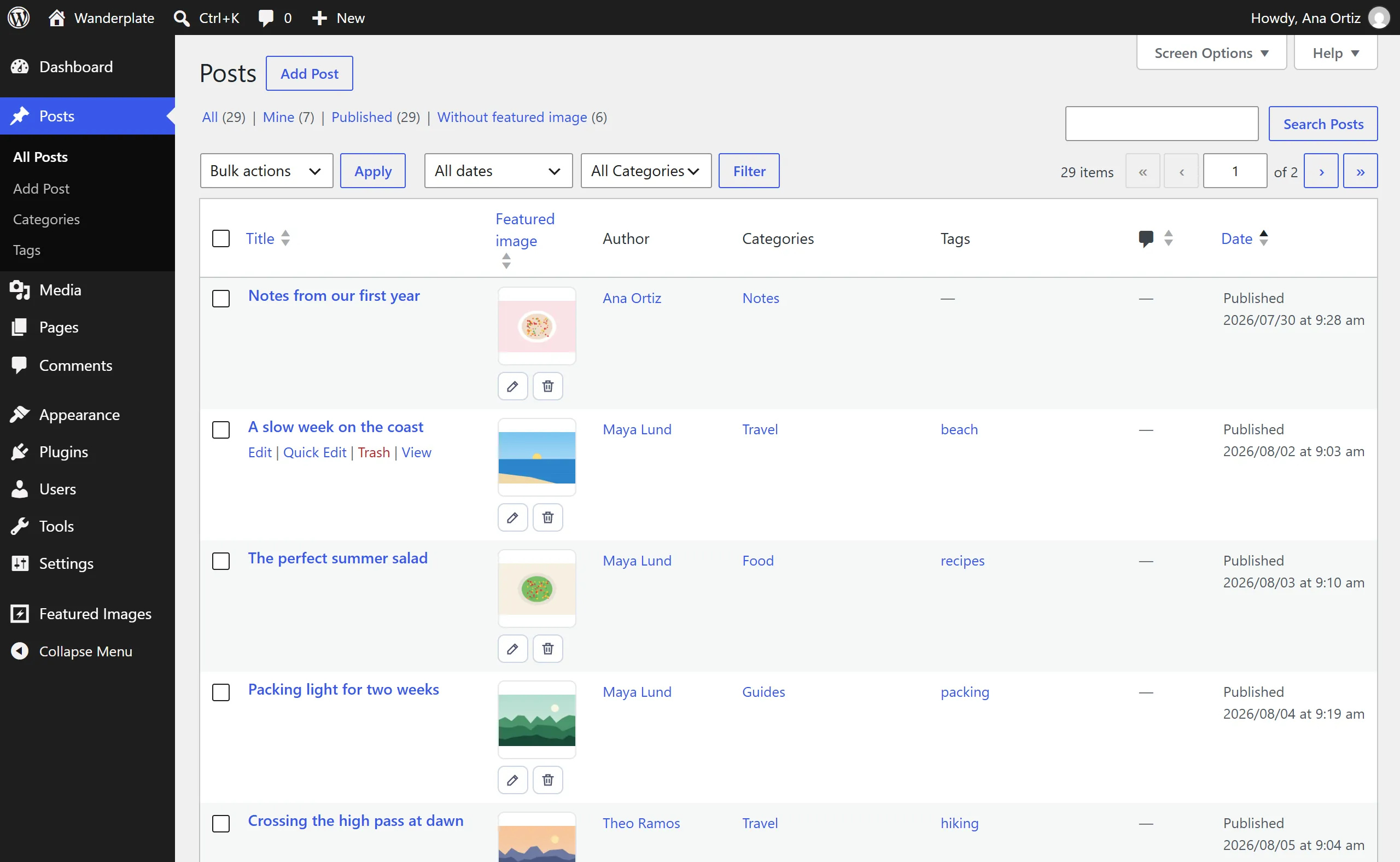
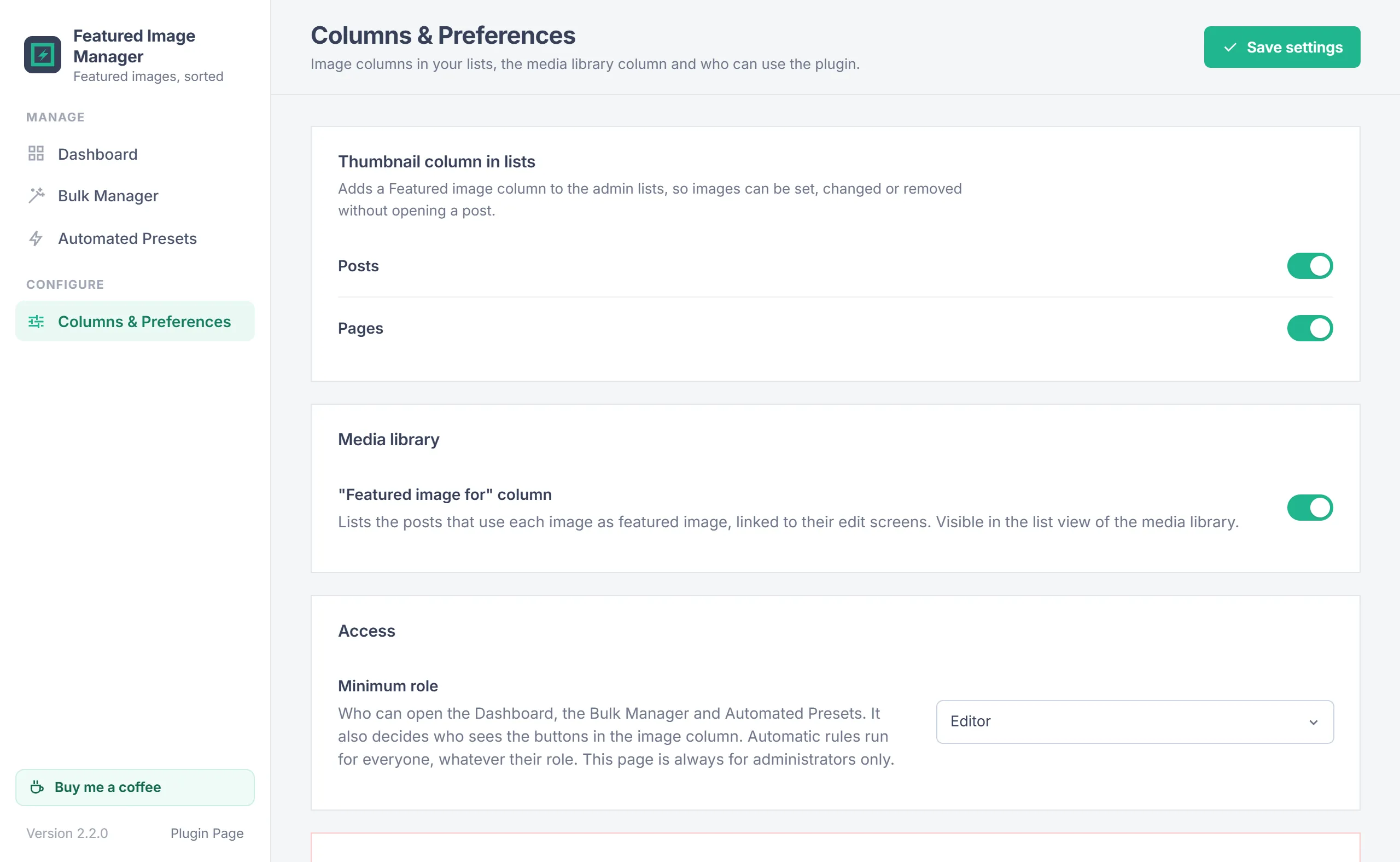
Under Columns & Preferences > Thumbnail column in lists, turn on the Featured image column for Posts, Pages and custom post types with featured image support. Posts and Pages are on by default. In the list:
- Click the image tile to choose a different image, or use the small Edit and Remove buttons.
- Posts without an image show a Set image tile; posts whose image was deleted show File missing, with buttons to set a new image or delete the broken reference.
- Click the column header to sort by image. Posts without an image are listed last.
- The Without featured image (N) link above the list shows only the published posts that still need an image. It shows on every list of a type with featured image support, with or without the column.
- Wide images such as logos are shown whole, and images load as you scroll.
Media library
- The "Featured image for" column in the Media Library list view shows which posts use each image as their featured image, linked to their edit screens. Turn it on or off under Columns & Preferences > Media library; it is on by default.
- The Bulk set as featured image row action starts a Bulk Manager task with that image.
Permissions
Administrators can always use every screen. Under Columns & Preferences > Access, the Minimum role (Administrator, Editor or Author; Editor by default) decides who can open the Dashboard, the Bulk Manager and Automated Presets, and who sees the buttons in the image column. The Columns & Preferences page itself is for administrators only.
The column buttons and bulk tasks only change posts the user is allowed to edit. A bulk run skips the others and counts them on the Done step. Automated Presets run for every save, whoever makes it.
Your data
- The plugin only changes which image is set as a post's featured image (the
_thumbnail_idfield). Image files are never edited or deleted. - Settings are stored in the
qpifi_settingsoption and the rules inqpifi_presets.qpifi_migratedrecords that the version 1 import ran, and the user metaqpifi_rules_per_pageholds each user's rules per page. - Upgrading from 1.x: on first load, version 2.0 copies the version 1 settings, rules and per-user rules per page into these new names. The old version 1 options stay in the database untouched, so going back to 1.x still works.
- Orphan cleanup only removes references that already point to nothing.
- Remove all presets, under Reset Automated Presets on the Columns & Preferences page, deletes every Automated Presets rule and turns both automatic switches off. Featured images already on your posts stay.
- Deleting the plugin removes its settings and rules, both the 2.0 ones and the old version 1 ones. Featured images that were set stay on your posts.
- No external services are contacted.
Troubleshooting
| Problem | What to do |
|---|---|
| A rule didn't set an image | Rules run when a post is saved. If the post already had a featured image, it keeps it unless Replace featured images that are already set is on. A category rule only matches posts filed directly in that category. For older posts, use the Bulk Manager. |
| The wrong rule wins | Rules are checked by kind, not by list order: first image, custom taxonomy, tag, category, author, then post type. If two rules of the same kind match, for example two categories of one post, either image may be used. |
| A rule is marked missing | Its category, tag, author or post type was removed. Choose a new value or delete the rule. |
| A post type is missing | Only post types that support featured images are listed. Check that the theme or plugin that registers the type enables thumbnails. |
| "File missing" in the posts list | The image was deleted from the media library. Choose a new image, or run Orphan cleanup in the Bulk Manager. |
| A bulk run skipped posts | You are not allowed to edit those posts. Ask an administrator or an editor to run the task. |
| Editors or authors can't open the plugin | Set Minimum role to Editor or Author under Columns & Preferences > Access. |
| The thumbnail column is missing | Turn it on for that content type under Columns & Preferences, and check Screen Options at the top of the list. |
Changelog
- 2.2.0 (November 20, 2026): New name: Featured Image Manager by Quintaphon (it was Thumbsmith). Settings, rules and preferences carry over. The admin menu item is now called Featured Images.
- 2.1.0 (November 19, 2026): New name: Thumbsmith (it was Instant Featured Images). Settings, rules and preferences carry over. The admin menu item now sits with the other plugins instead of near the top, and the notice shown after activation is gone.
- 2.0.1 (November 9, 2026): Now licensed under the GNU General Public License, version 2 or later, ready for the WordPress.org plugin directory. No other changes.
- 2.0 (November 9, 2026): Rebuilt from scratch with a new code base, new storage and a new admin design. Bulk Manager now works with every public post type that supports featured images, skips posts you are not allowed to edit and reports them. Orphan cleanup checks media library records only, so offloaded media is safe. Automated Presets keep rules whose term, author or post type was removed and mark them as missing. Author rules can target every user who can edit posts, with a search box. Sorting by the image column keeps posts without an image, listed last. Settings, rules and per-user preferences from version 1 are imported automatically.
- 1.0.09 (October 10, 2026): Automated Presets: a new rule for a category, tag or other term that already has a rule now replaces the older rule instead of adding a duplicate.
- 1.0.08 (October 8, 2026): Fixed: on an empty Automated Presets page, the first added rule could share its number with the starter row, so only one rule was saved.
- 1.0.07 (October 5, 2026): Bulk Manager: the review step opens quickly even with tens of thousands of posts, and changes run in batches of 100 with a progress bar. Two admins can use it at the same time.
- 1.0.06 (October 3, 2026): Fixed: choosing the image a post already has in the posts list now counts as done.
- 1.0.05 (October 3, 2026): Automated Presets: rules are numbered from 1.
- 1.0.04 (October 3, 2026): Translations for every string, safer orphan clean-up, posts whose image file is missing count as "missing", and image tiles show wide logos whole.
- 1.0.03 (October 3, 2026): New design with a Dashboard, a featured image column and a "Without featured image" filter in post lists, faster Automated Presets pages, and plugin-styled dialogs.
Need help?
Questions about setup or a feature request? Contact us on our support page. You can also download the latest version (v2.2.0) here.