
This guide covers installing and using Instant Featured Images by Quintaphon (version 1.0.09), a free plugin for managing the featured images of your posts, pages and custom post types. Use it for the first setup and as a reference for every screen.
Tip
The plugin's menu in WordPress is called Instant Images. It has four screens: Dashboard, Bulk Manager, Automated Presets and Columns & Preferences.
Overview
- Bulk Manager: set, swap, spread or remove featured images across many posts in a guided task, with a review of every post before anything changes.
- Automated Presets: rules that give posts a featured image when they are saved, by category, tag, author, post type or custom taxonomy, with the first image in the content as an option.
- Post lists: a featured image column you can edit in place, and a "Without featured image" filter.
- Dashboard: your featured image coverage, the posts that are missing an image and the active rules.
The plugin only changes which image is set as a post's featured image. Your image files are never edited or deleted.
Requirements
| Item | Needed |
|---|---|
| WordPress | 5.6 or newer (tested up to 7.1) |
| PHP | 5.6 or newer |
| Content | Post types with featured image support (posts, pages, WooCommerce products and most custom post types) |
Install
- Download instant-featured-images.zip.
- In WordPress go to Plugins > Add New Plugin > Upload Plugin, choose the file, click Install Now and activate it. (Instant Featured Images is not in the WordPress.org directory yet.)
- Open Instant Images > Dashboard.
Dashboard
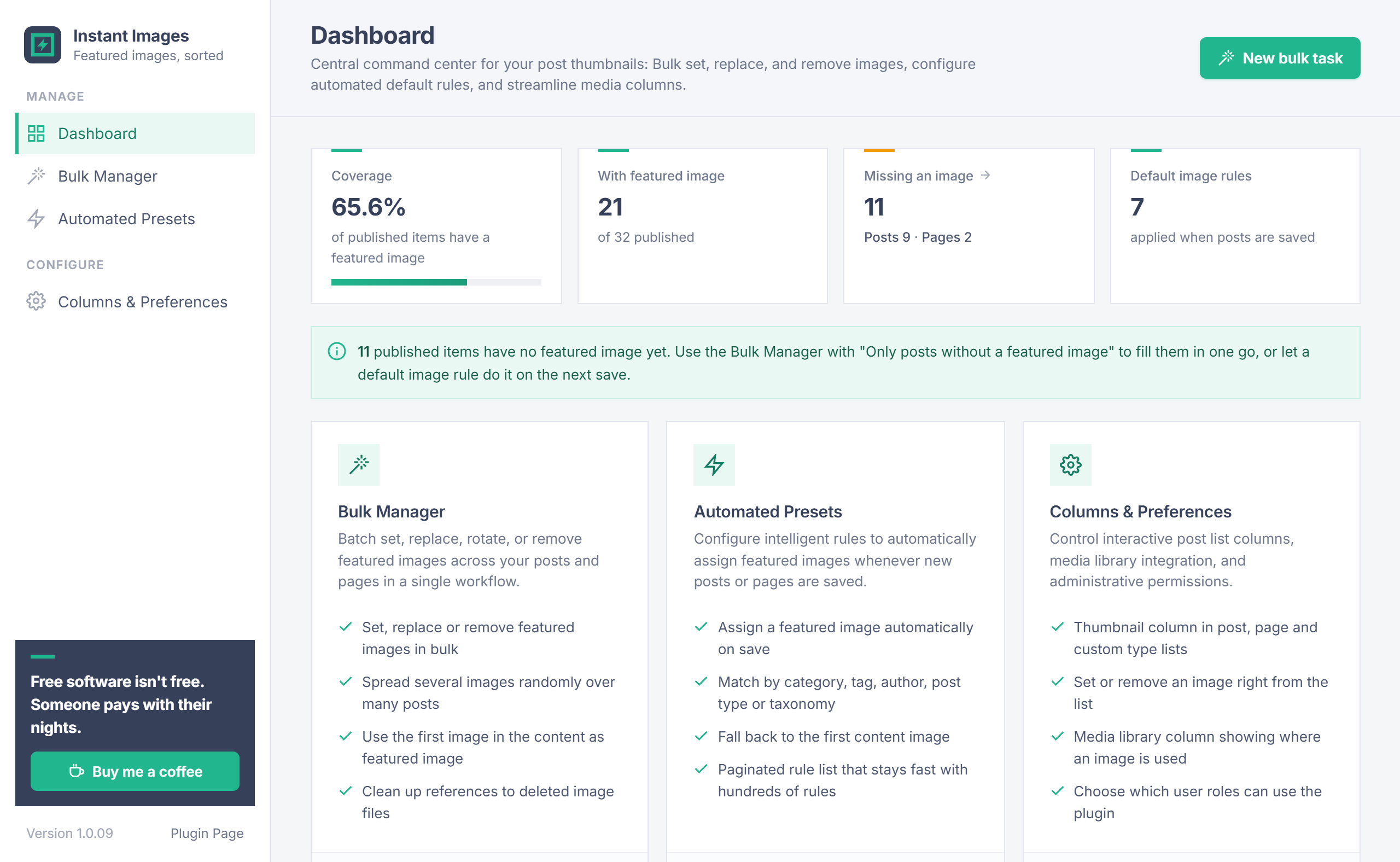
The Dashboard shows how complete your featured images are:
- Coverage: the share of published items that have a featured image. It is rounded down, so it only says 100% when nothing is missing.
- With featured image and Missing an image: counts per post type. "Missing an image" opens the posts list filtered to the items without one.
- Default image rules: how many Automated Presets rules are active.
The numbers refresh automatically when posts or featured images change. New bulk task opens the Bulk Manager.
Bulk Manager
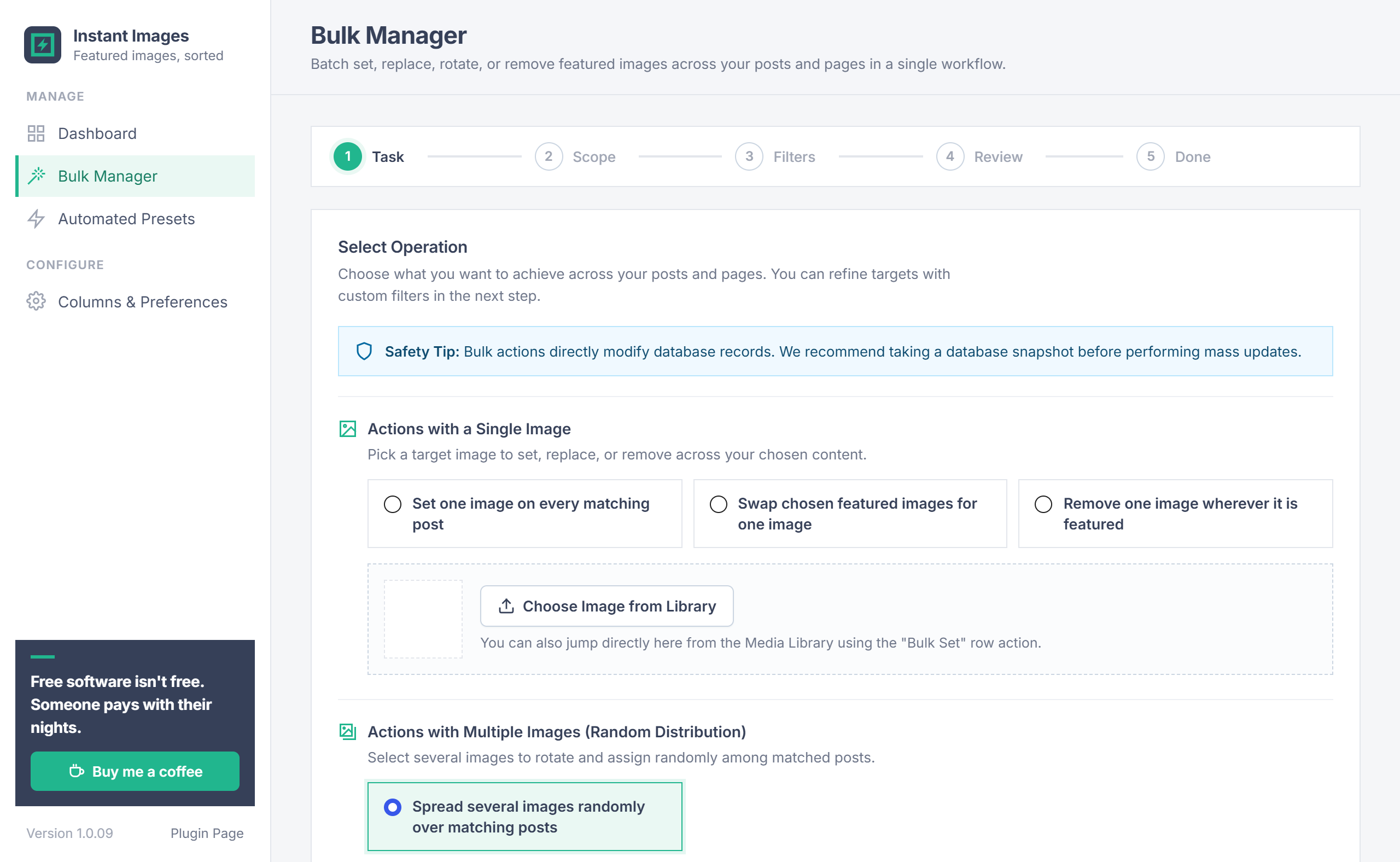
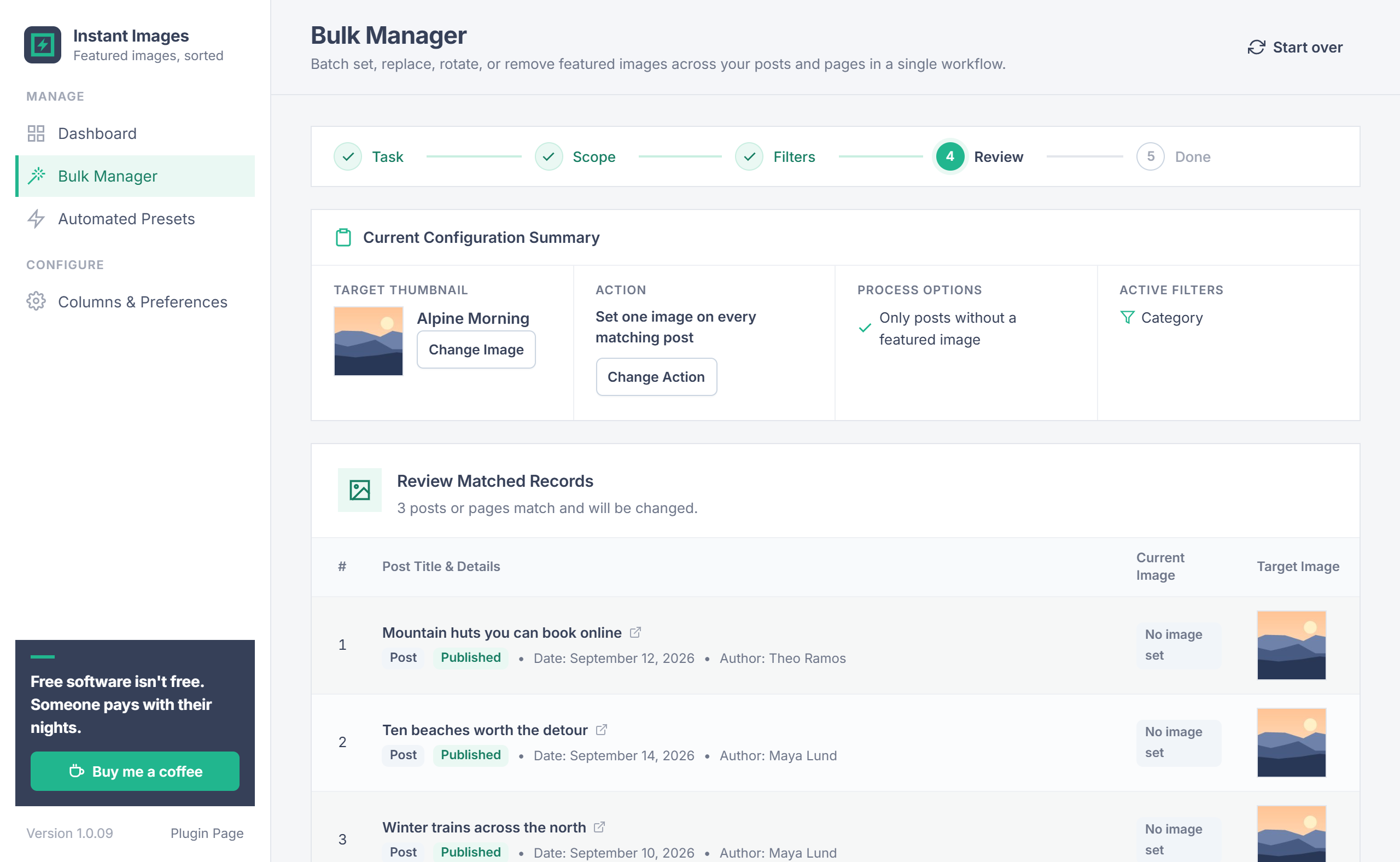
The Bulk Manager walks you through five steps, shown at the top of the screen: Task, Scope, Filters, Review and Done. Start over goes back to the first step at any time.
Before a big change
A bulk task changes the featured image of many posts at once. Take a database backup first if you may want to go back.
Tasks
| Task | What it does |
|---|---|
| Set one image on every matching post | Choose one image; every matching post gets it as its featured image. |
| Swap chosen featured images for one image | Posts that use any of the images you pick get a new image instead. |
| Remove one image wherever it is featured | Removes a chosen image as the featured image of every post that uses it. |
| Spread several images randomly over matching posts | Pick several images (hold Ctrl or Cmd); each matching post gets one of them at random. |
| Remove the featured image from every matching post | Clears the featured image of every post that matches the scope and filters. |
| Clean up featured images whose file was deleted | Removes featured image references that point to deleted image files. |
You can also start from the Media Library: the Bulk Set row action on an image opens the Bulk Manager with that image chosen.
Scope & filters
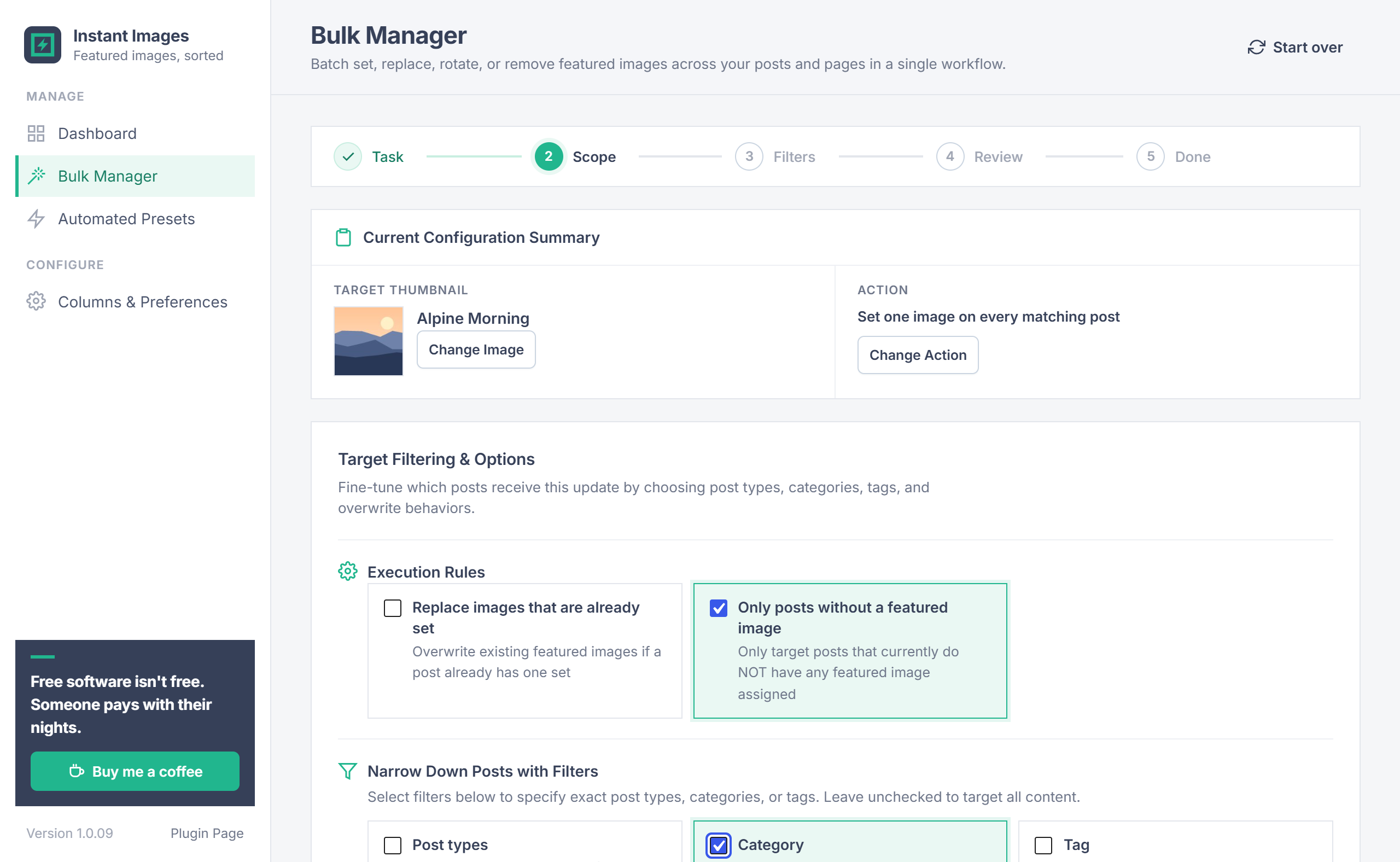
In the Scope step, choose the execution rules:
- Replace images that are already set: posts that already have a featured image get the new one too.
- Only posts without a featured image: only posts that have none are changed. This is the quickest way to fill the gaps.
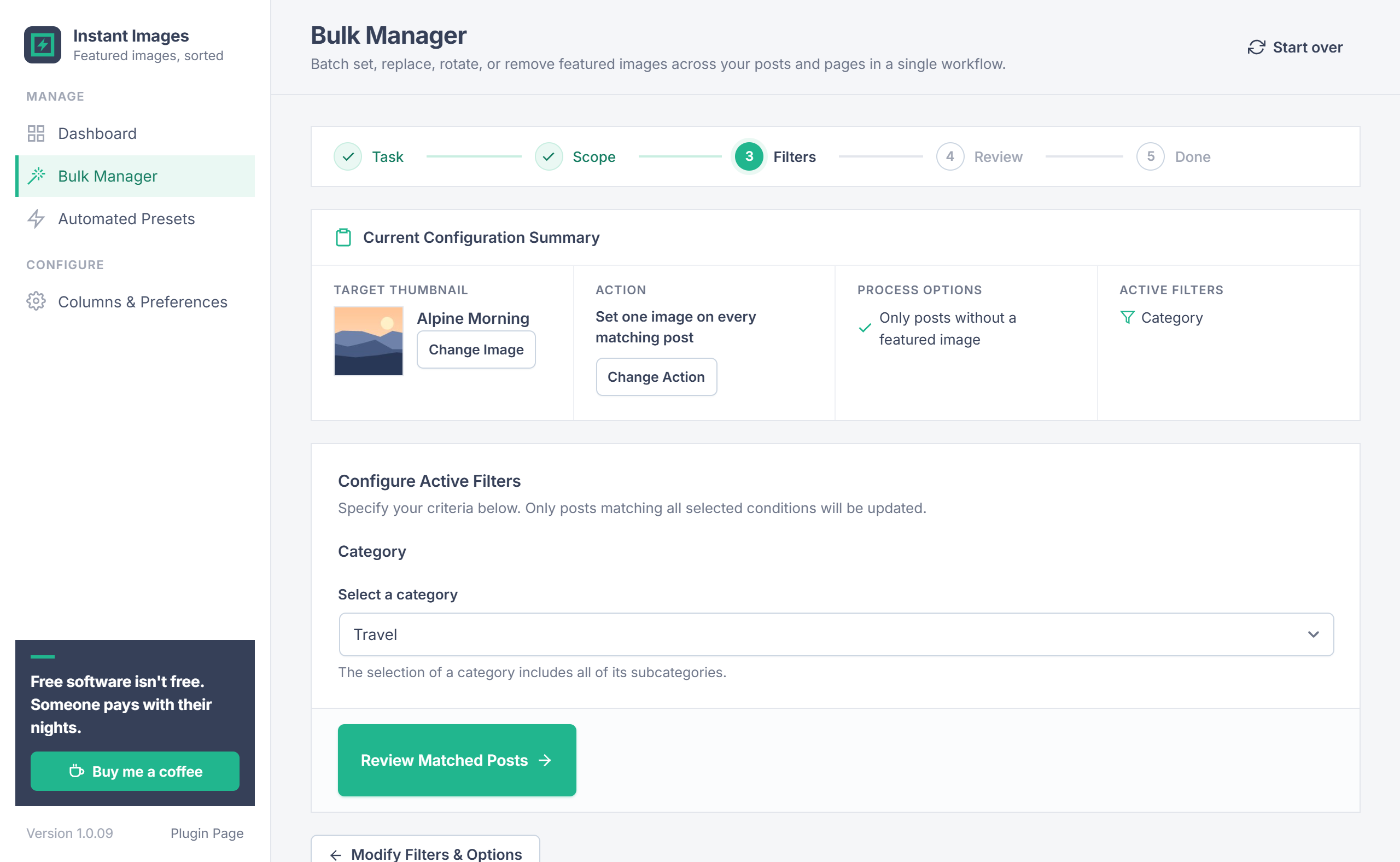
Then choose the filters to narrow the job down: Post types, Category and Tag. Leave them unchecked to include every post. In the Filters step you pick the values, for example the category Travel; a category includes its subcategories.
Review & results
The Review step lists the matching posts with their current image and the image they will get, with totals at the top. On large sites the list shows the first 100 posts. Nothing changes until you click the button to apply.
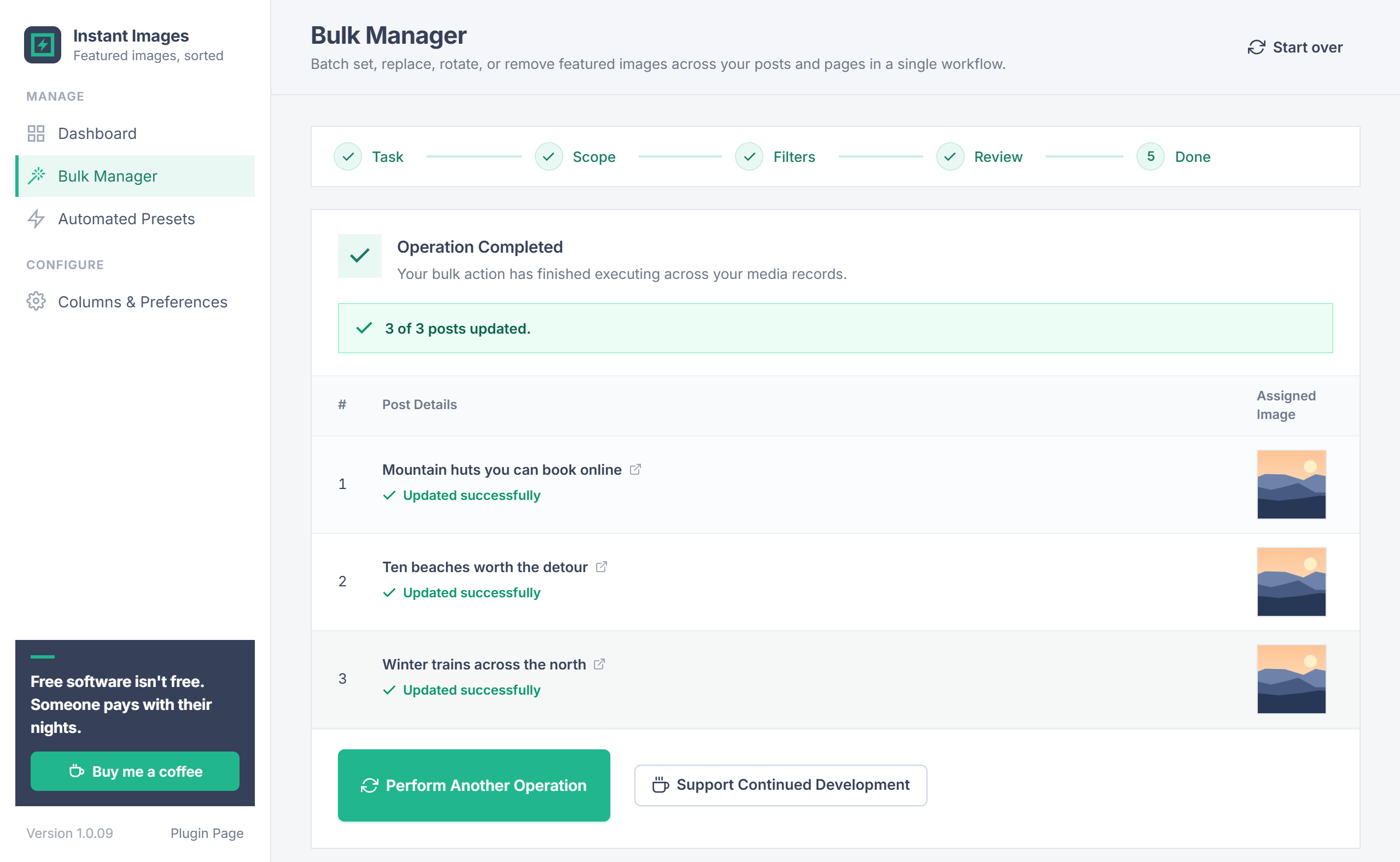
The change then runs in batches of 100 with a progress bar, so large sites don't time out. Done shows how many posts were updated and the result for each one. Each admin has their own task, so two people can use the Bulk Manager at the same time.
Automated Presets
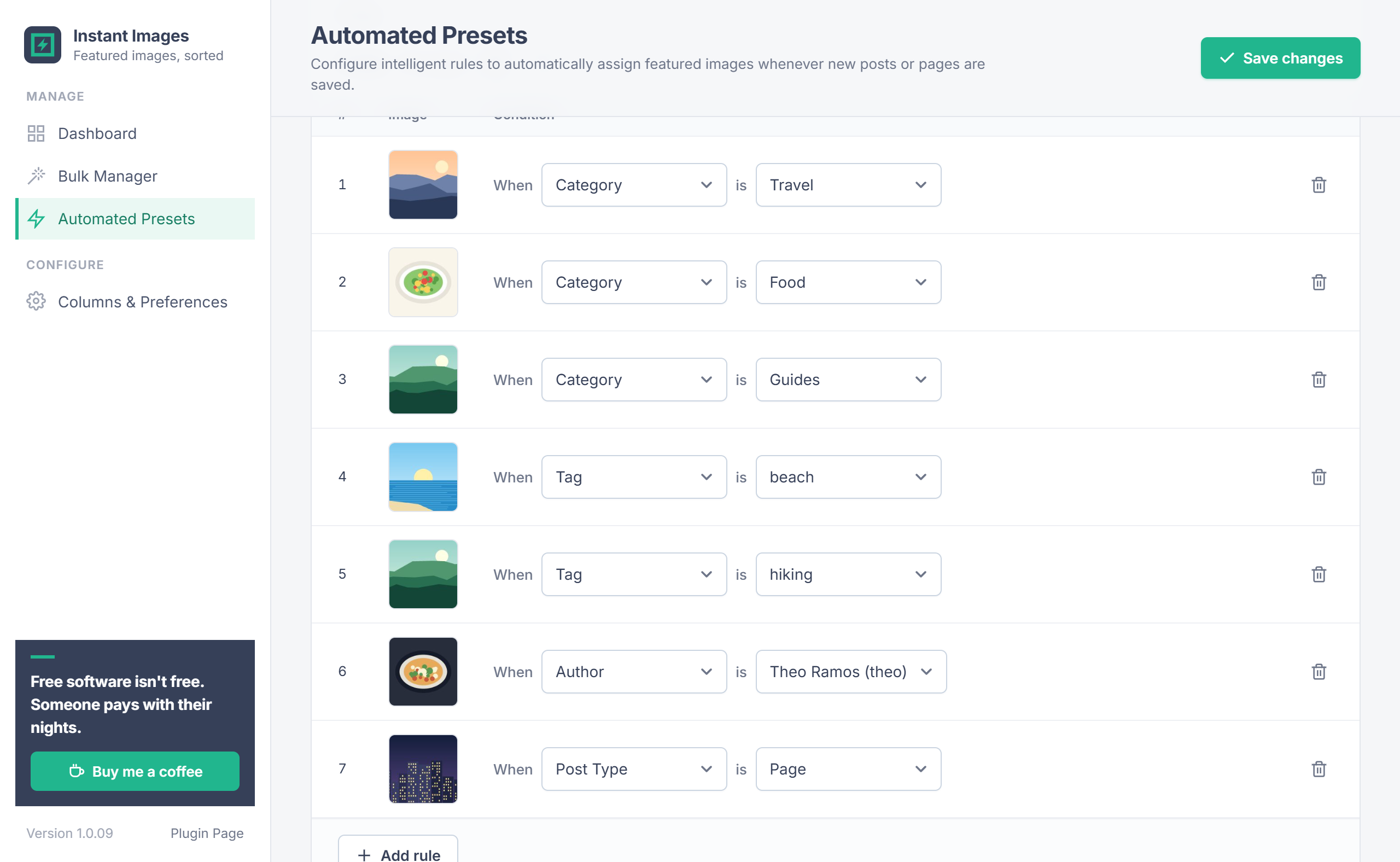
Rules give posts a featured image automatically when they are saved. Each rule is one line: When a condition is a value, with the image to use.
- Click Add rule.
- Click the image tile to choose an image.
- Choose the condition: Category, Tag, Author, Post Type or a custom taxonomy, then the value.
- Click Save changes.
The first matching rule sets the featured image. A new rule for a category, tag or other term that already has a rule replaces the older one, and the save message says how many were replaced. The rule list is split into pages of 25, 50 or 100 rules, so it stays fast with hundreds of rules.
First image & overwrite
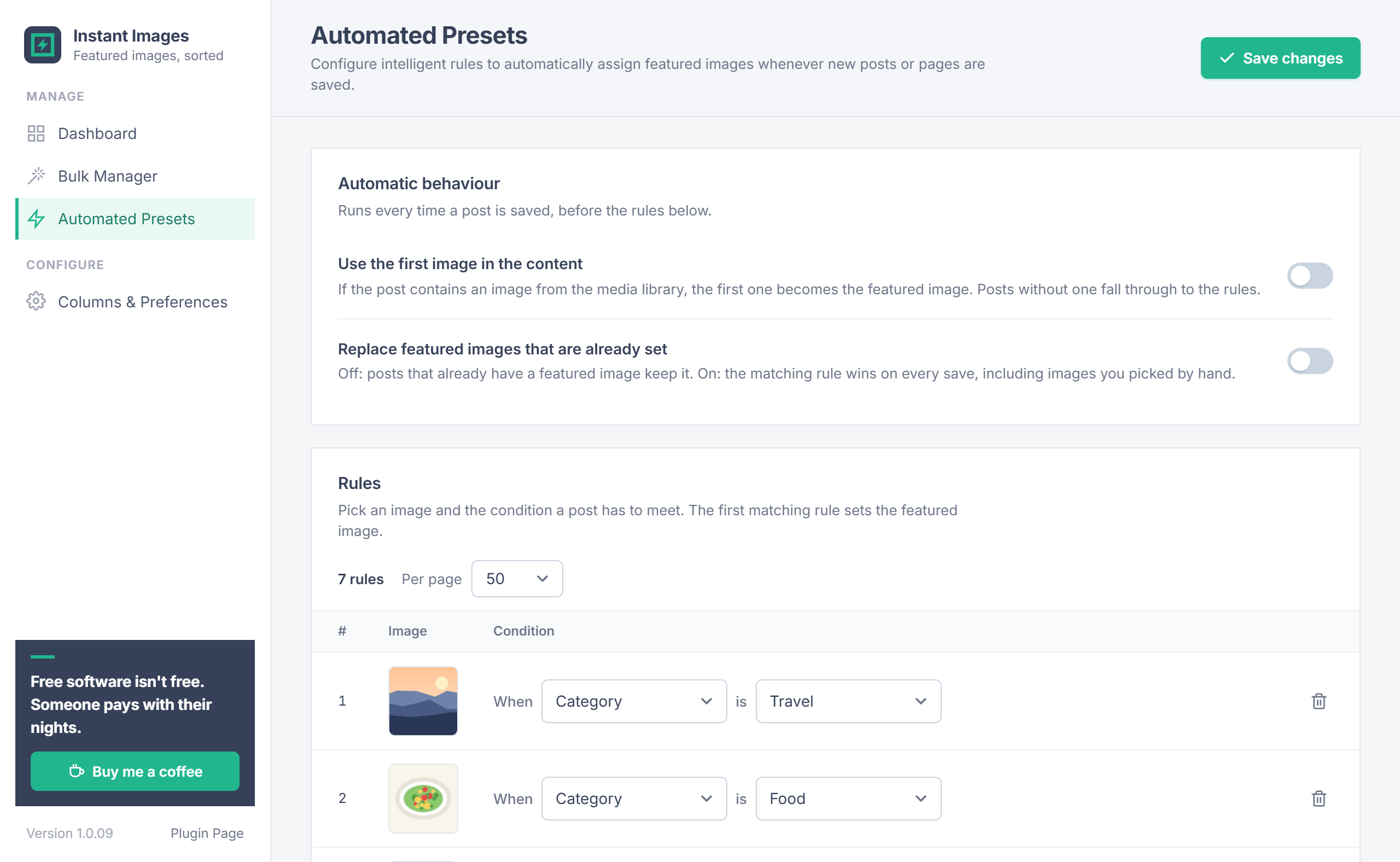
Two switches at the top of Automated Presets control what happens before the rules:
| Switch | Default | What it does |
|---|---|---|
| Use the first image in the content | Off | If the post contains an image from the media library, the first one becomes the featured image, for the post types you choose. Posts without one fall through to the rules. |
| Replace featured images that are already set | Off | Off: posts that already have a featured image keep it. On: the matching rule wins on every save, including images you picked by hand. |
Post list column
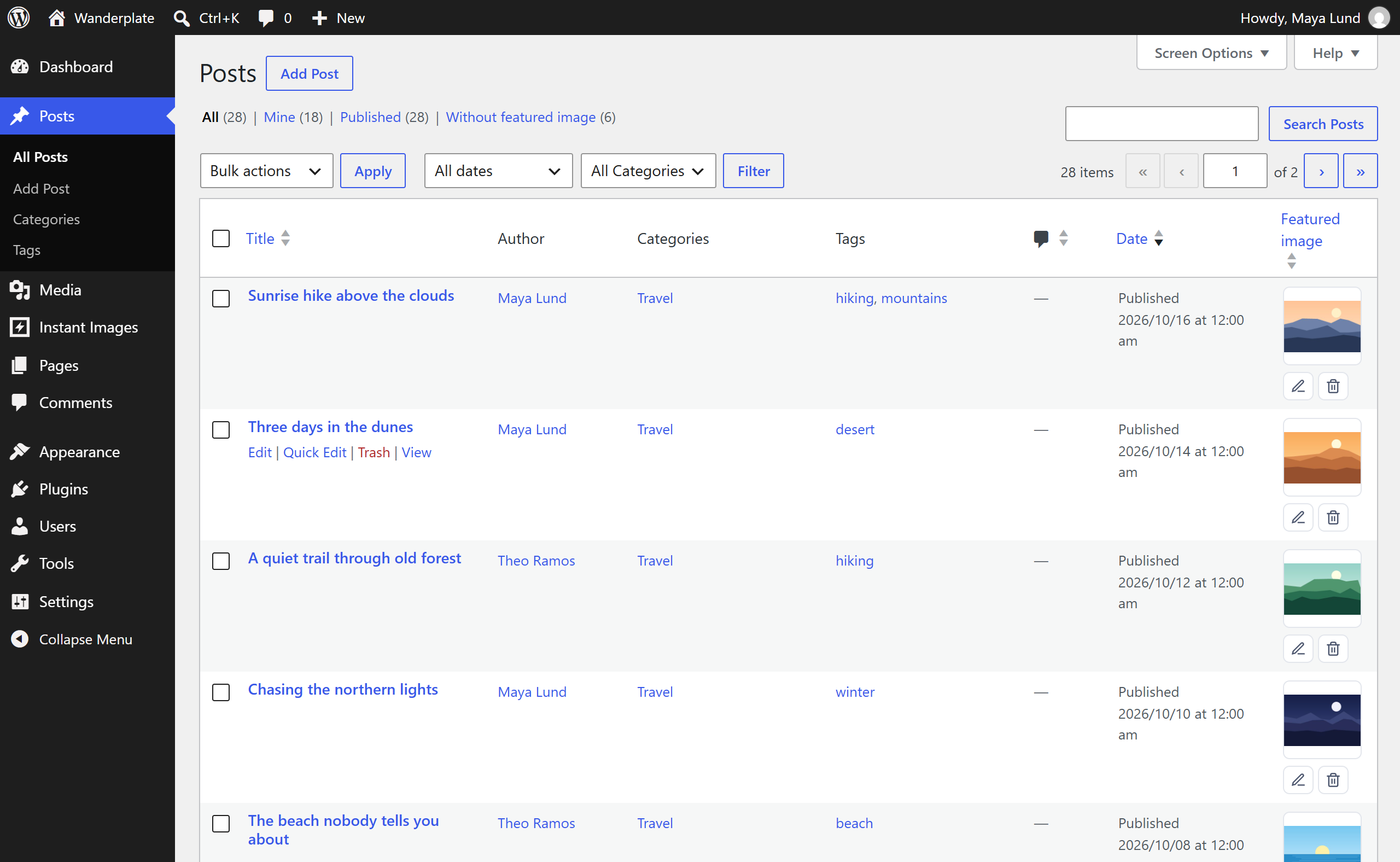
Under Columns & Preferences > Thumbnail column in lists, turn on the featured image column for posts, pages and other content types. In the list:
- Click the image tile to choose a different image, or use the small Edit and Remove buttons.
- Posts without an image show a Set image tile; posts whose image file was deleted show File missing.
- The Without featured image (N) link above the list shows only the posts that still need an image.
- Wide images such as logos are shown whole, and images load as you scroll.
Media library
- The "Featured in" column in the Media Library list view shows which posts use each image as their featured image, linked to their edit screens.
- The Bulk Set row action starts a Bulk Manager task with that image.
Permissions
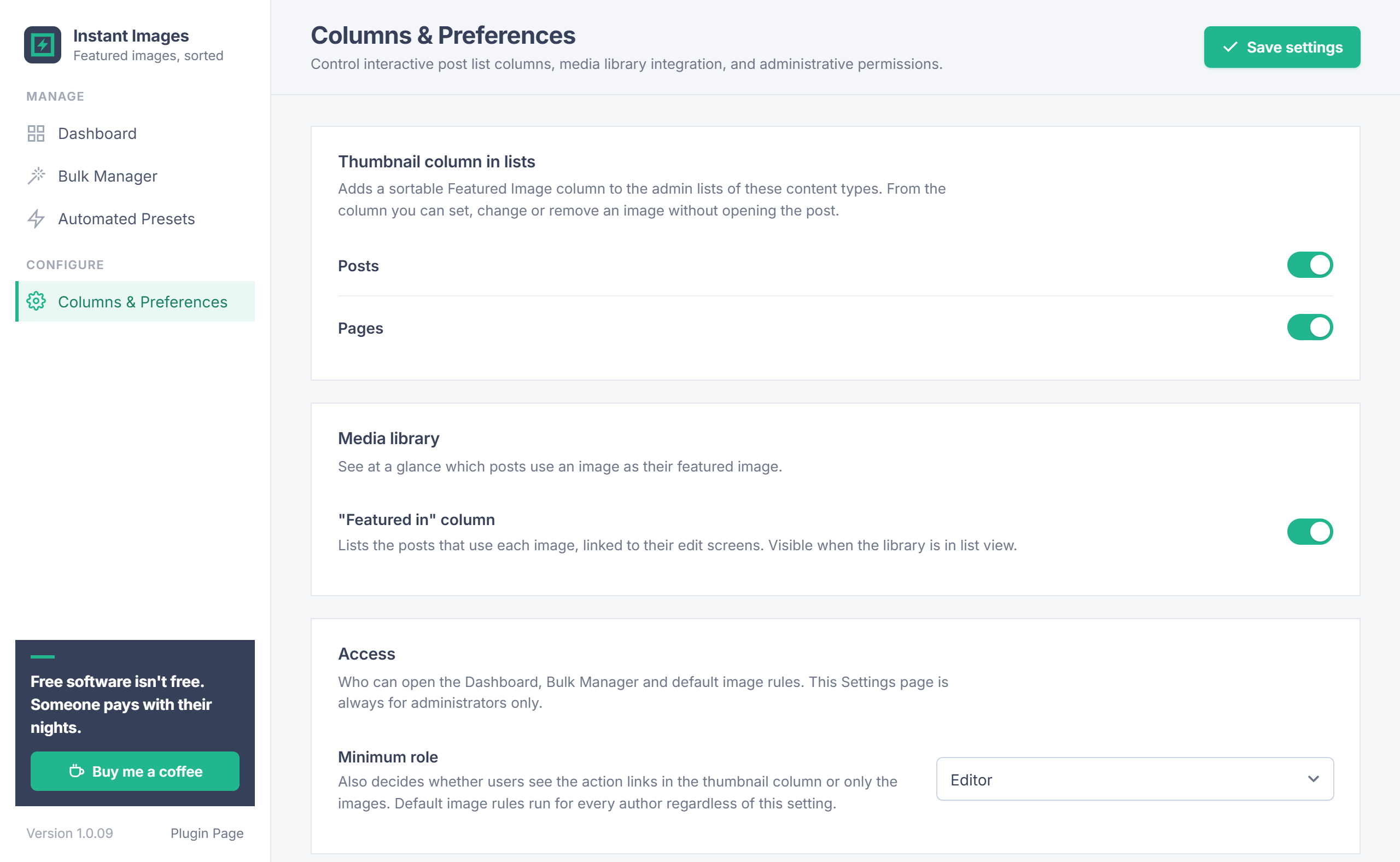
Administrators can always use every screen. Under Columns & Preferences > Access, the Minimum role (for example Editor) decides who can open the Dashboard, the Bulk Manager and the default image rules, and who sees the action links in the thumbnail column. The Columns & Preferences page itself is for administrators only. Default image rules run for every author, whatever their role.
Your data
- The plugin only changes which image is set as a post's featured image (the
_thumbnail_idfield). Image files are never edited or deleted. - Clean up featured images whose file was deleted only removes references that already point to nothing.
- Reset presets on the Columns & Preferences page removes every Automated Presets rule.
- Deleting the plugin removes its settings and rules. Featured images that were set stay on your posts.
- No external services are contacted.
Troubleshooting
| Problem | What to do |
|---|---|
| A rule didn't set an image | Rules run when a post is saved. If the post already had a featured image, it keeps it unless Replace featured images that are already set is on. For older posts, use the Bulk Manager. |
| The wrong rule wins | The first matching rule sets the image. Keep one rule per category, tag or term; a newer rule for the same term replaces the older one. |
| A post type is missing | Only post types that support featured images are listed. Check that the theme or plugin that registers the type enables thumbnails. |
| "File missing" in the posts list | The image file was deleted. Choose a new image, or run Clean up featured images whose file was deleted. |
| Editors can't open the plugin | Set Minimum role to Editor under Columns & Preferences > Access. |
| The thumbnail column is missing | Turn it on for that content type under Columns & Preferences, and check Screen Options at the top of the list. |
Changelog
- 1.0.09: Automated Presets: a new rule for a category, tag or other term that already has a rule now replaces the older rule instead of adding a duplicate.
- 1.0.08: Fixed: on an empty Automated Presets page, the first added rule could share its number with the starter row, so only one rule was saved.
- 1.0.07: Bulk Manager: the review step opens quickly even with tens of thousands of posts, and changes run in batches of 100 with a progress bar. Two admins can use it at the same time.
- 1.0.06: Fixed: choosing the image a post already has in the posts list now counts as done.
- 1.0.05: Automated Presets: rules are numbered from 1.
- 1.0.04: Translations for every string, safer orphan clean-up, posts whose image file is missing count as "missing", and image tiles show wide logos whole.
- 1.0.03: New design with a Dashboard, a featured image column and a "Without featured image" filter in post lists, faster Automated Presets pages, and plugin-styled dialogs.
Need help?
Questions about setup or a feature request? Contact us on our support page. You can also download the latest version (v1.0.09) here.